Linking a Contract to a Vendor, PO, or Request
Last updated: June 26, 2026
Overview
Once a contract is created in Spendflo, you can associate it with related records — such as a vendor profile, a purchase order (PO), or an intake request. Linking ensures full context is available when reviewing procurement activity and helps maintain a connected audit trail.
Use this guide when:
You want to associate a contract with the vendor who signed it.
You need to link a contract to a specific purchase order.
You want to connect an intake request to a contract for traceability.
Step 1: Navigate to the Contract
From the left sidebar, click Contracts under Supplier Management.
Use the search bar or filters to locate the contract you want to link.
Click the contract name to open its detail page.

Step 2: Access the Link Options
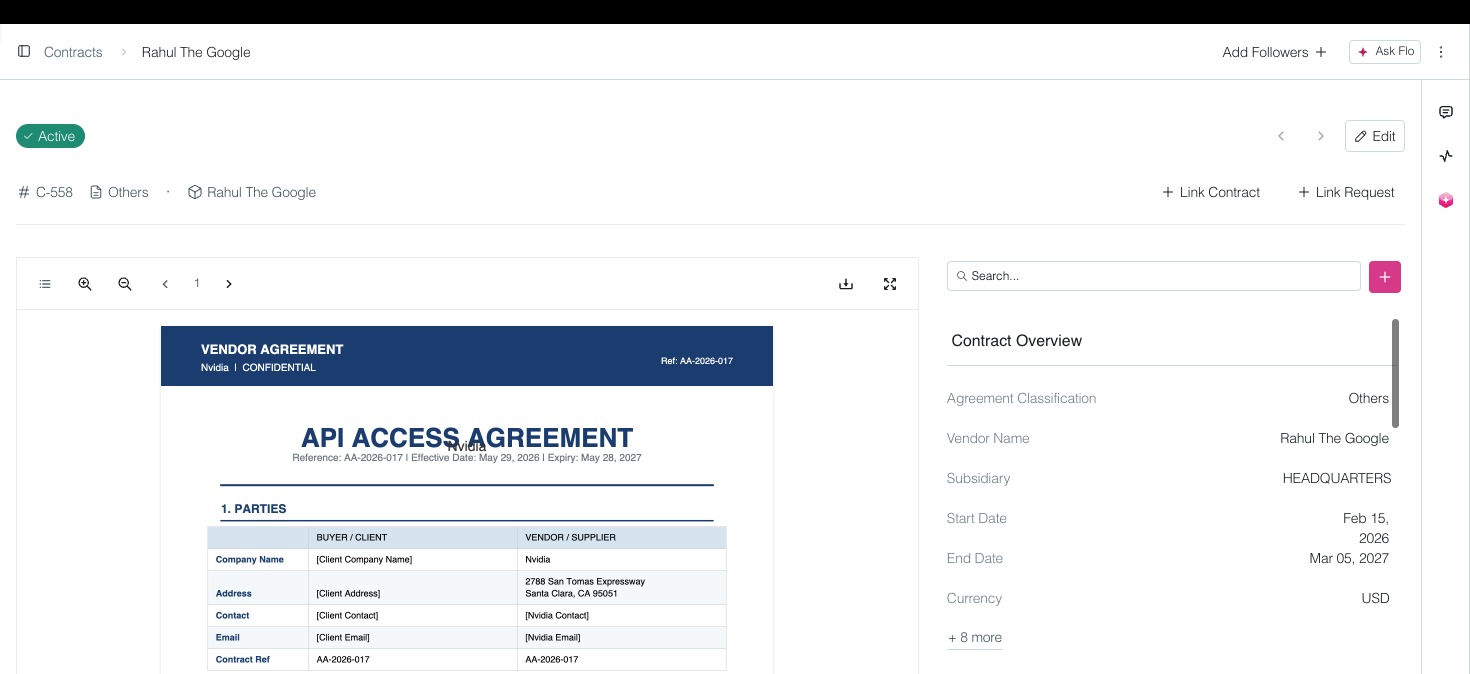
On the contract detail page, look for the action buttons near the top of the page.
You will see options to Link Contract and Link Request.
Click the appropriate link button based on what you want to associate.
Step 3: Link to a Vendor
Vendor associations are typically set during contract creation via the Supplier Name field.
If a vendor is not already linked, navigate to the vendor's profile in the Suppliers section and associate the contract from there.
Step 4: Link to a PO or Request
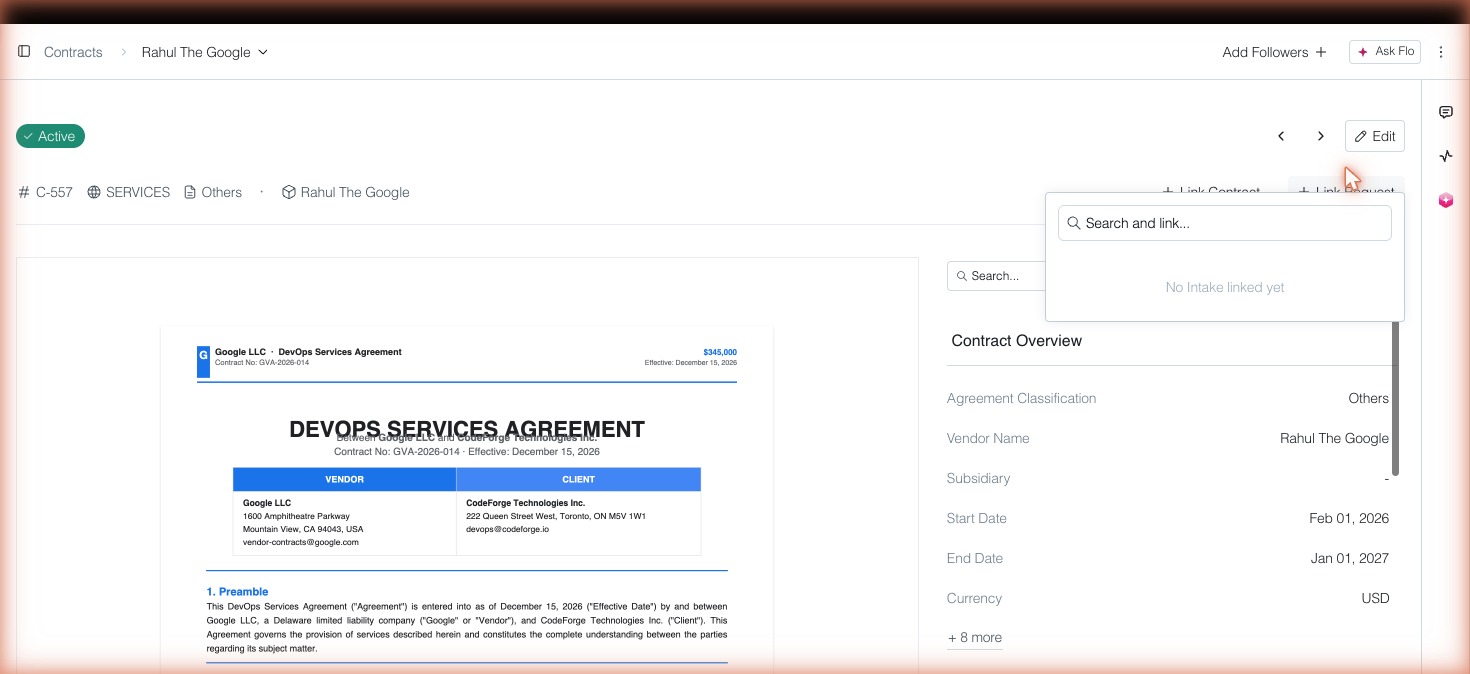
Click Link Contract to connect the contract to a purchase order, or Link Request to connect it to an intake request.
A dialog will appear prompting you to search for and select the relevant PO or request.

Type the PO number or request name in the search field.
Select the matching record from the results and confirm the link.
Quick Reference
Link Contract button: Associates the contract with a PO.
Link Request button: Associates the contract with an intake request.
Supplier Name field: Set during contract creation to associate a vendor.