Processing a vendor assessment review
Last updated: June 26, 2026
Overview
The Vendor Risk Assessment feature in the Spendflo App offers a comprehensive solution to the vendor security review process for Infosec and Legal Teams. In this article, we will explore how you can easily initiate and efficiently manage vendor assessments using the Spendflo app. With our user-friendly interface, you can track all vendor assessment activities in one centralized location, ensuring seamless access for future audit purposes. Let's dive into the details of this powerful feature and optimize your vendor evaluation process with Spendflo.
There are two ways to initiate a vendor assessment process:
Initiating Vendor assessment for a New Procurement request
Manually initiating for an existing app
Initiate a vendor assessment review
Step 1. Navigate to the Spendflo platform’s Vendor Management module, and select “Assessments” from the drop down.

Step 2. This listing page contains all the ongoing, approved or rejected vendor assessments there on the platform. From the top right side, click on the CTA “+ Start Vendor Review” to get started.

Step 3. From the pop-up, enter the assessment details for the product it should be raised for, along with assigning an owner for it. Once done, click “Submit” to proceed.

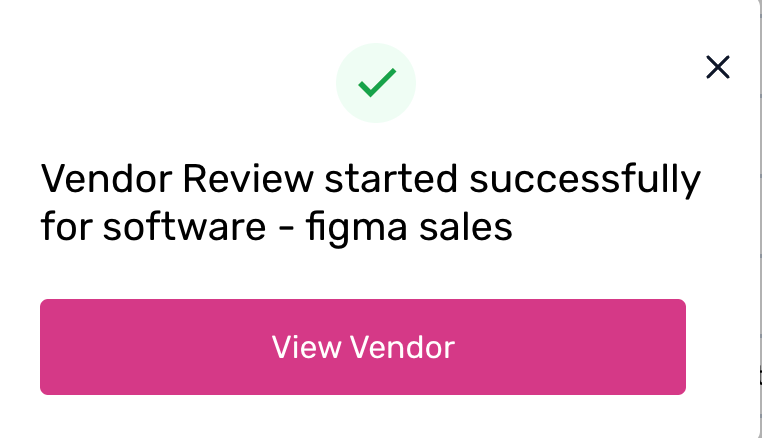
Step 4. A confirmation pop-up will be displayed. Click on “View Vendor” to see the assessment details.
Step 5. Once the detailed assessment page is opened, owners can complete the security review by kicking off the following three key tasks:

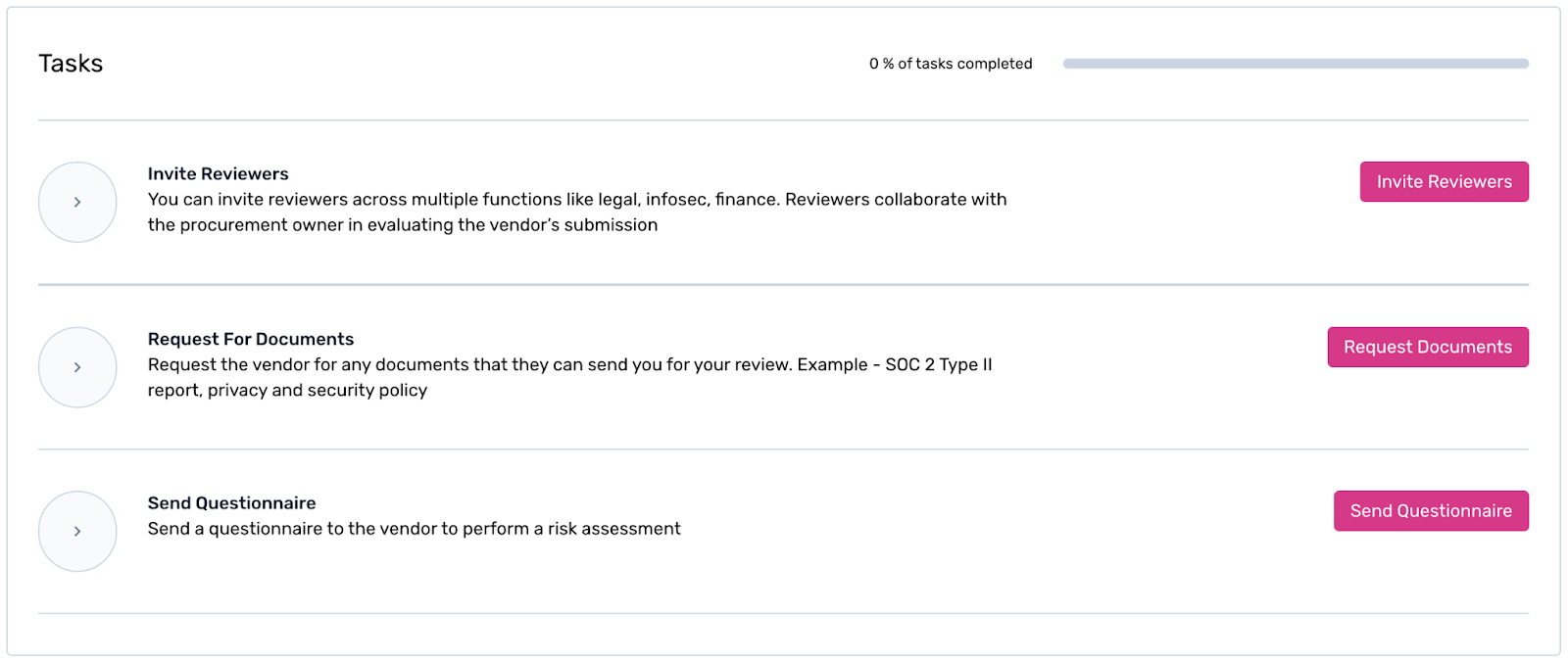
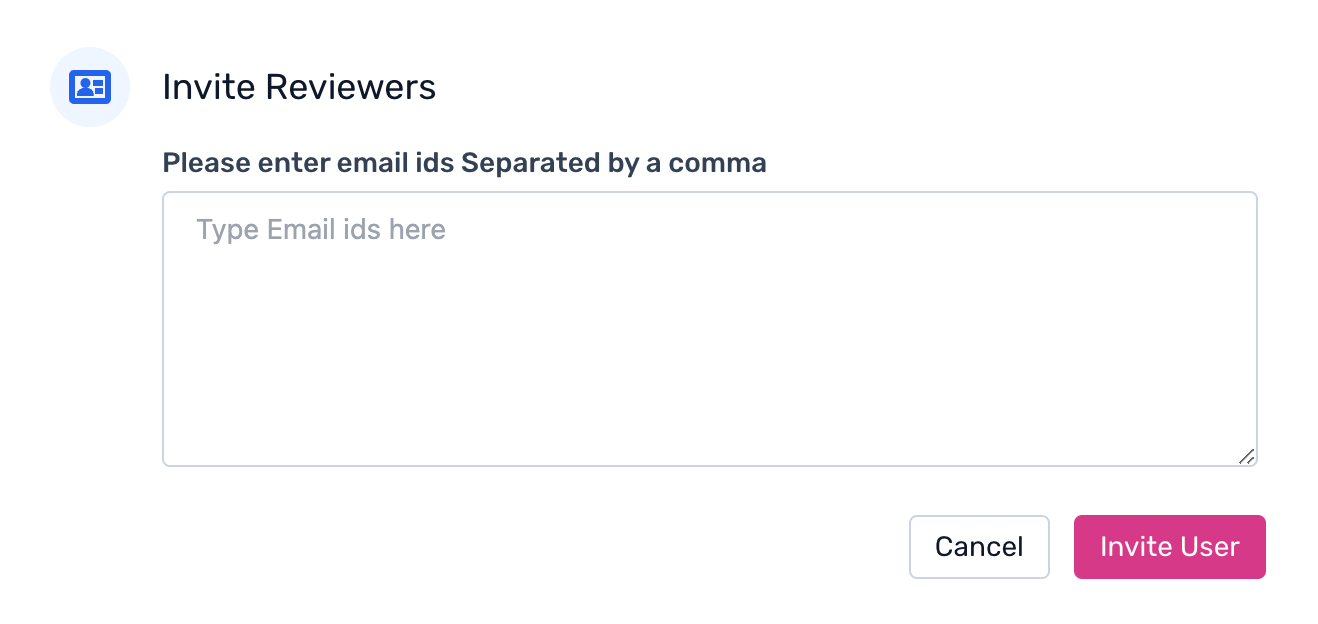
Task 1. Invite Reviewers
You can invite reviewers across multiple functions like legal, infosec, finance. Reviewers collaborate with the procurement owner in evaluating the vendor’s submission.
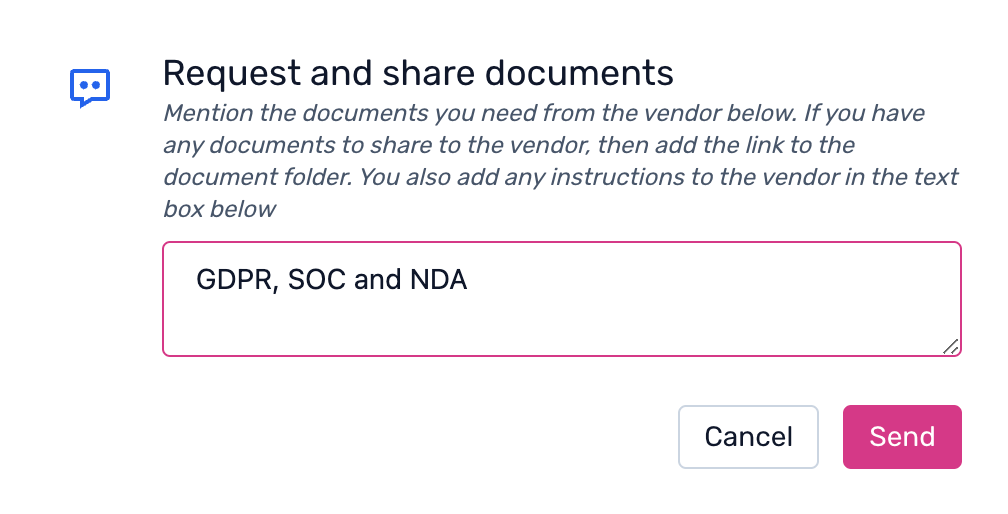
Task 2. Request for Documents
Request the vendor for any documents that they can send you for your review. Example - SOC 2 Type II report, privacy and security policy.
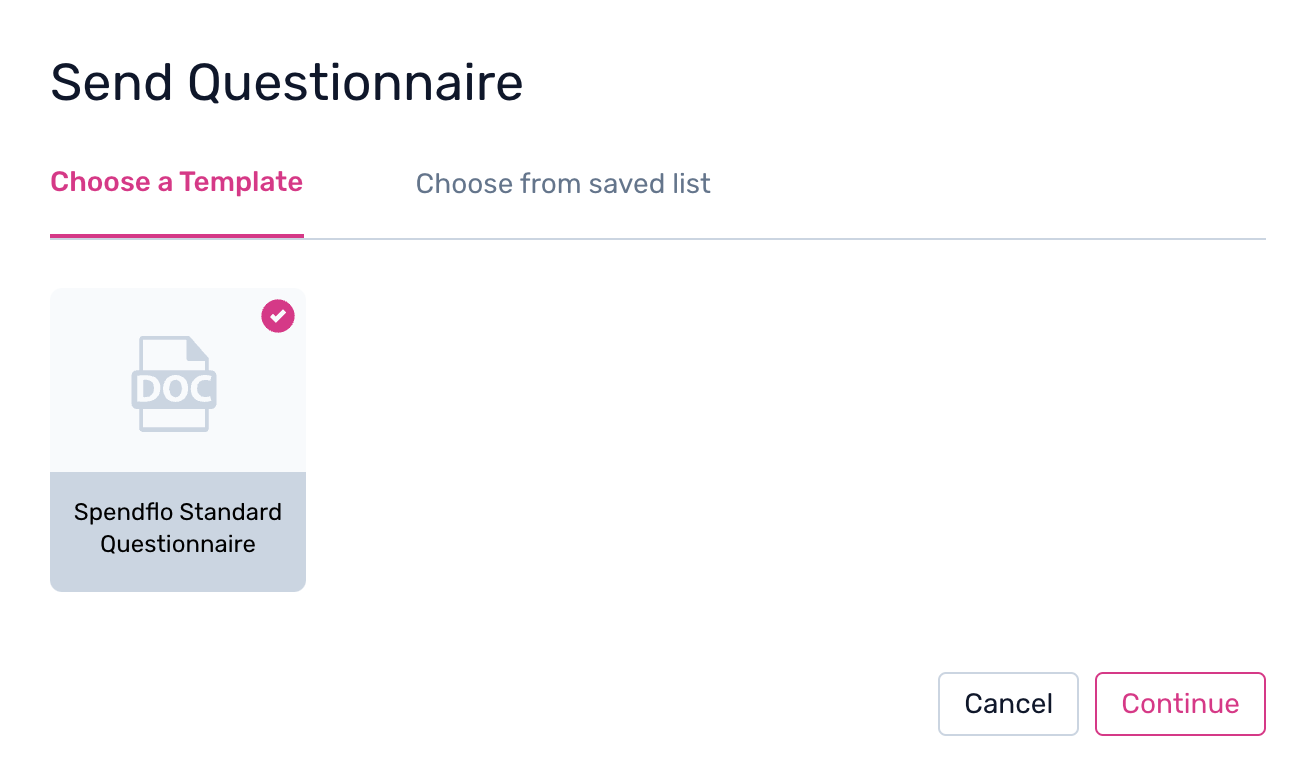
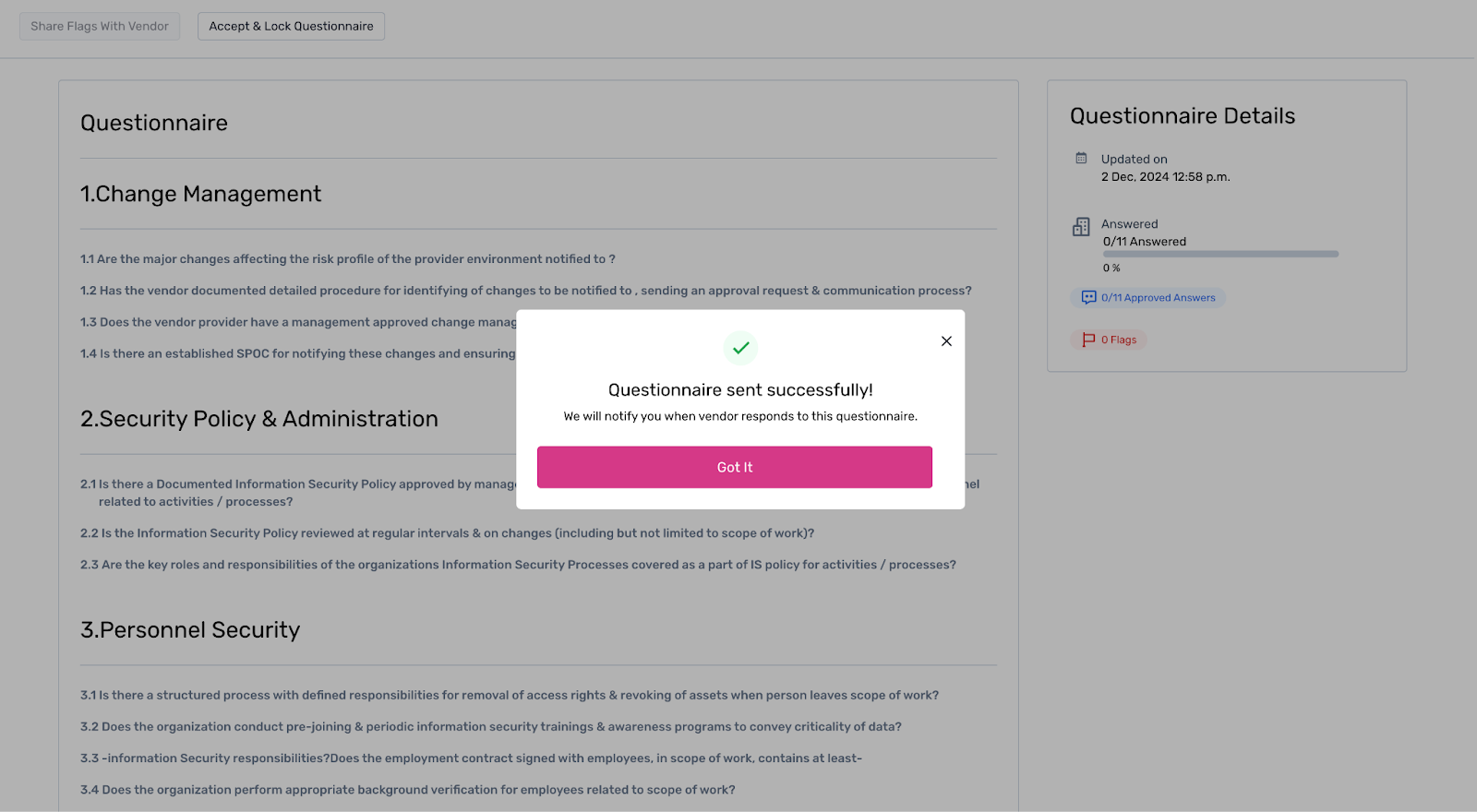
Task 3. Send Questionnaire
Send a questionnaire to the vendor to perform a risk assessment.
Optional Task: Residual Risk Comment
Type in your comment if you have flagged a response from the vendor and haven't got an acceptable answer.

Once the tasks are 100% completed, owners can simply “Conclude Review” from the overview page and also have the option to download the assessment summary.
Note: Only the owner can conclude the review.If there are no flags during the evaluation, the review owner can approve or reject the procurement directly. However, if the team raises flags, then the procurement owner can either reject or escalate for residual risk sign-off.

Risk acceptance and residual risk owner
When the procurement team believes that there are a few residual risks remaining, they have the option to send the procurement for risk acceptance sign-off. The person who provides the risk acceptance is called the residual risk owner. The residual risk owner may be either the CEO/CFO/CISO or sometimes the head of the department which requested the software. The owner can send the procurement to the residual risk owner along with their comments.
The residual risk owner can go through the submission and arrive at a decision to either approve or reject the procurement.
Note: The same individual cannot be a residual risk owner and a procurement owner.Audit Log/Trail
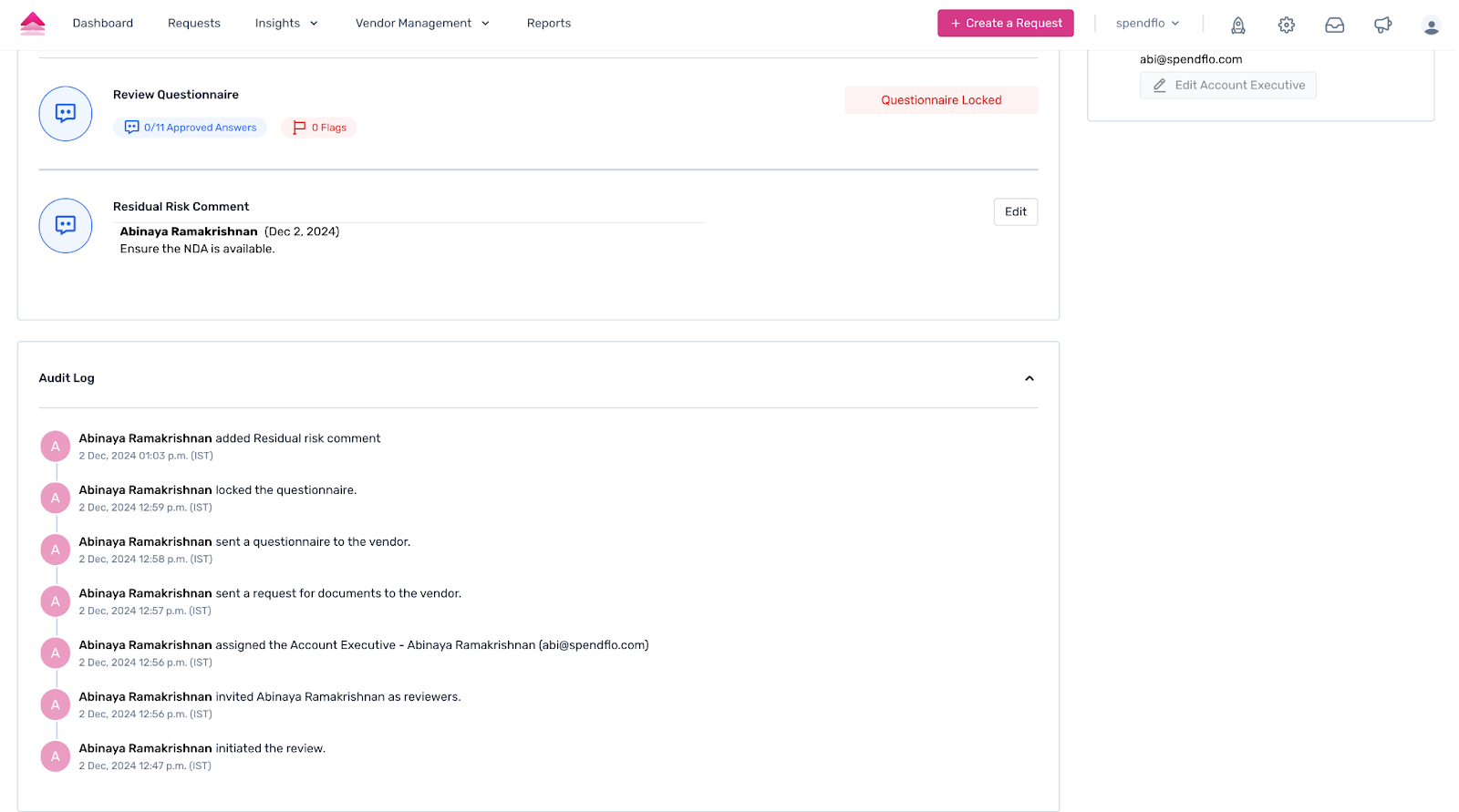
All the actions performed on a particular security review are preserved in Spendflo under the “Audit Log” under the security review page of the vendor.