Using Flo AI
Last updated: September 24, 2026
Overview
Flo AI is Spendflo's built-in AI assistant — a conversational way to get answers and take action without digging through dashboards. It's one click away from the sidebar of your Home Page (My Hub); this article covers what happens once you open it.
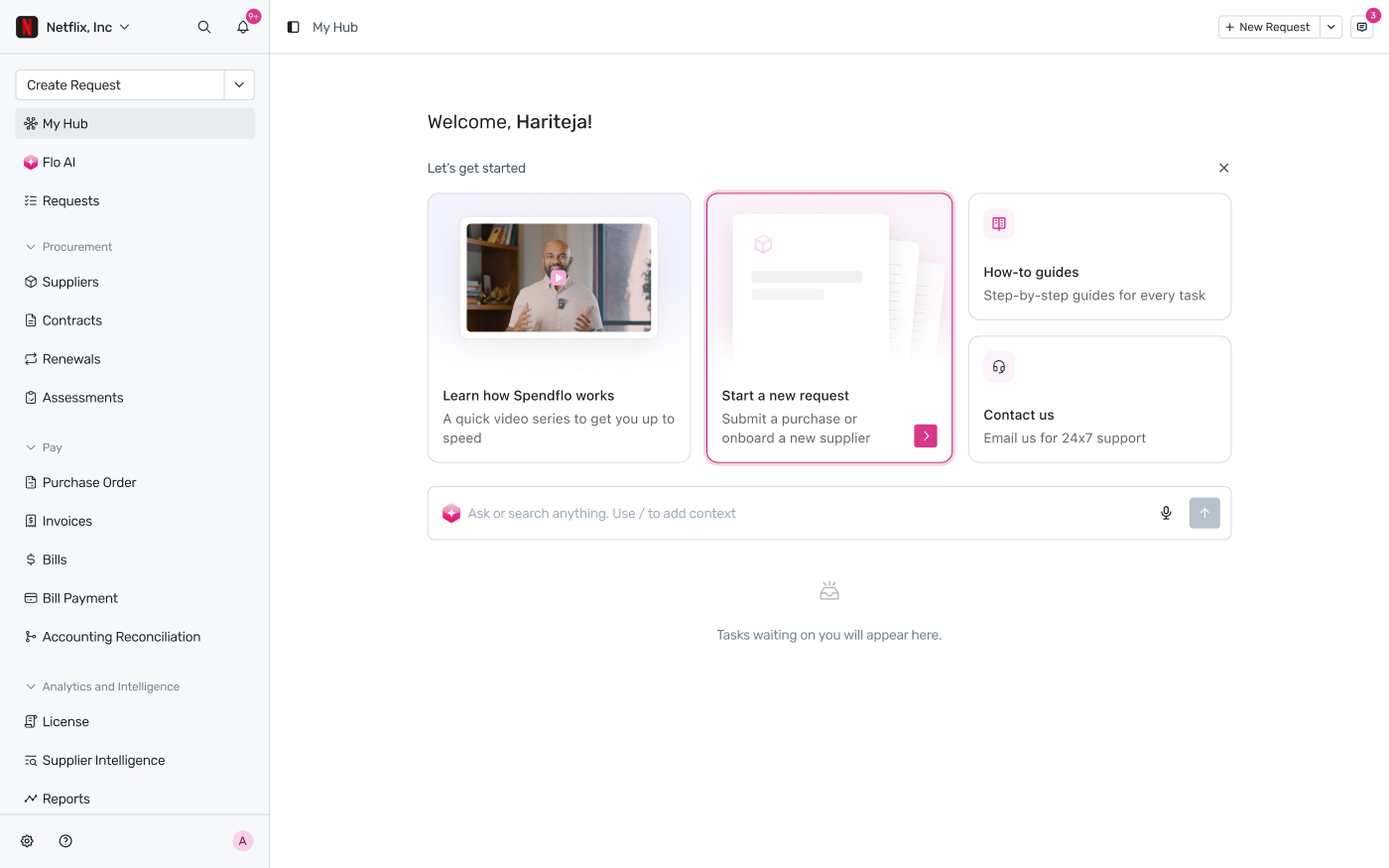
Flo AI sits in the sidebar of My Hub — see the Home Page article for everything else on this screen.
The Flo AI page
Click Flo AI in the sidebar and you land on a clean chat screen greeting you by name, with a set of suggested prompts tailored to your recent activity — things like "Help me update the task," "What is pending on the approval?", or "Show me contracts linked to this request." Type your own question in the input bar at the bottom instead, or use the + icon to attach context and the mic icon to dictate.

The Flo AI page — suggested prompts adapt to your role and recent activity.
How Flo AI responds
Reference any record inline by typing @ — for example, asking Flo to "draft a renewal request for @salesforce-individual-license" pulls that exact record into the conversation instead of you having to describe it. While Flo works, you'll see a live "Thinking…" state so you know it's processing rather than stuck.
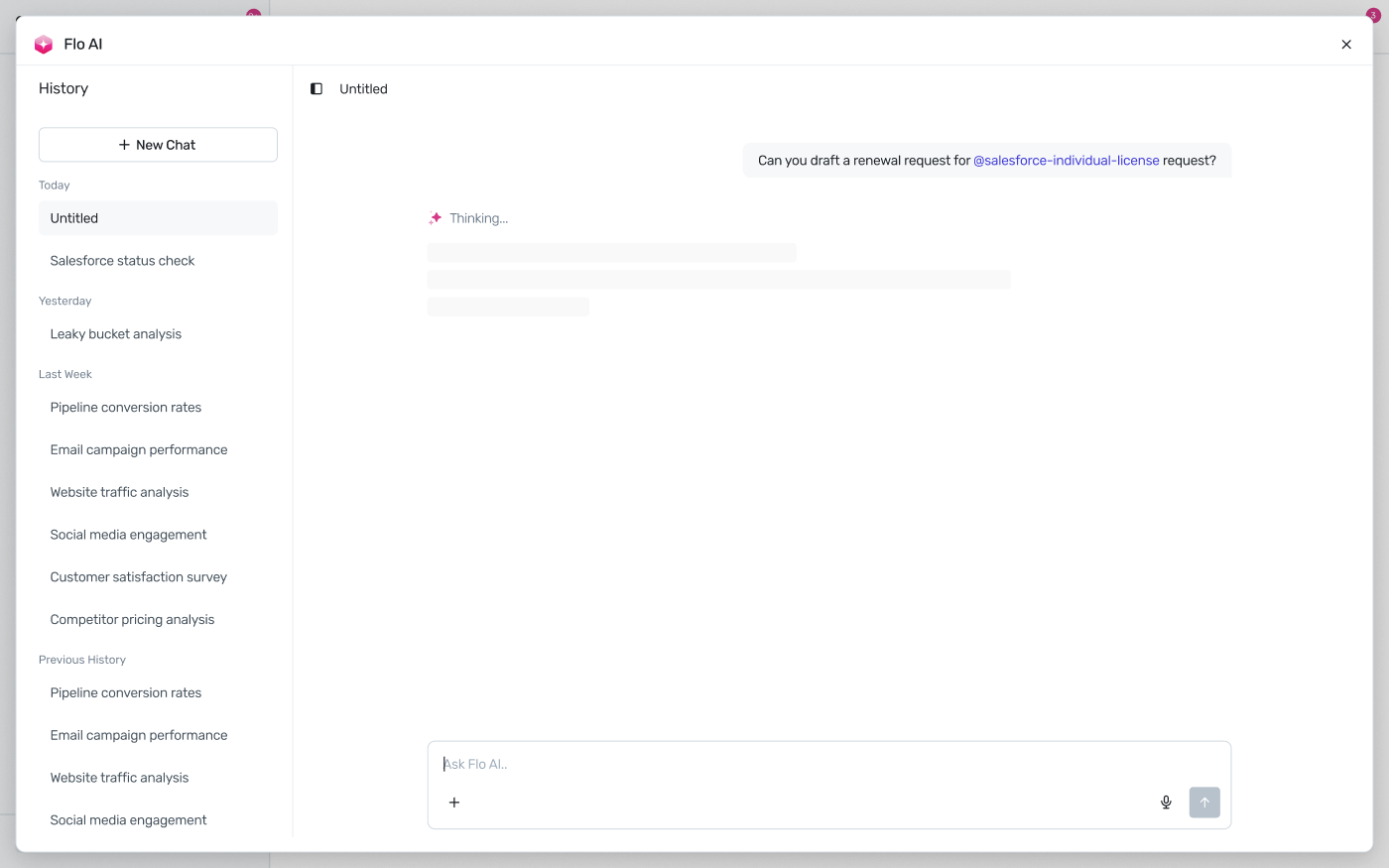
Referencing a record with @ and Flo AI's live "Thinking…" state.
Once Flo finishes, the response shows its reasoning trace ("Thought for 9s," expandable) followed by the actual answer — in this case, a pre-filled draft with the renewal term, pricing, and effective date already filled in, plus a clarifying follow-up question. Below the response, quick-action buttons let you continue directly — Continue to submit the request or Open Salesforce Supplier page in new tab — instead of leaving the conversation to go find them yourself. Like/dislike icons let you flag whether the response was useful.

A completed response — pre-filled data, a follow-up question, and quick-action buttons.
Asking Flo from anywhere
You don't have to leave the page you're on. Click Ask Flo in the top-right toolbar of any page — Contracts, Suppliers, Requests, wherever you are — and Flo AI opens as a sidebar alongside your work instead of taking over the screen.

The Ask Flo button (top right) opens Flo AI as a sidebar next to whatever page you're on.
The sidebar works the same as the full Flo AI page — same suggested prompts, same input bar. Click the + icon for more ways to shape your question: attach a file, pull in specific context, bring in an agent, or turn on Deep Research for a longer, multi-source analysis instead of a quick answer.
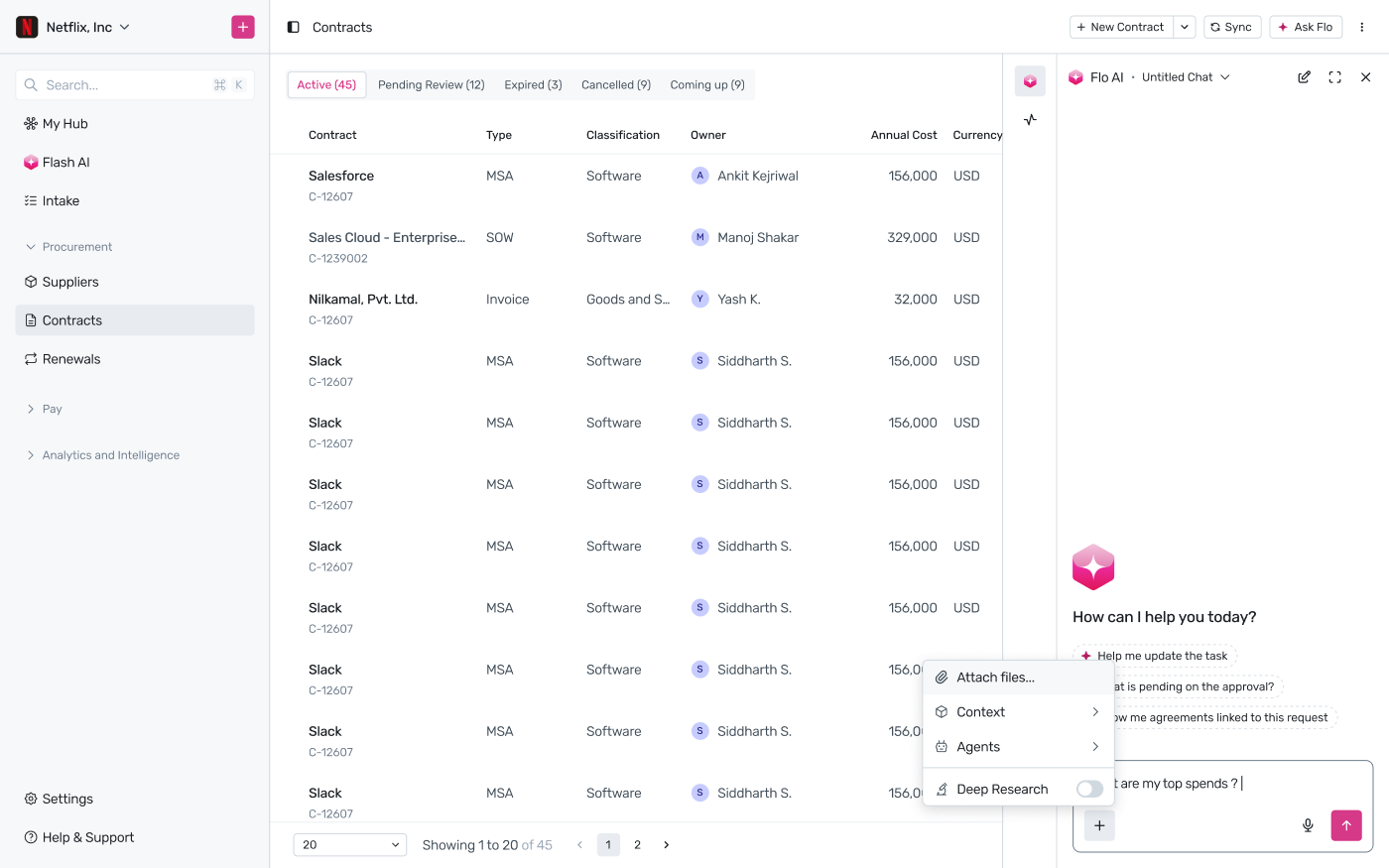
The + menu: attach files, add context, bring in an agent, or switch on Deep Research.
For example, attach a contract as context before asking your question, so Flo answers with that specific document in mind rather than a general query.

A file attached directly to the question — here, a renewal contract.
Flo doesn't always answer immediately — for a broad question like "What are my top spends?", it may ask a clarifying question first, with quick-reply chips like Show only above 50k to narrow things down. Pick one and Flo returns a formatted answer, in this case a ranked spend table with each vendor's category and amount.

Flo asks a clarifying question, then answers with a formatted table once you pick a follow-up.
Need more room to work with a long answer? Click the expand icon next to the sidebar's close button to open the same conversation in full-screen mode, with your chat history visible on the left — the same view as opening Flo AI directly from the sidebar navigation.

Expanding the sidebar conversation to full screen, with chat history on the left.
Reading a contract's own documents
Referencing a contract with @ pulls in its structured fields — vendor, dates, value, and so on. Flo AI can now go a step further: ask about a contract by name or ID, and Flo looks up whether it has a document attached and can read the document itself, not just its extracted fields.
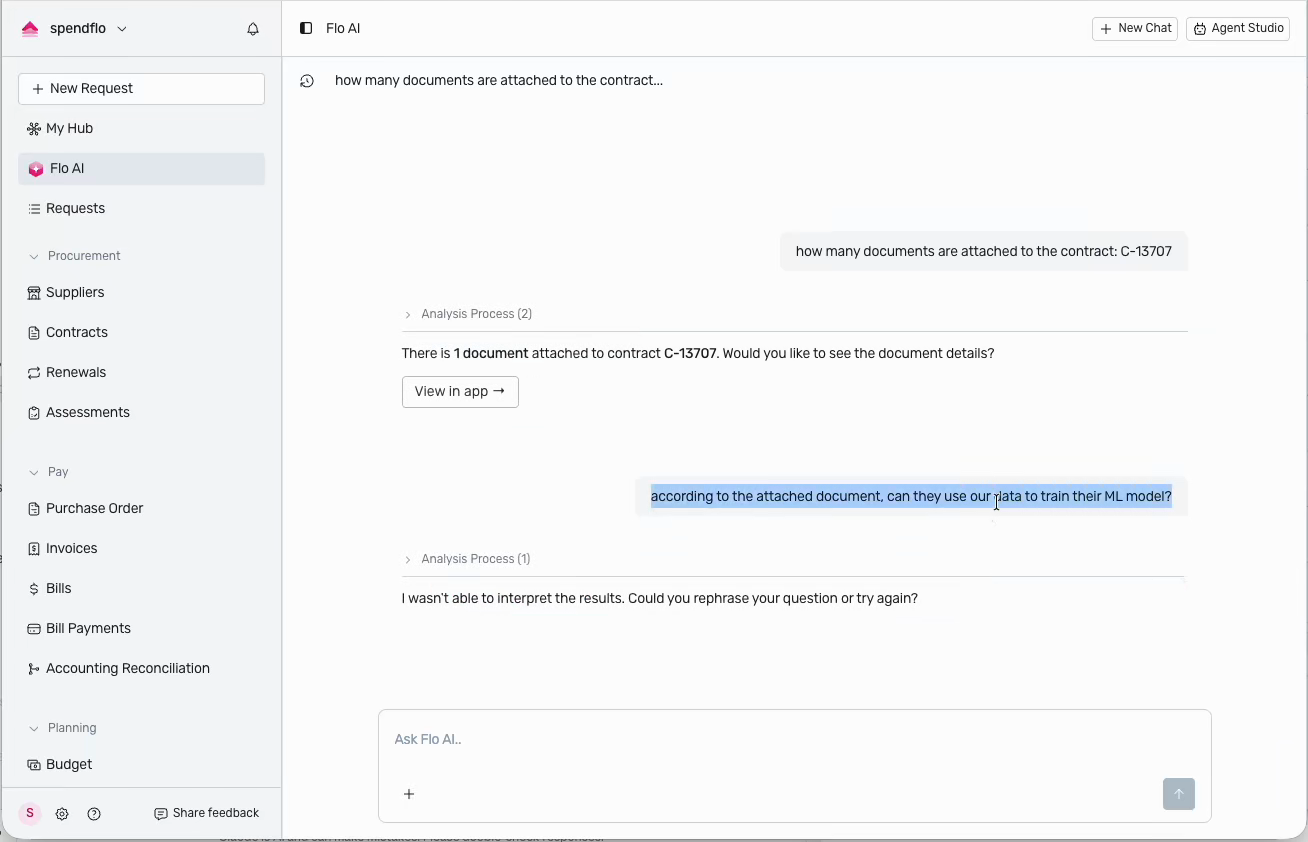
Asking about a contract by ID — Flo AI finds its attached document and offers to open it.
From there, ask follow-up questions about what the document actually says, and Flo answers by quoting the relevant clause directly rather than only summarizing extracted fields.
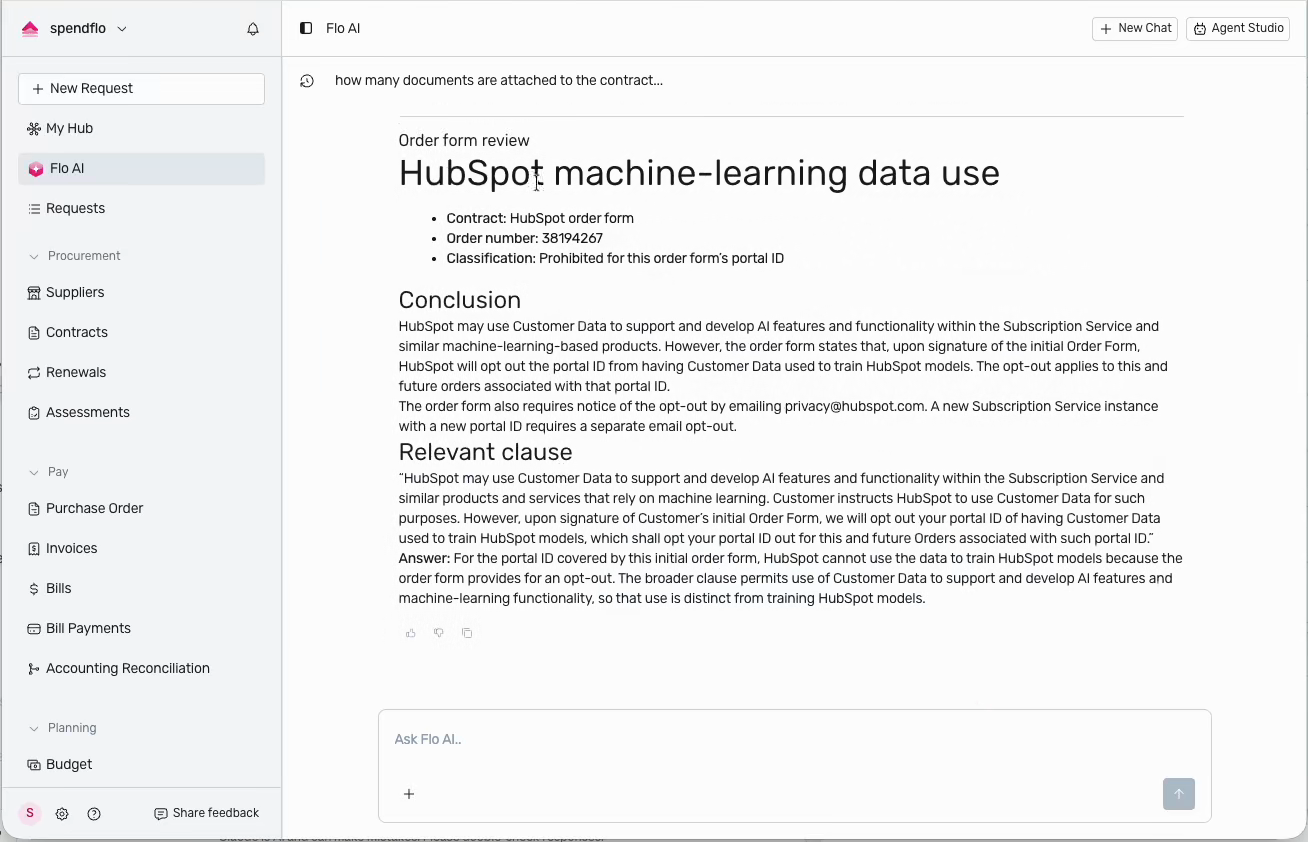
Flo reads the document's actual language to answer — here, quoting HubSpot's machine-learning data-use clause.
This works for any question the document can answer, not just risk clauses — for example, refund and cancellation terms:
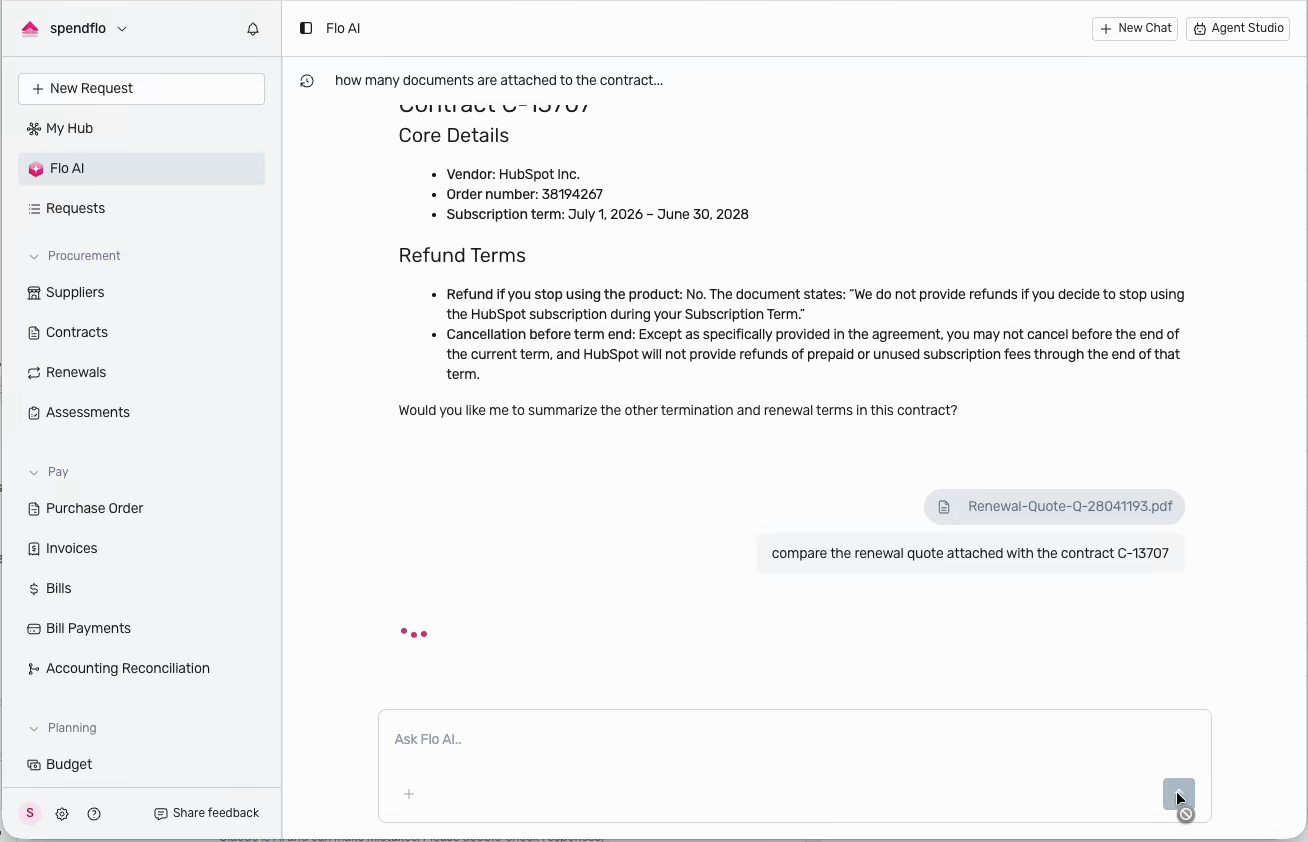
Flo AI answering a refund-terms question directly from the contract's document text.
Comparing a document you attach against a contract's own document. Attach a file (for example, a renewal quote) with the + icon, then ask Flo to compare it against a contract by ID or name. Flo reads both documents and returns a structured comparison — renewal terms, pricing line by line, and other differences.
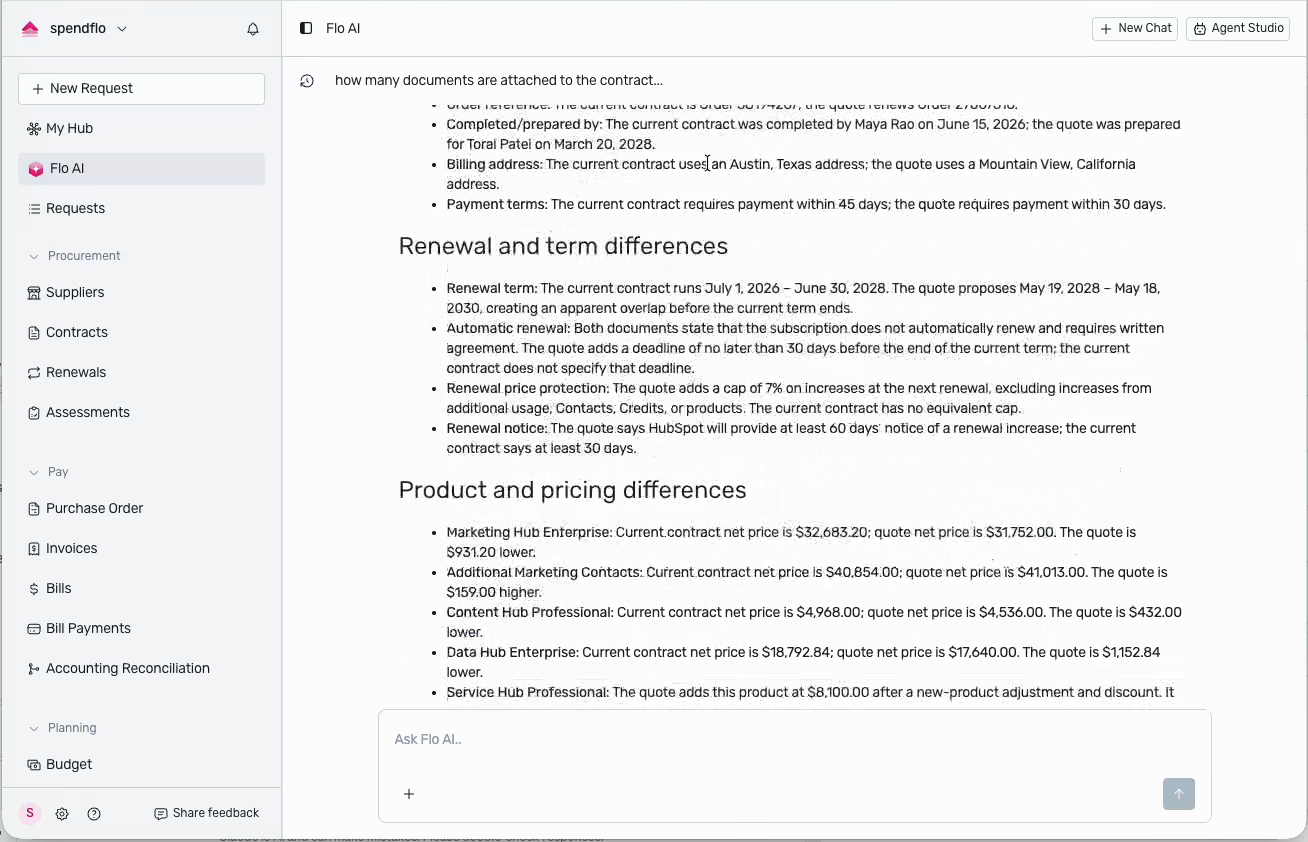
Comparing an uploaded renewal quote against the contract's own document — renewal terms, pricing, and other differences, line by line.
Tip: be specific about what you're asking. A vague "according to the attached document…" can come back as "I wasn't able to interpret the results" — naming the document type or the exact question (for example, "according to the order form, can they use our data to train their ML model?") gets a direct answer.
Getting help instead of data
If your prompt reads like a customer support question rather than a request for data or action, Flo AI recognizes this and responds differently — it shows how the issue can be resolved, and provides a link to the Help Center, or lets you open the Spendflo Support popup directly from the response.
Chat history
Every conversation is saved and grouped by when it happened — Today, Yesterday, Last Week, and Previous History — so you can pick up a earlier thread instead of re-explaining context. Click New Chat at the top of the history panel to start fresh.