Filter, custom view, and search agreements
Last updated: June 26, 2026
Overview
The agreements listing page can be managed by users efficiently by using filters, custom views and search functionalities. Read through the documentation to learn more about how these features can be leveraged.
Using custom views
Step 1. Navigate to the agreements listing page.
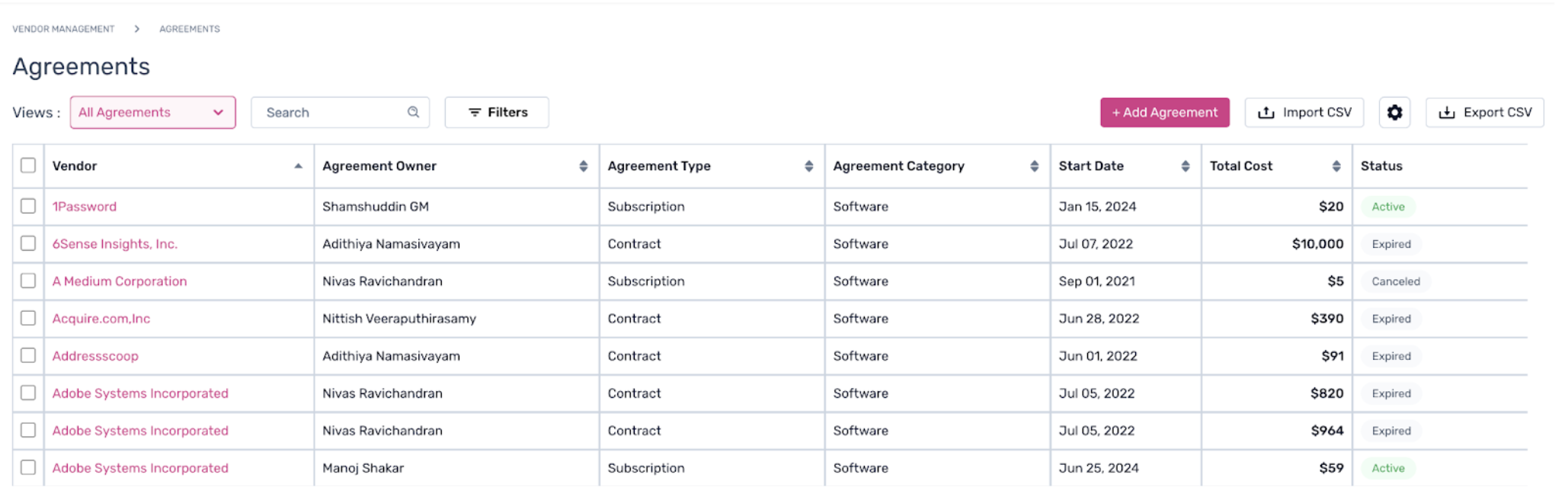
Step 2. Click on the “Views”. By default, the following views will be visible.
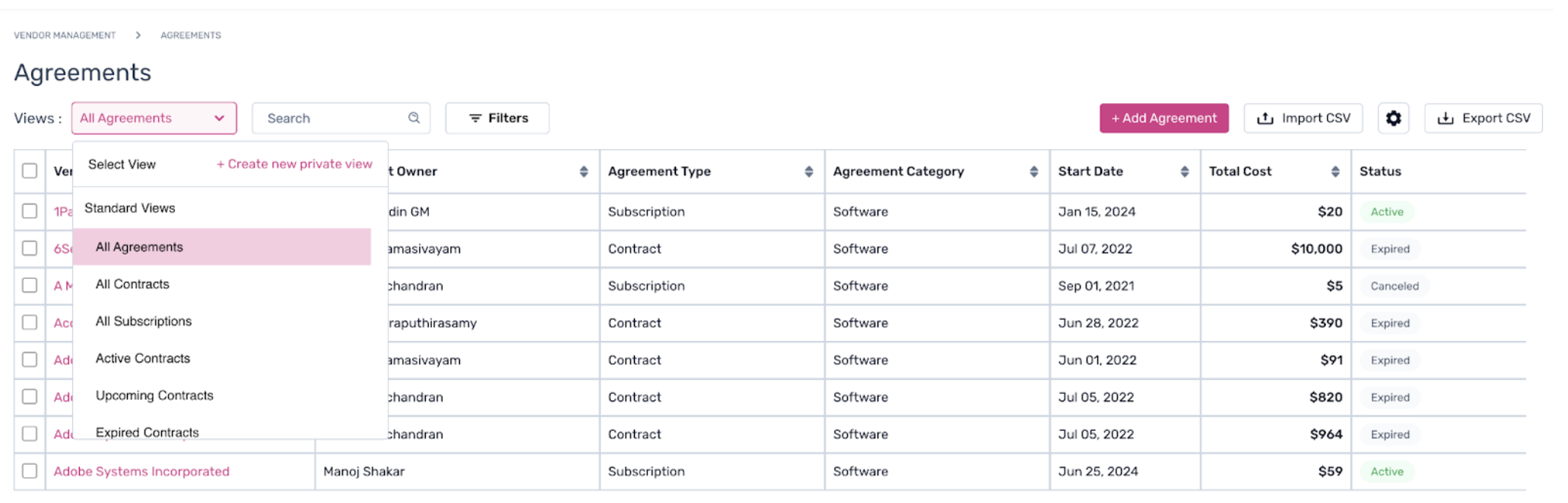
Step 3. To create a new view, click on “+ Create new private view”.
Step 4. On the pop-up, create a new view name and click on “Create View”. Once done, the view will be available on the default views dropdown.
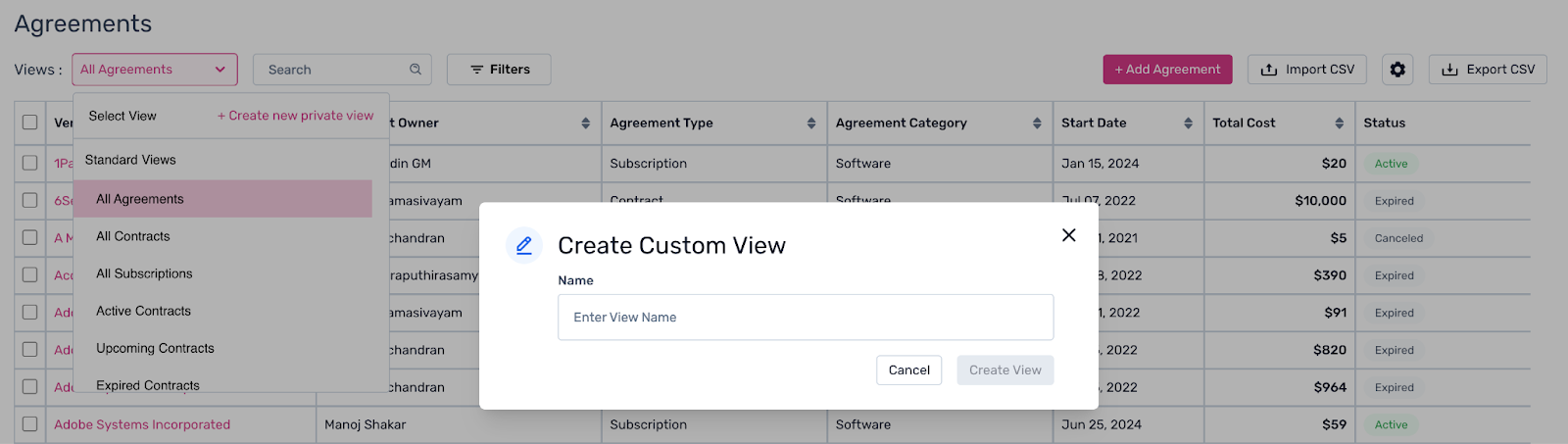
This private view can be edited and deleted at any time, with just one click.
Using filters
Step 1. Navigate to the “Vendor Management” module on the nav bar., and click on “Agreements” from the dropdown menu.

Step 2. Click on “Filters” to view and add new filters.

Step 3. Click on “+ Add Filter” and pick from the dropdown to select the component to apply filter on.
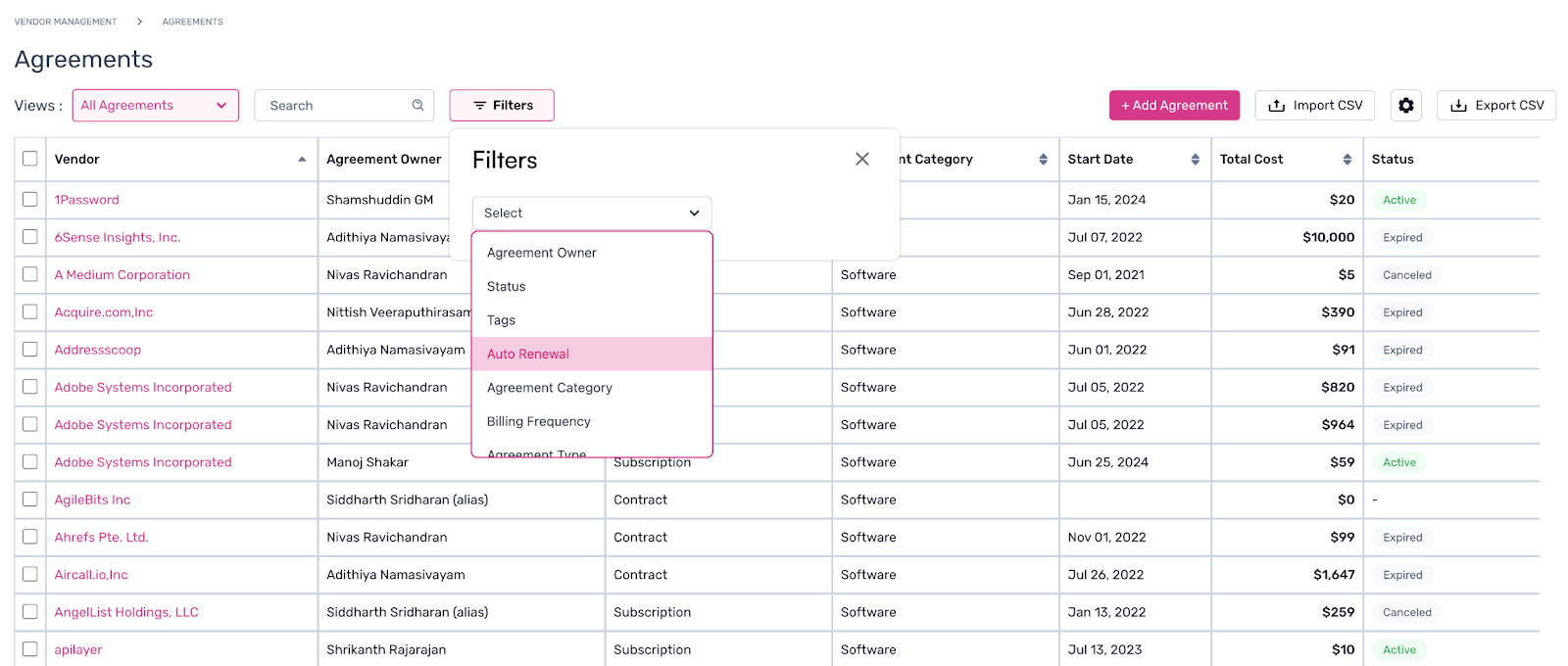
Step 4. Once added, select the criteria that you want to filter out.

Users can proceed to leverage the search functionality using the following steps.
Using search functions
Simply click on the search box and type in the search keyword for expected result and output.

To learn more about how to add a new agreement within the Spendflo platform, click here.