How to Edit User Roles (Admin Guide)
Last updated: June 26, 2026
Overview
Admins can manage the roles and access levels of users within their organization. This article explains how to update a user’s role in Spendflo.
Edit User Roles
Click the Settings icon (⚙️) at the top-right corner of your Spendflo landing page.

From the left-hand menu, select Organization Settings.
Click Configure Users.
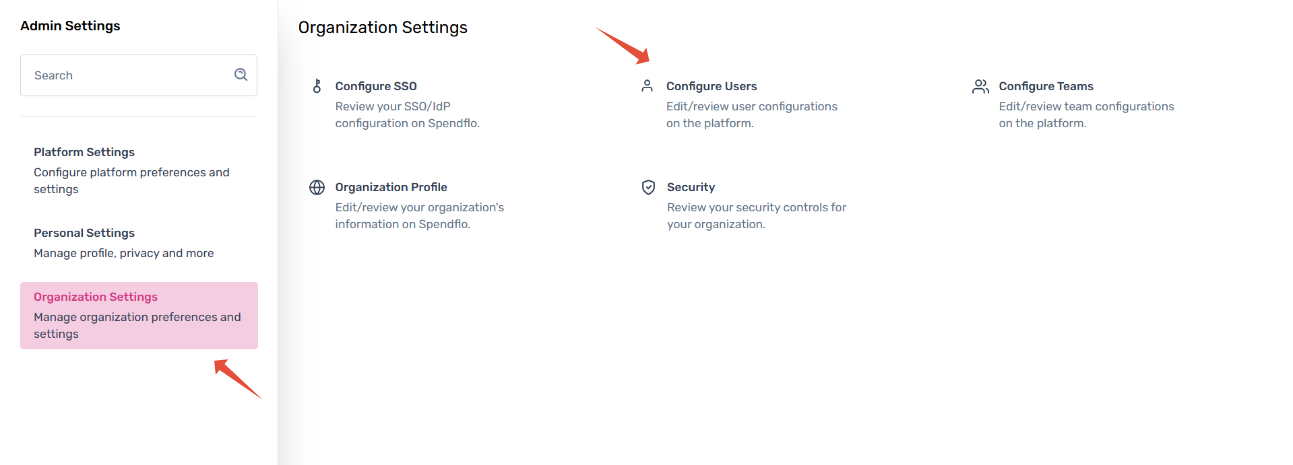
Select the Edit User Roles button located at the top-right of the user table.

In the left sidebar, click Users under the Workspace section to view all organization users.
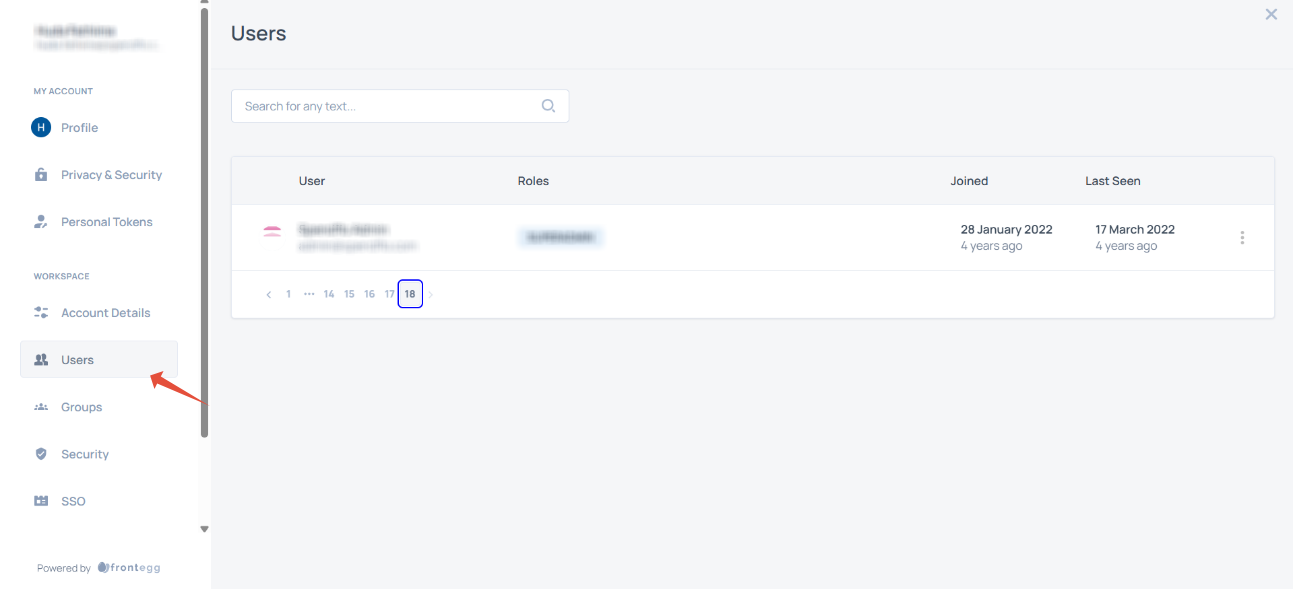
Use the search bar to locate the user whose role you want to update.
Click the three vertical dots (⋮) next to their name.
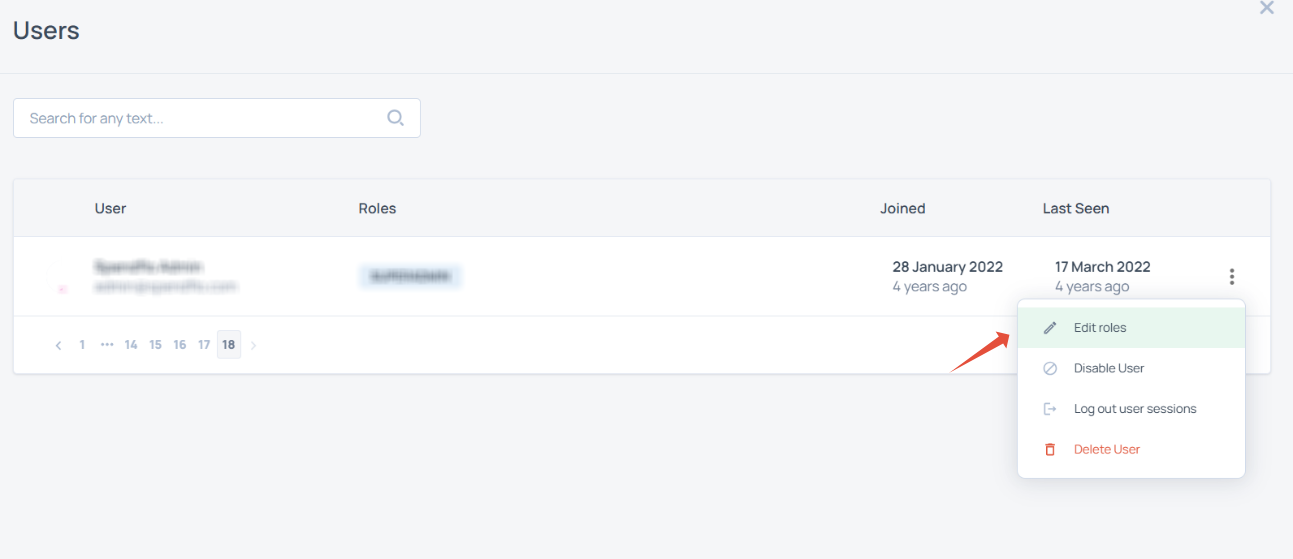
Select Edit Roles and choose the appropriate role.
Save your changes.