Home Page
Last updated: August 7, 2026
Overview
My Hub is the home page you land on every time you log into Spendflo. What it shows depends on whether you're new to the platform or already have things in motion — this doc covers both.
Your first visit: getting started
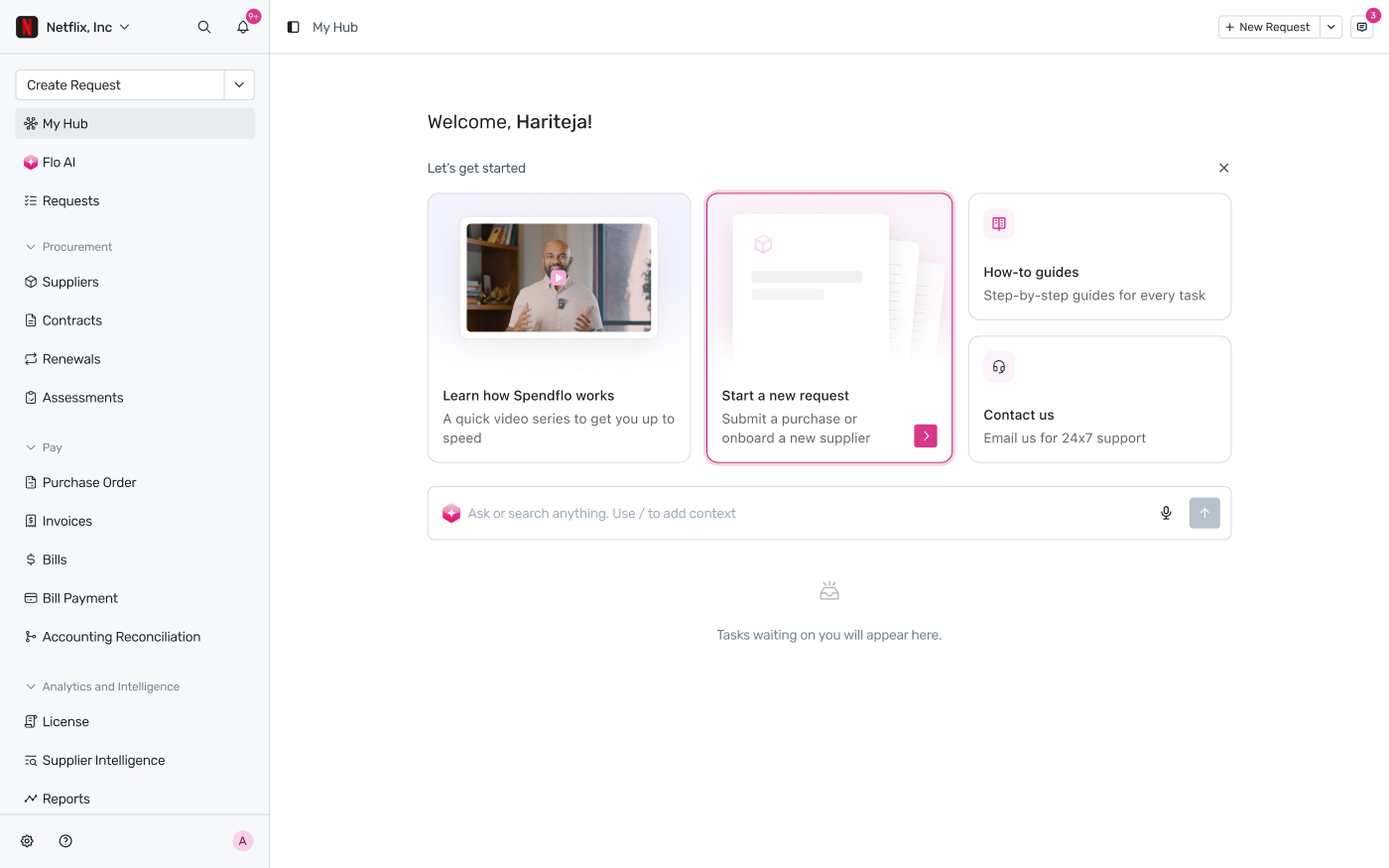
My Hub before you have any activity — the "Let's get started" panel
The first time you log in, My Hub greets you by name and surfaces four ways to get moving:
Learn how Spendflo works — a short video series to get you up to speed.
Start a new request — jump straight into submitting a purchase or onboarding a new supplier.
How-to guides — step-by-step guides for every task, linking into this help center.
Contact us — email support for 24x7 help.
Below these cards is the search bar — "Ask or search anything. Use / to add context" — the same Flo AI-powered entry point available everywhere in Spendflo. Until you have anything to act on, the bottom of the page stays empty with a "Tasks waiting on you will appear here" placeholder.
Once you have activity: Tasks, Requests, and Upcoming Renewals
As soon as you have anything to act on, My Hub replaces the "Let's get started" cards with three tabs.
Tasks
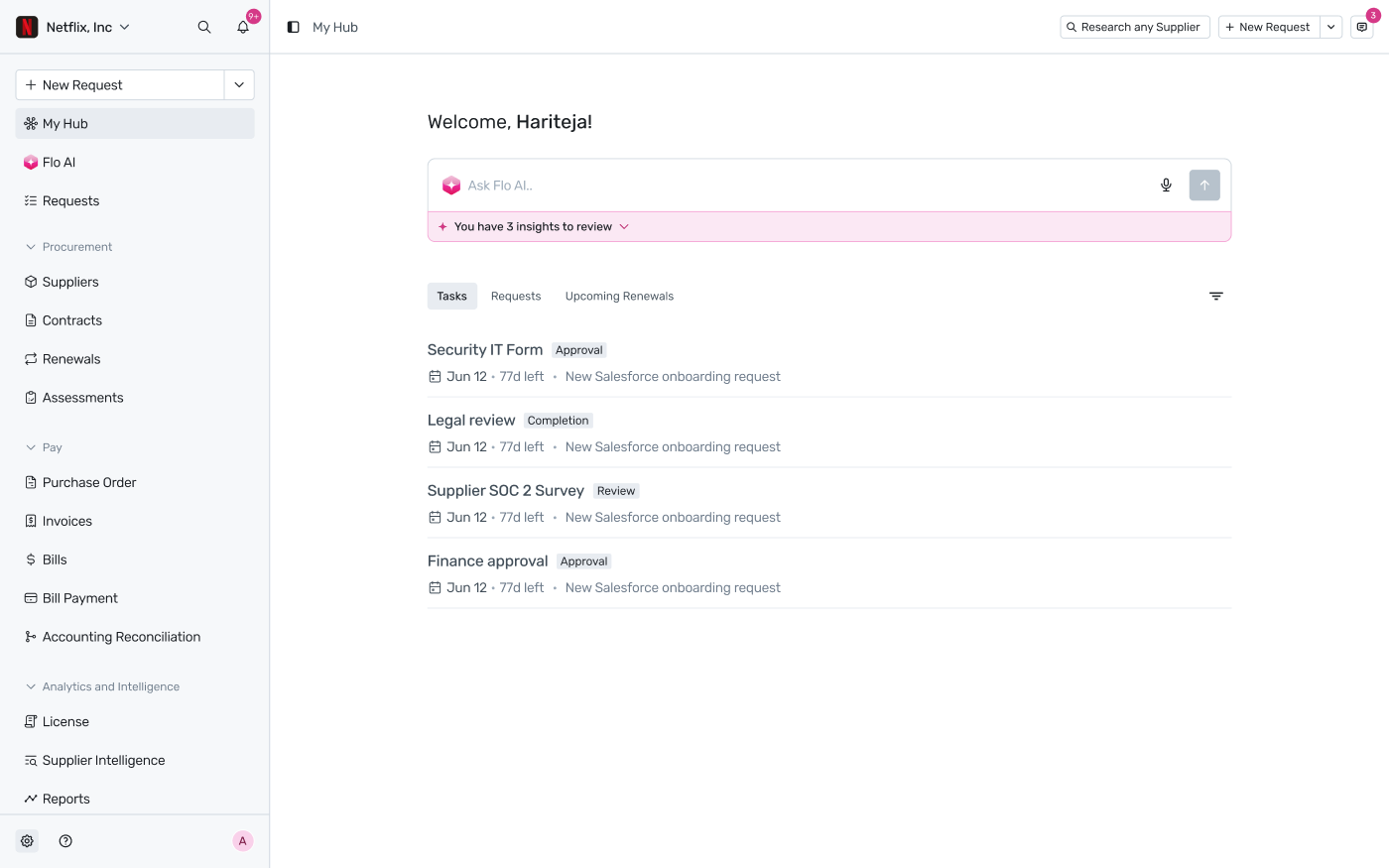
The Tasks tab — the default view once you have work waiting
Lists everything waiting on you. Each row shows the task name, its type (Approval, Completion, Review, etc.), a due date with days remaining, and which request it belongs to.
Requests
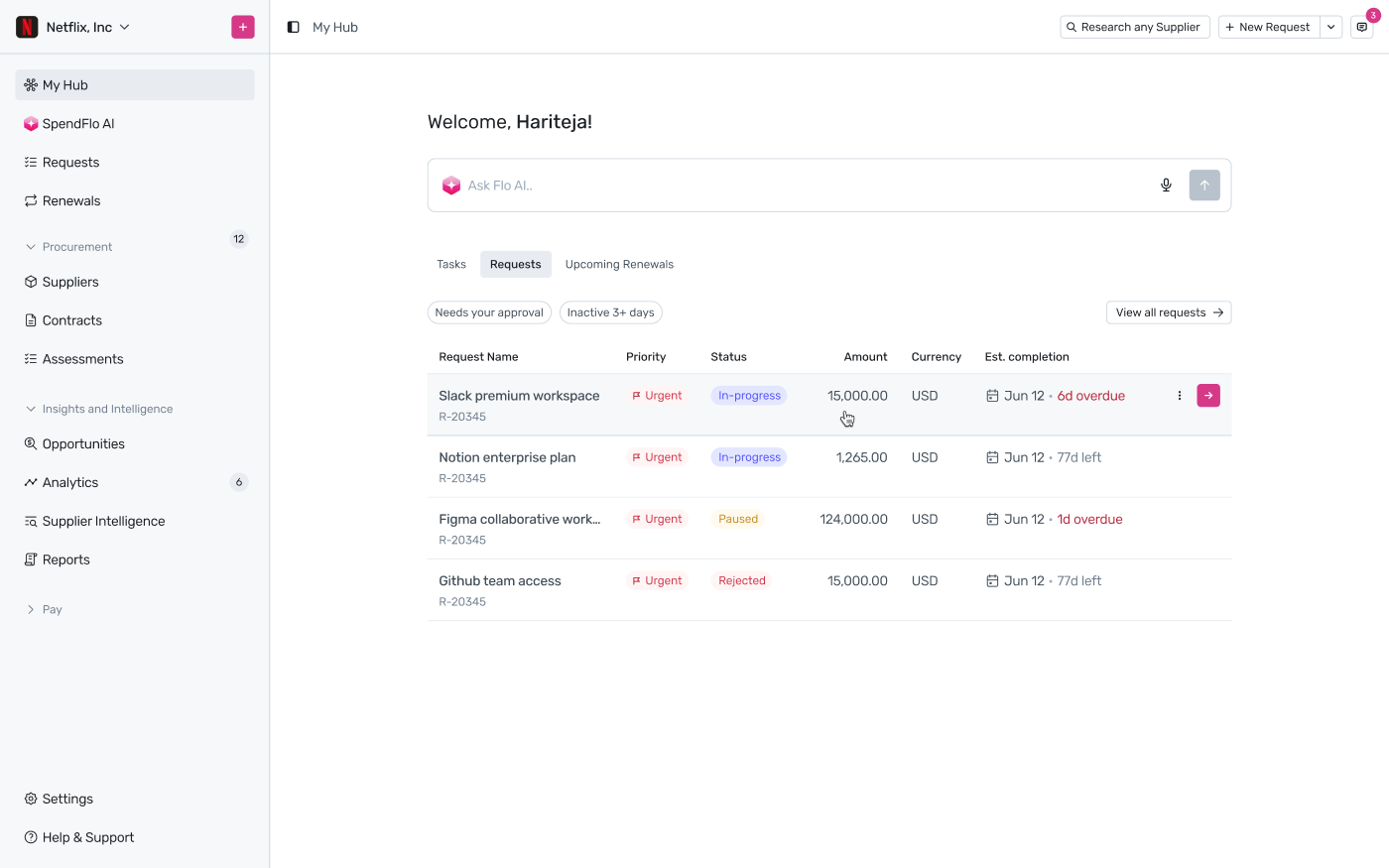
The Requests tab
Every request tied to you, with quick filters for "Needs your approval" and "Inactive 3+ days." The table shows priority, status (In-progress, Paused, Rejected, etc.), amount, currency, and estimated completion — including how overdue a request is. Click View all requests to see the full list beyond what fits here.
Upcoming Renewals
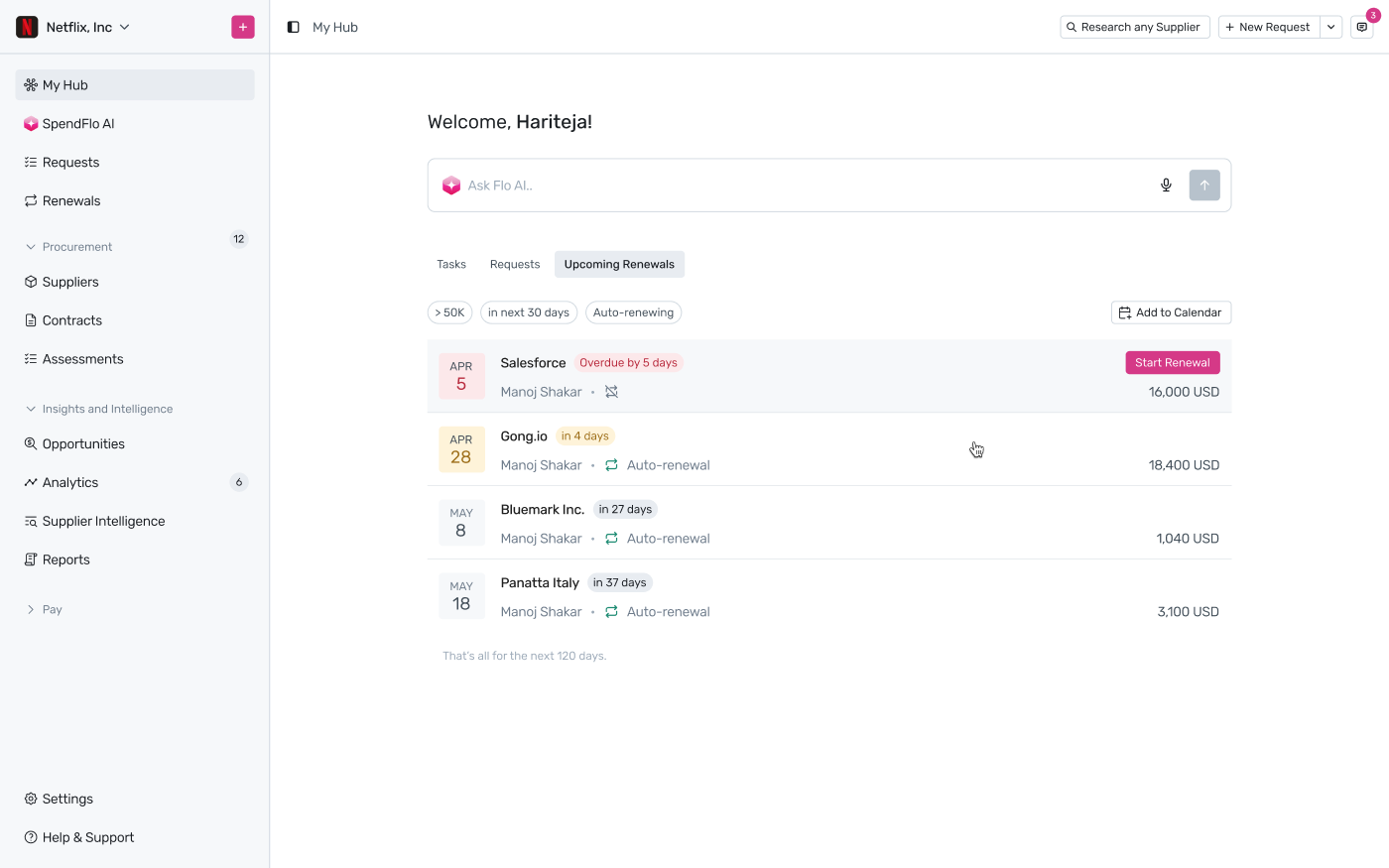
The Upcoming Renewals tab
Agreements coming up for renewal, filterable by value (">50K"), window ("in next 30 days"), and auto-renewal status. Each row shows the renewal date, vendor, days until renewal (or how overdue it is), the contract owner, whether it auto-renews, and the contract value. Overdue renewals get a Start Renewal button right in the row. Use Add to Calendar to sync dates to your own calendar.