Editing or Deleting a Team
Last updated: June 26, 2026
Overview
After creating a team, it's essential to keep it up-to-date, considering that employees frequently join and leave organizations, making it an ongoing process. You have the flexibility to establish a cadence, such as weekly updates, to add new team members and remove those who have exited the company.
Furthermore, in response to organizational changes, you may find it necessary to delete a team or merge it with others. Spendflo provides you with the capability to perform all of these actions, ensuring that your teams accurately reflect the current structure and dynamics of your organization.
Of course, if you have established a direct integration with an HRMS system, you won't have to update it manually but say, if you use a CSV import option to create and update your team, or if you've created your team manually you may have to update it every now and then to keep it updated
Let's take a look at how to edit or delete teams.
Editing a Team
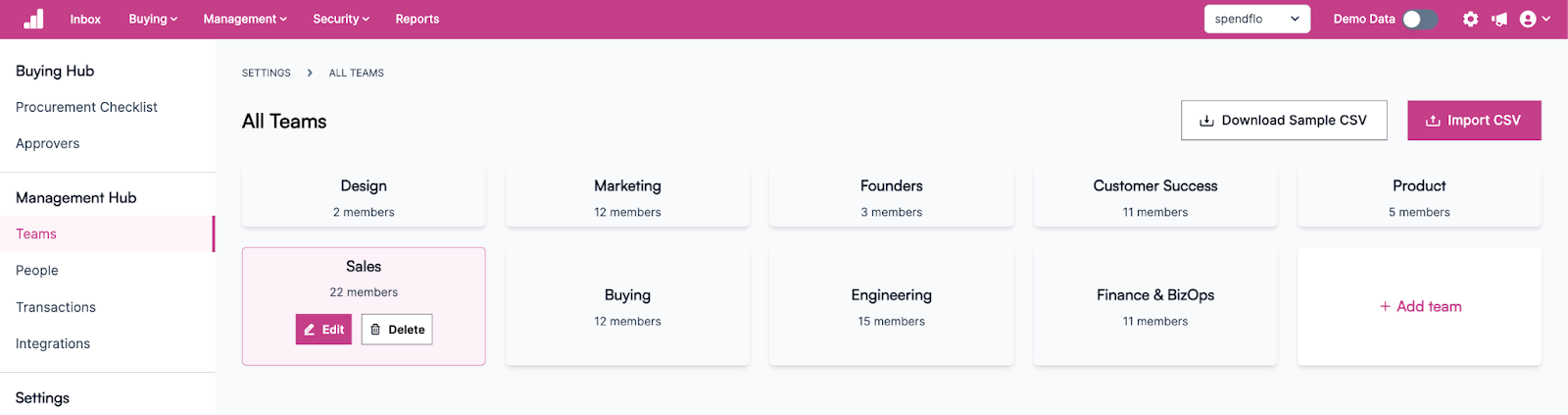
The user can edit an existing team by clicking on a team name from Setting>Management Hub>Teams
Once you open the teams detail page, you get an edit option on the Team name and Team owner, you can make the changes as per your requirements

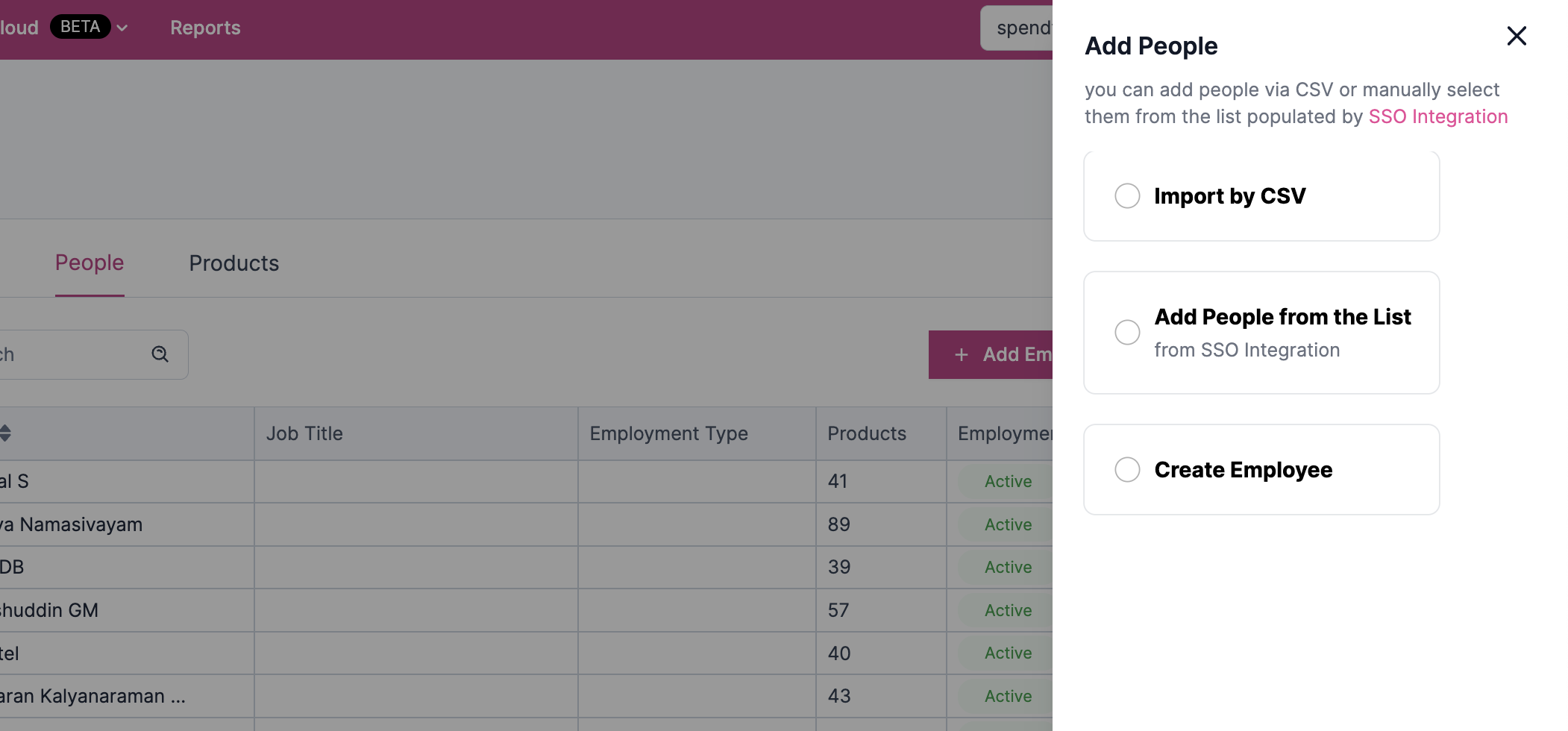
To Add and employee manually, you can open the People Tab towards the right, and click on the Add Employee CTA, this allows you to add an employee manually to a team
When you click on Add employee, there are 2 options, you can import the employee list by CSV, Add people from the list which is populated by SSO or create an employee manually.
Deleting a Team
To delete a created team, hover around the team's name and click on Delete.
Click Delete in the confirmation box in order to completely delete the team from Spendflo. Click Cancel if you want to abort the deletion of the team.