How to add a parallel task
Last updated: June 26, 2026
Overview
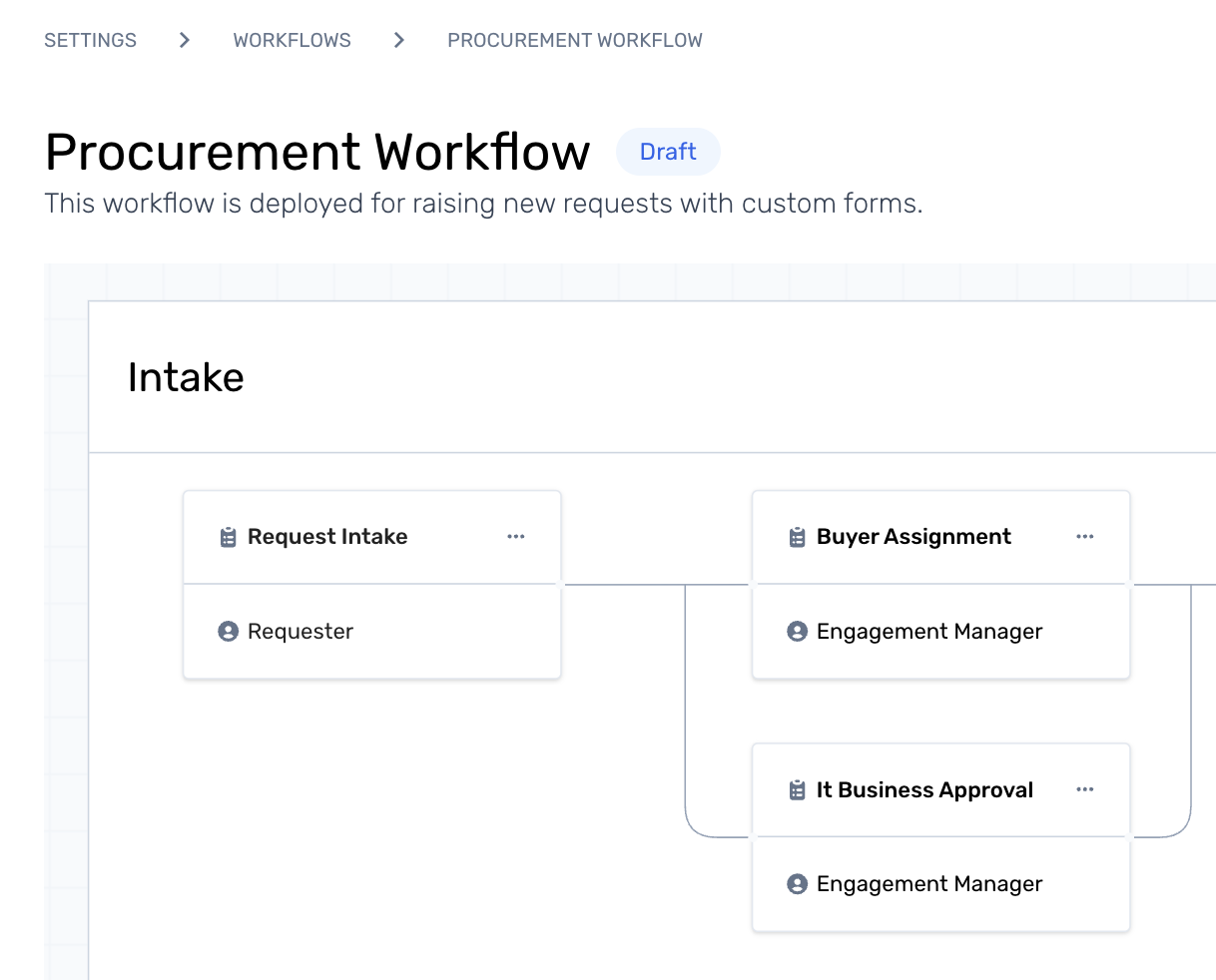
Parallel tasks in a workflow are a series of tasks executed simultaneously, enabling multiple tasks to be completed in parallel. Creating parallel tasks helps multiple teams/individuals work together and reduces turnaround time.
Here is how a parallel task can be added within a workflow:
Adding parallel tasks to a workflow
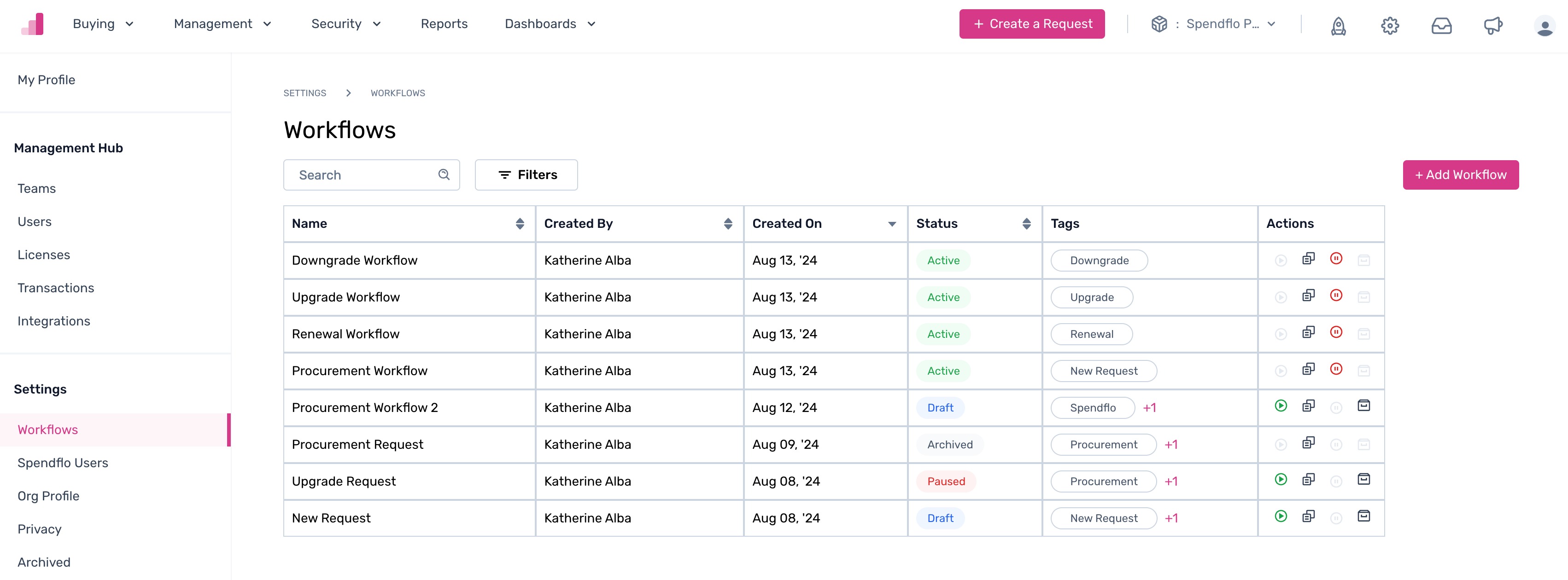
Step 1. Click on an active or ongoing workflow to add a parallel task.
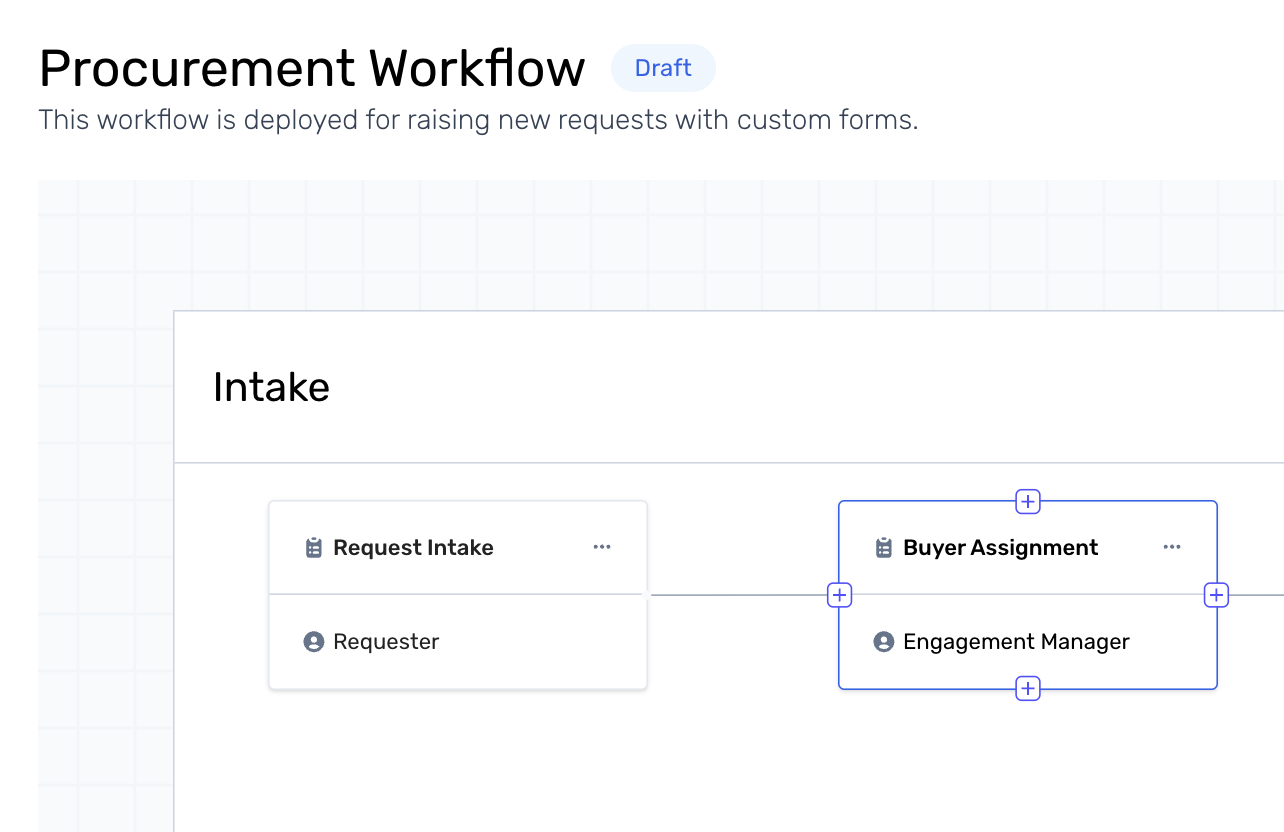
Step 2. Hover over any task within a phase, and click on the ‘+’ icon on any side of the task to create a new task in parallel.
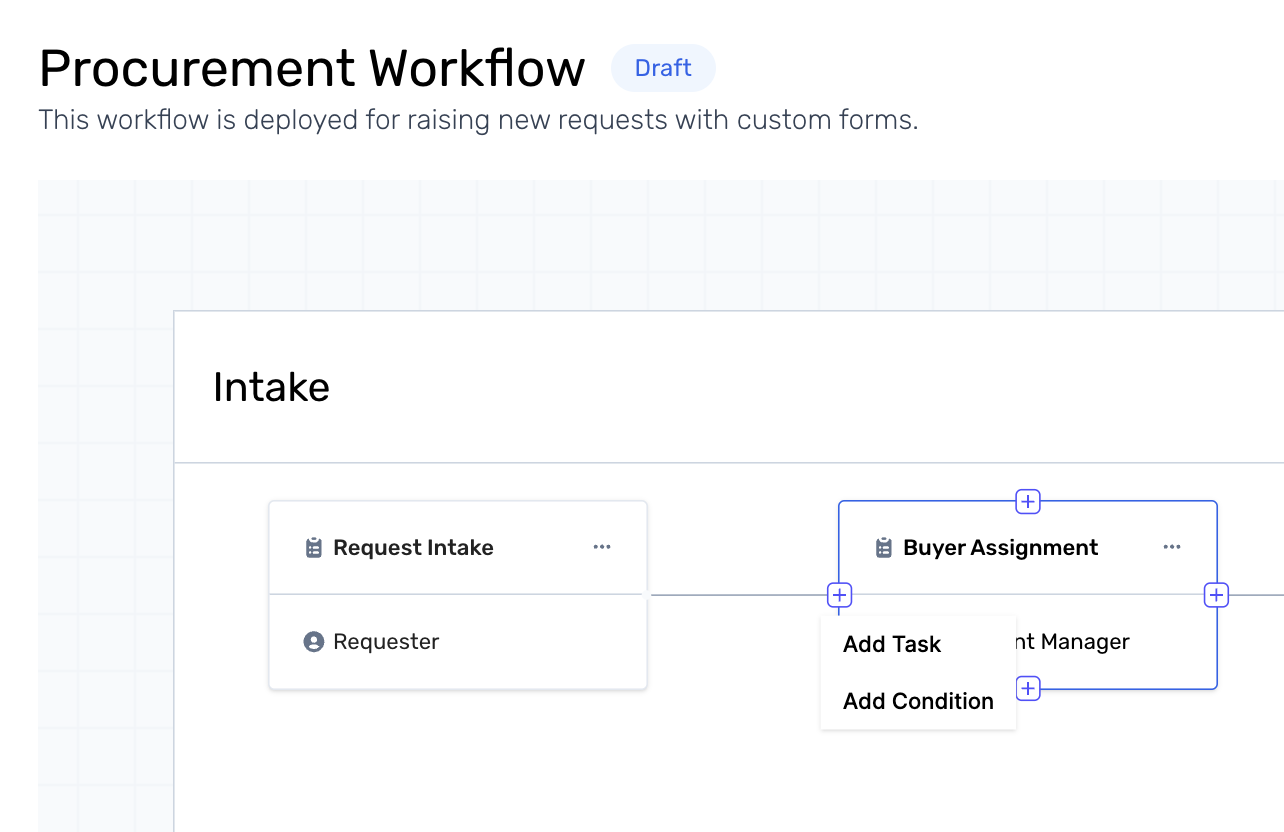
Note: By clicking on the '+' icons on the right, top and bottom, the task will be created instantly. However on the left side, an option to choose from Add Task or Add Condition will be displayed, as seen in step 3 below.Step 3. Alternatively, hover over any task within a phase and click on the ‘+’ icon on the left side of the path to see two actions - Add Condition and Add Task. Click on Add Task.
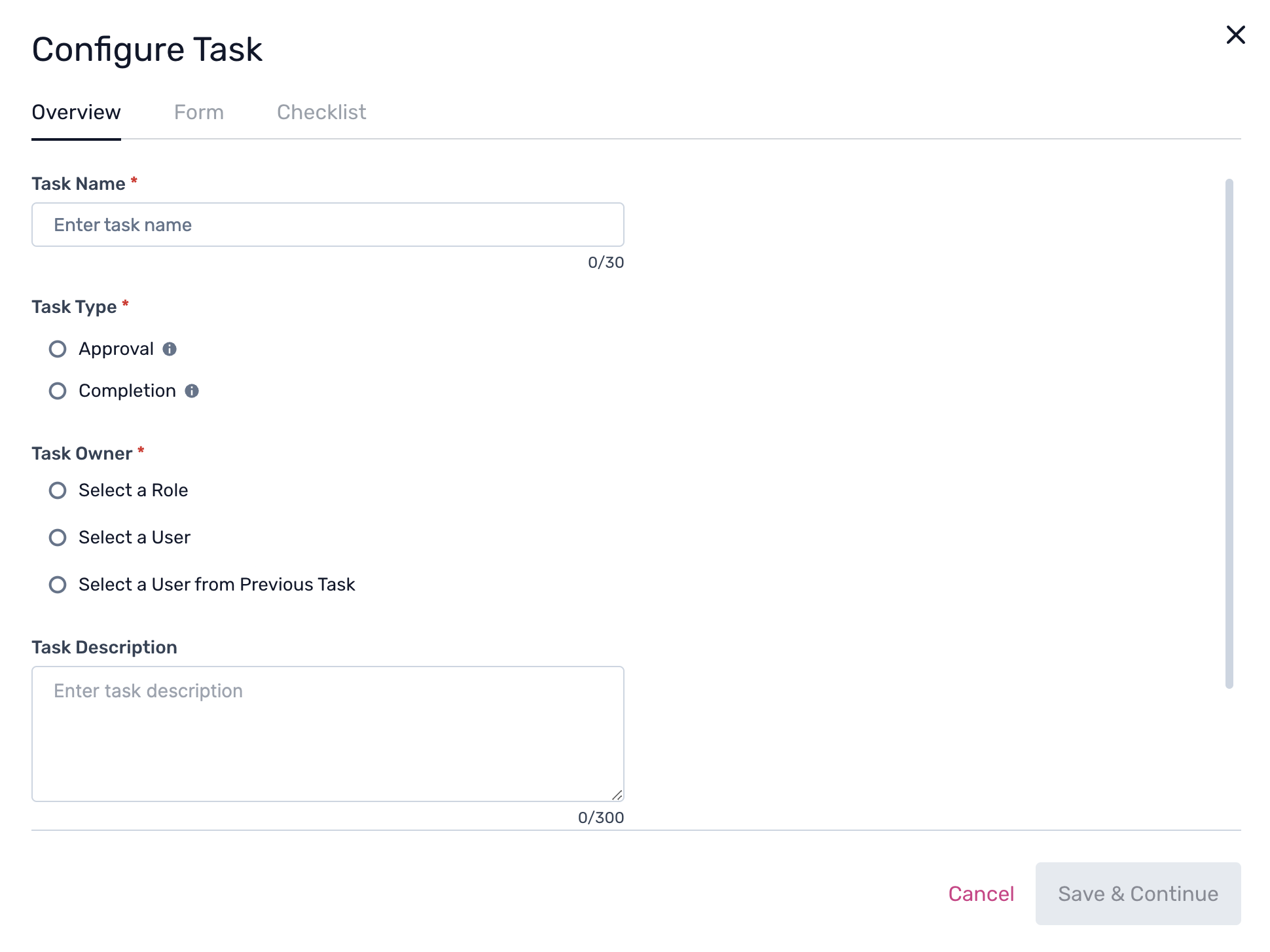
Step 4. In the pop-up, create a Task Name and Description and all the task configuration fields to complete the steps.
This new task will be created in parallel with the same workflow phase.
To know more about sequential tasks, click here.