Introduction to Procure-to-Pay
Last updated: August 10, 2026
Overview
The Procure-to-Pay (P2P) module is Spendflo's end-to-end Accounts Payable solution. It covers the complete financial lifecycle from the moment a supplier invoice arrives to the point the payment is confirmed and reconciled in your ERP — all without manual handoff between tools.
P2P sits downstream of Spendflo's procurement modules (Suppliers, Agreements, Purchase Orders, Requests). Once a supplier has been onboarded, a contract signed, and a PO raised, the P2P module picks up the story: the supplier sends an invoice, that invoice becomes a bill, the bill gets approved, and the payment gets made and recorded.
Prerequisites
NetSuite must be your connected ERP. P2P syncs bills and bill payments to NetSuite specifically — no other GL (Sage Intacct, Xero, QuickBooks, etc.) is supported for this sync, even if one of those is connected for other purposes elsewhere in Spendflo.
An active Procure to Pay workflow. P2P only runs once a workflow of type Procure to Pay is active in Workflow Studio. An org instance can have only one Procure to Pay workflow active at a time — you can have others in draft, but only one live at once.
Who Is This For?
Finance Executives — review and confirm invoices, manage bills, export payment data, mark payments as paid
Spend Owners — own the bills for their department's spend; drive approval routing
Approvers — review and approve bills through the configured approval hierarchy
Admins — configure the Procure to Pay workflow, payment settings, export formats, and the NetSuite integration
Key Concepts & Terminology
Invoice — a document received from a supplier requesting payment. The raw source record — not yet an obligation to pay.
Bill — the actionable entity created once an invoice is confirmed (or raised manually). It has a spend owner, follows an approval hierarchy, carries GL coding, and is synced to NetSuite.
Bill Payment — the record of the actual transfer of money to settle an approved bill. Created automatically when a bill is approved.
Spend Owner — the person accountable for a bill's expense. Drives approval routing and GL coding.
GL Account — General Ledger account code — the accounting classification for each line item on a bill.
NetSuite — Spendflo's primary ERP integration. Bills and bill payments are synced to NetSuite for accounting and reconciliation.
Procure to Pay Workflow — the workflow type in Workflow Studio that drives the entire P2P process: Invoice Processing, Creating Bills in Spendflo, Creating Bills in NetSuite, Approval Hierarchy, Creating Bill Payments, and Creating Bill Payments in NetSuite.
Subsidiary — the legal entity within your organisation that a bill or payment belongs to. NetSuite account mappings (Bills Payable Account, GL Cash Account) are configured per subsidiary.
Currency — your org has a base currency, set at the org level. Invoices, bills, and bill payments always display in the invoice’s own currency, not necessarily your base currency. When the two match, there’s nothing further to reconcile. When they differ, Spendflo converts the invoice currency to your base currency using that day’s exchange rate, and shows the converted amount beneath every currency field for clarity.
The P2P Lifecycle at a Glance
The full Procure-to-Pay cycle moves through four stages, driven by the tasks in your configured Procure to Pay workflow (see Configuring the Procure-to-Pay Workflow for the full task-by-task breakdown).
Stage 1 — Invoice Ingestion & Processing
Workflow task: Invoice Processing
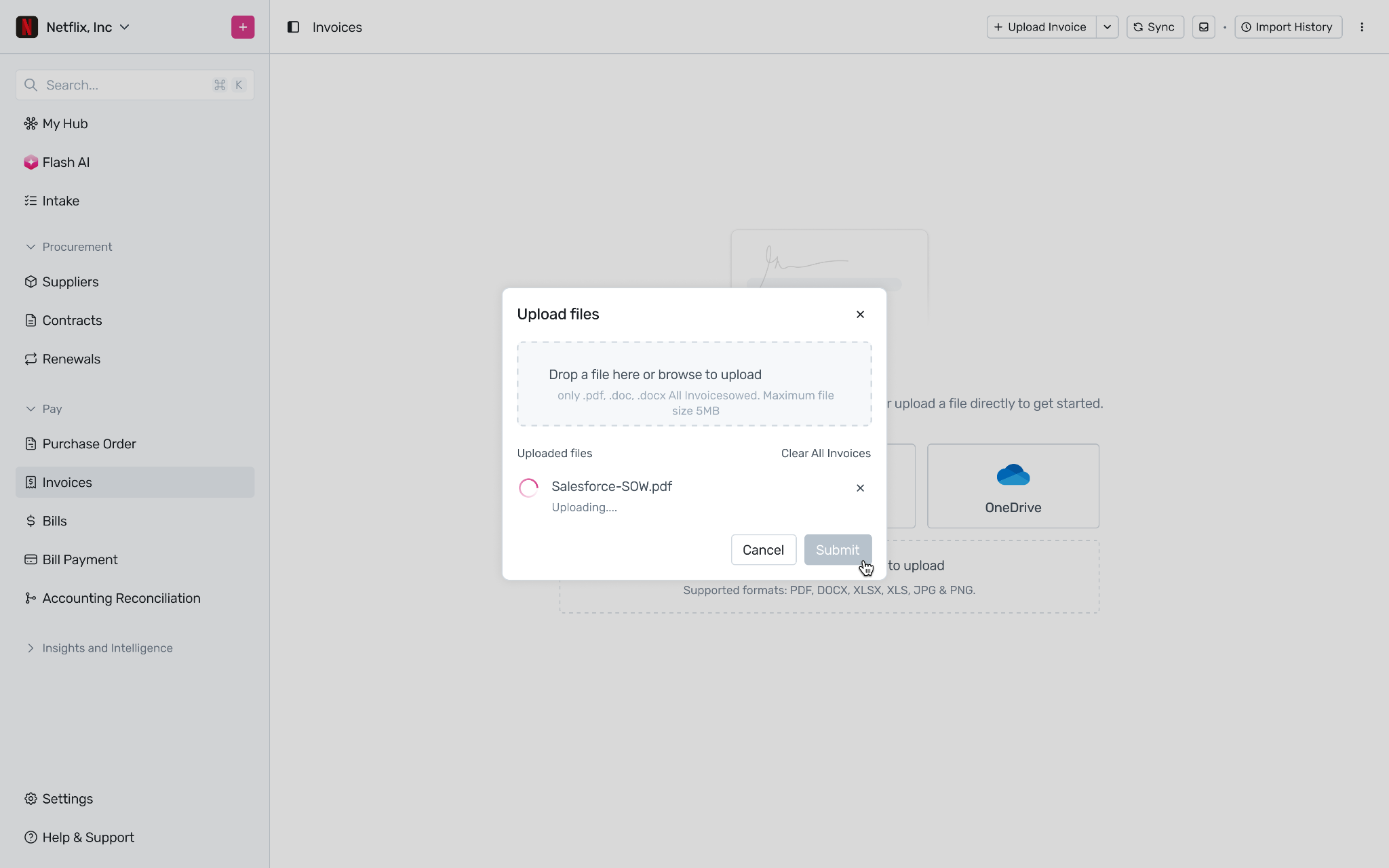
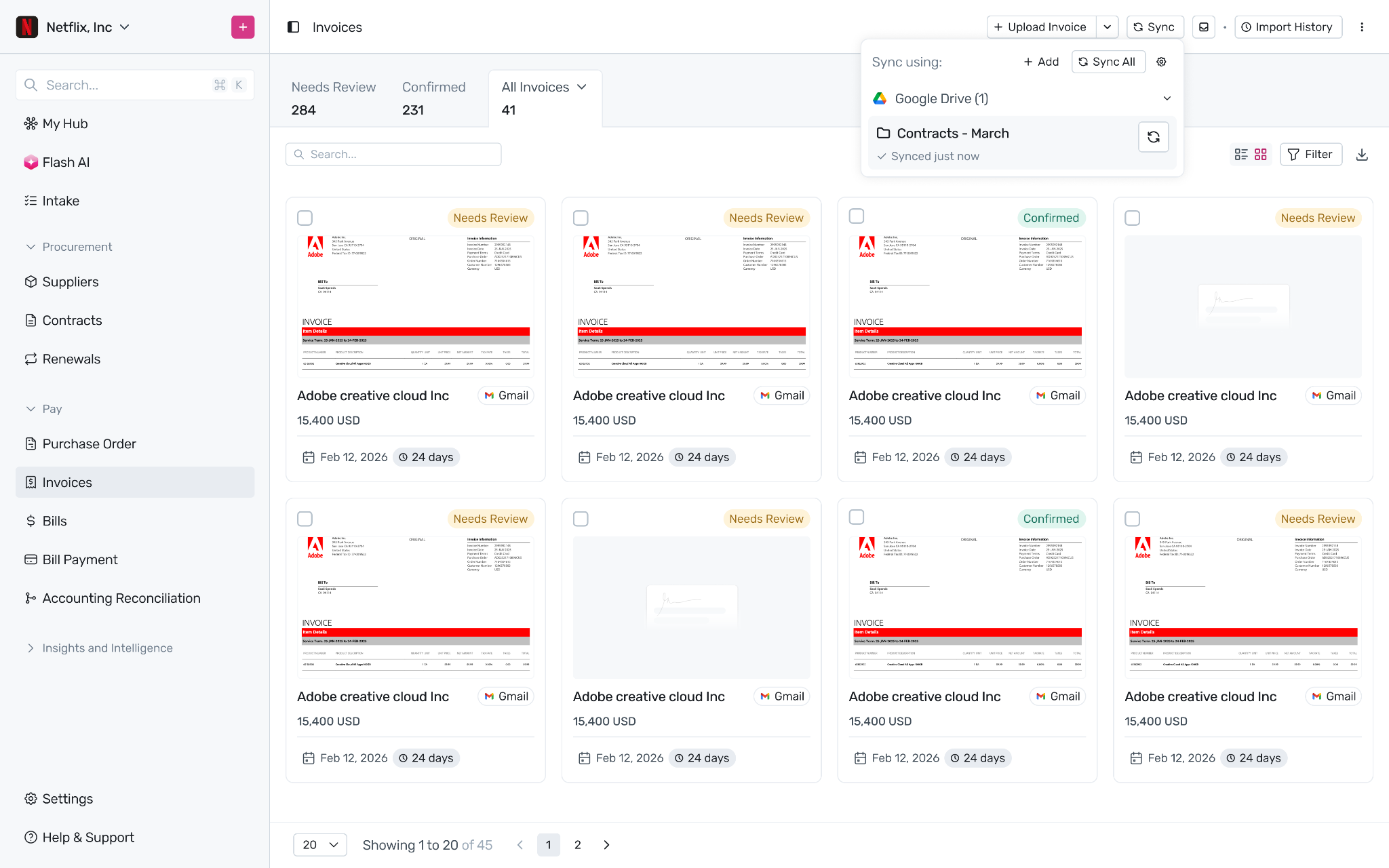
A supplier invoice arrives via email, direct upload, or cloud storage. Spendflo automatically extracts the supplier name, invoice number, dates, amounts, and line items, matches it to the right supplier, and checks for duplicates. High-confidence invoices are auto-confirmed; others are flagged for Finance Executive review.
Stage 2 — Bill Creation, Enrichment & NetSuite Sync
Workflow tasks: Creating Bills in Spendflo, Creating Bills in NetSuite
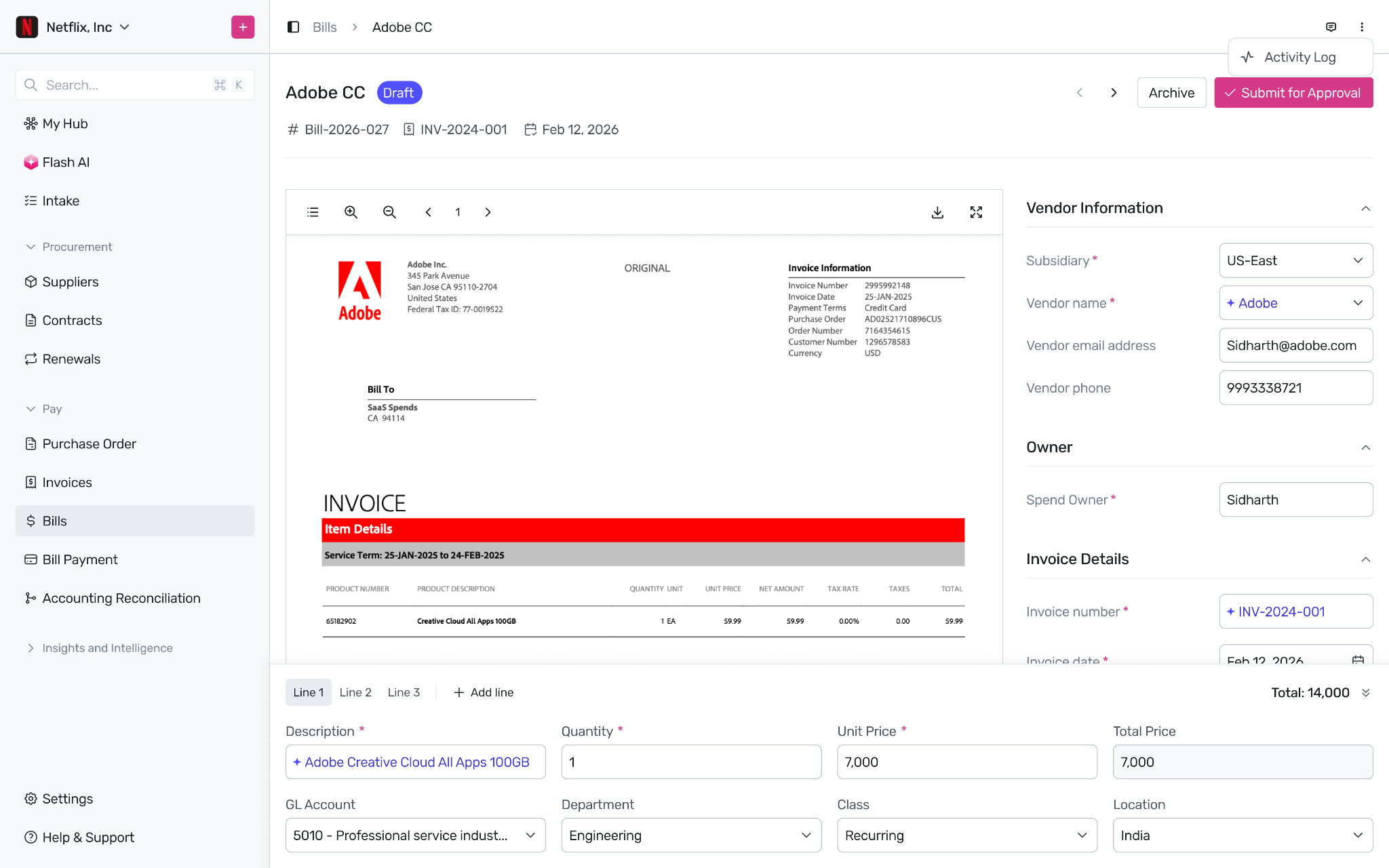
Once an invoice is confirmed, a bill is automatically created from it. Spendflo assigns a spend owner, suggests GL codes for each line item (splitting across departments automatically where that's the supplier's learned pattern), and matches the bill against open Purchase Orders. A matching vendor bill is also created in NetSuite — either now or after approval, depending on how the Creating Bills in NetSuite task is configured.
Stage 3 — Approval
Workflow task: Approval Hierarchy
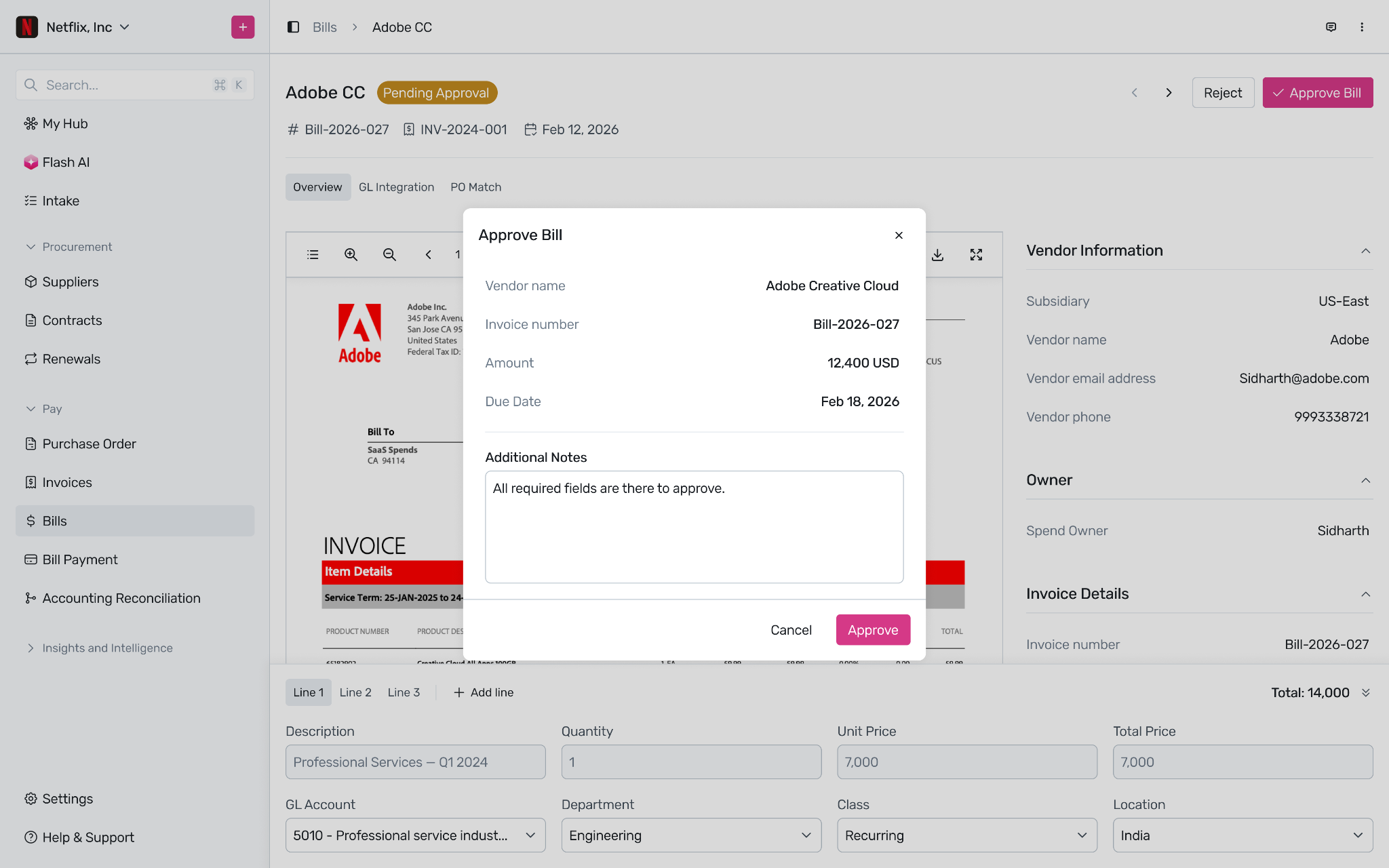
The bill moves through your configured approval hierarchy — for example, Department Owner → CFO → Legal → InfoSec — based on spend owner, department, subsidiary, GL account, and amount thresholds. Approvers review the bill and its PO match before approving or rejecting.
Stage 4 — Payment & NetSuite Sync
Workflow tasks: Creating Bill Payments, Creating Bill Payments in NetSuite
Once approved, a Bill Payment record is automatically created. The only supported payment method today is Paid Outside Spendflo — a Finance Executive makes the payment through your own bank, then marks it as Paid in Spendflo with the payment date and cash account. That's the moment the vendor payment gets created in NetSuite. A periodic reconciliation job then compares Spendflo and NetSuite records so nothing drifts silently.
What Flo does autonomously
Flo handles the following without manual intervention:
Detecting and ingesting invoices from email, direct uploads, and cloud imports
Running OCR extraction and populating all invoice fields
Creating a bill from a confirmed invoice
Auto-assigning GL accounts, departments, locations, and classes per line item — including automatically splitting a line item across departments when that's the supplier's learned pattern
Resolving the spend owner automatically — from the supplier's saved owner, a matched PO's requestor, or a pattern learned from past bills
Running PO matching before approval, so approvers can see how the bill compares to the purchase order
Routing the bill to the correct approvers based on the configured approval hierarchy
Sending approval notifications and reminders when approvals are pending beyond SLA thresholds
Creating the Bill Payment record when a bill is approved
Creating and syncing bills to NetSuite — either before or after approval, depending on how the workflow is configured — and syncing confirmed payments to NetSuite the moment they're marked as paid
Where your team is in the loop
Flo acts. Your team approves and confirms.
Finance Executives review flagged invoice extractions, mark bill payments as paid after disbursement, and export payment data (a general CSV, or a bank-specific format) for bank upload.
Approvers receive bill approval tasks routed by Flo. They review line items, GL coding, and PO match results — then approve or reject.
Admins configure the Procure to Pay workflow in Workflow Studio, manage bank export formats, and handle edge cases like voiding approved bills.
Requestors submit purchase requests and bills. They cannot approve their own submissions.
Key concepts to know
Spend Owner — every bill must have a spend owner, the person accountable for the expense. Spendflo resolves it automatically — from the supplier's saved owner, a matched PO's requestor, or a pattern learned from past bills — and leaves it blank for manual assignment if none of these apply. Where approval routing is configured by department, the spend owner's department head becomes the approver.
Bill vs Invoice — an invoice is a document received from a supplier. A bill is an accepted obligation to pay. Flo creates a bill from a confirmed invoice — but bills can also be created manually. The approval hierarchy, GL coding, and NetSuite sync all apply to bills, not invoices.
Bill State Machine — every bill follows a defined lifecycle: New → Pending Approval → Approved. From Pending Approval, an approver can instead Reject the bill — a final status with no way to resubmit. An Approved bill can be Voided by an Admin, provided none of its bill payments have been made yet (or all have themselves been voided) — this creates a reversing entry in NetSuite (this depends on specific NetSuite permissions and settings; see Syncing Bills and Bill Payments to NetSuite). Archived is a terminal status for bills no longer in active use. Understanding which state a bill is in determines what actions are available to each persona.
GL Coding — Spendflo suggests the GL account, department, class, and location on each bill line item automatically: copied from a matched PO line item first, then from how this supplier and spend owner have been coded on past bills, and — with no pattern to go on yet — from AI reasoning over your chart of accounts. It can also automatically split a line item across departments if that's the supplier's learned pattern. Every suggestion stays fully editable.
NetSuite Sync — Spendflo creates a vendor bill in NetSuite for every bill, and a vendor payment for every bill payment marked as paid. Whether the vendor bill is created before or after approval is set in the Creating Bills in NetSuite task of your Procure to Pay workflow. If your NetSuite configuration changes — GL accounts deactivated, mandatory field settings toggled, a period closes — Spendflo surfaces it through the integration settings (Accounts, Preference, Period, and Permission tabs) before it causes a sync failure. A periodic reconciliation job also compares Spendflo and NetSuite records so nothing drifts silently.
? Admin Only — All of the above configuration is managed by Admins under Settings → P2P Settings and Settings → Integrations.
FAQs
Q: Can I use P2P without NetSuite? The Bill and Bill Payment sync to NetSuite is a core part of the P2P module. Without NetSuite connected, bills and payments can still be managed in Spendflo but will not sync to a GL. Contact your Spendflo representative to discuss your ERP setup.
Q: What's the difference between a Supplier Invoice in my email and an Invoice in Spendflo? A supplier's email to you is an external document. An Invoice in Spendflo is the structured record created when Spendflo processes that email — extracting all key fields into a searchable, auditable system record that drives the rest of the AP workflow.
Q: Is Procure-to-Pay one workflow or several? One. You create a single workflow of type Procure to Pay in Workflow Studio, made up of six tasks — Invoice Processing, Creating Bills in Spendflo, Creating Bills in NetSuite, Approval Hierarchy, Creating Bill Payments, and Creating Bill Payments in NetSuite. See Configuring the Procure-to-Pay Workflow for what each task does.
Q: Can I customise the approval chain? Yes. The Approval Hierarchy task in your Procure to Pay workflow is fully configurable — set up whatever chain your organization needs, for example Department Owner → CFO → Legal → InfoSec.