How to pause, resume, or cancel a request
Last updated: June 26, 2026
Sometimes a request shouldn't move forward — it may be a duplicate, no longer needed, or temporarily blocked. This guide covers how to cancel a request in Spendflo today, and how pause and resume will work once released.
At a glance
Cancel a request — available now, from the request detail page.
Pause / Resume a request — coming soon; described below so you know what to expect.
Task-level holds (Waiting on vendor / Waiting on stakeholder) — coming soon.
Cancelling a request
Cancellation stops all active workflow tasks. It is recoverable by design — the request can be reopened later if required.
Who can cancel: the requester, the request owner, or an admin.
Steps
Go to Requests in the left sidebar and open the request you want to cancel.

Click the ⋯ (three-dot) menu in the top-right corner of the request detail page.

Select Cancel.
A confirmation dialog appears: "Cancel this request?" — All active workflow tasks will be stopped. You can reopen the request later if required.
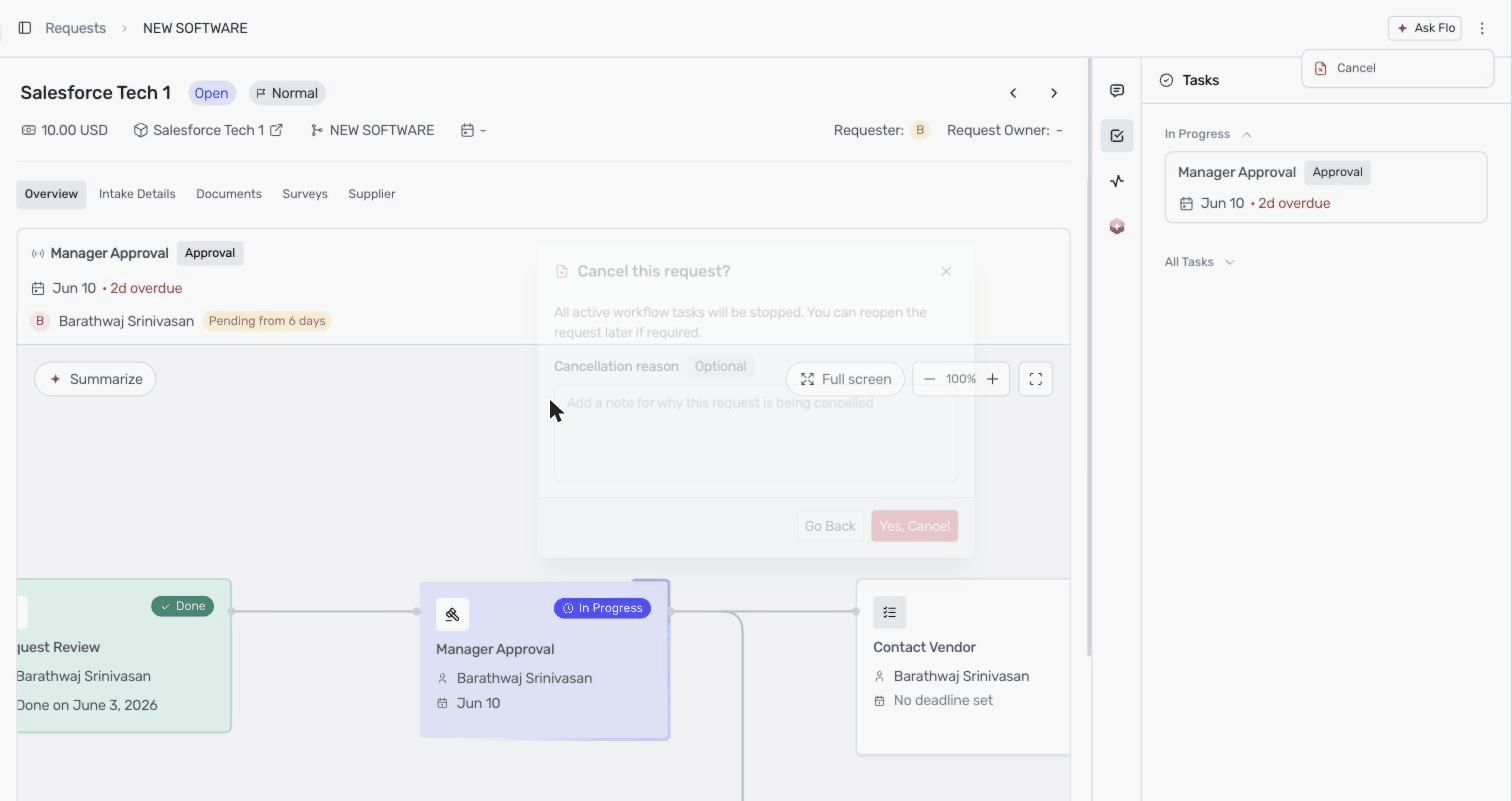
Optionally add a cancellation reason. The note is optional but recommended — it is stored with the request and gives approvers and reporting clear context.
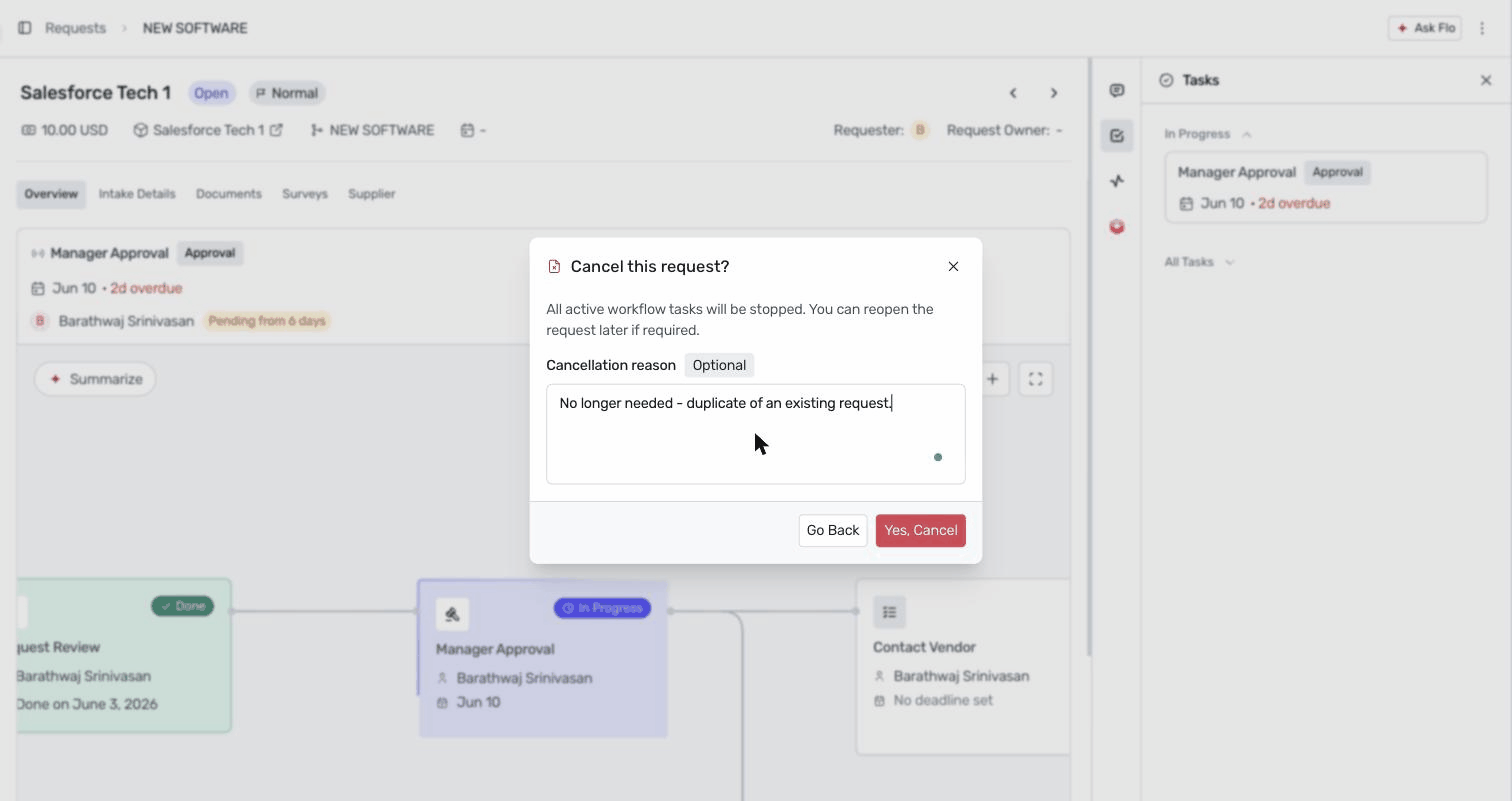
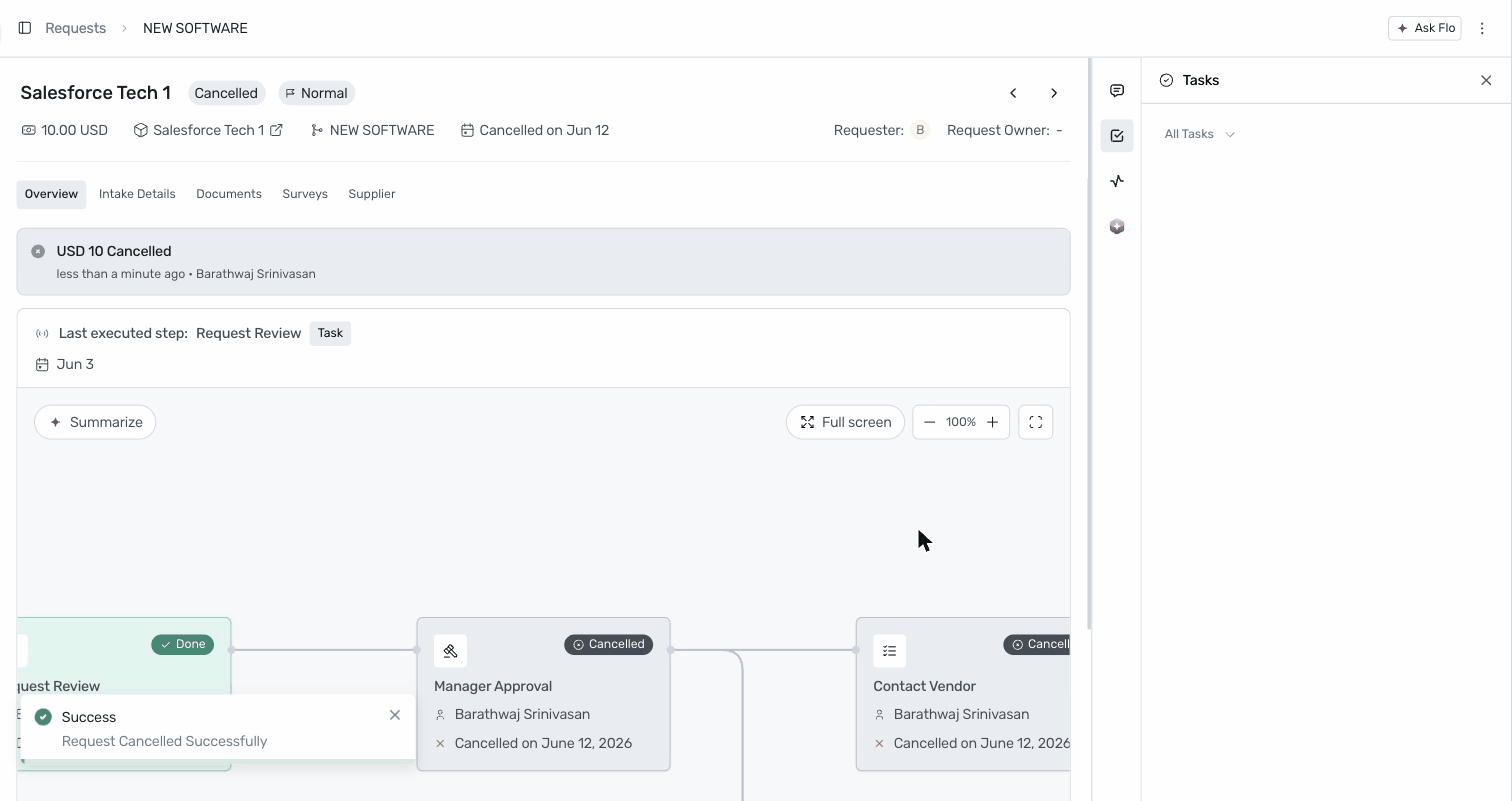
Click Yes, Cancel. A green toast confirms: "Request Cancelled Successfully".
What happens after cancellation
The request status changes from Open to Cancelled, and a summary banner (e.g. "USD 10,000 Cancelled") appears on the Overview tab.
The Overview shows the last executed step before cancellation.
All incomplete tasks are stamped "Cancelled on [date]"; completed tasks keep their Completed status.
The request leaves the Open tab on the Requests list.
Notifications are sent to the requester and stakeholders, including who cancelled the request.
The audit log records who cancelled, when, and the reason. Comments and documents remain viewable read-only.
Pausing a request (coming soon)
Pausing freezes an entire request — and the SLA clocks of all its incomplete tasks — when the whole request is temporarily blocked (for example, waiting on budget approval or a vendor response). The requester, request owner, and admins will be able to pause and resume.
Open the request and click the ⋯ menu → Pause request.
Choose a reason (required): Waiting on budget approval, Waiting on vendor response, Waiting on internal stakeholder, Request under review, Temporary hold, or Other.
Optionally add a comment (supports @-mentions), then click Pause.
While paused: a banner shows who paused the request, when, and why; SLA clocks and cycle time stop for all incomplete tasks; the request becomes read-only (no approvals, status changes, edits, or integration triggers); comments and private notes remain available; approval reminders are suppressed; and stakeholders are notified.
Resuming a request (coming soon)
Open the paused request and click Resume in the pause banner (or ⋯ menu → Resume request).
Optionally add a comment and click Resume.
On resume, all incomplete tasks return to their prior statuses and SLA clocks restart. Auto-calculated due dates are extended by the time spent paused; manually set due dates are preserved. A request can be paused and resumed multiple times, and every pause is recorded in the audit log.
Task-level holds (coming soon)
When only one task is blocked — not the whole request — the task assignee will be able to set a hold status from the task's status dropdown: Waiting on vendor or Waiting on stakeholder. This pauses only that task's SLA clock (the task badge turns amber with "On hold since [date]") while the rest of the workflow continues. The hold clears manually or automatically when a required subtask completes, and the task due date is extended by the days spent on hold.
Pause vs. Cancel — which one?
Pause when the request is temporarily blocked but still wanted. SLA freezes; resume anytime.
Cancel when the request should not proceed at all. Tasks are stopped; the request can be reopened later if needed.