How to delete conditions in a workflow
Last updated: June 26, 2026
Overview
Once the conditions are created and configured, admins can delete the condition based on various steps or the entire set of conditions as required. The following steps showcase how to perform deletion actions on workflow conditions.
Deleting conditions
Step 1. Within an active workflow, click on the condition. The options to edit or delete will appear. Click on Delete.

Step 2. A pop-up appears to confirm the action. Click the Delete button to complete the steps.
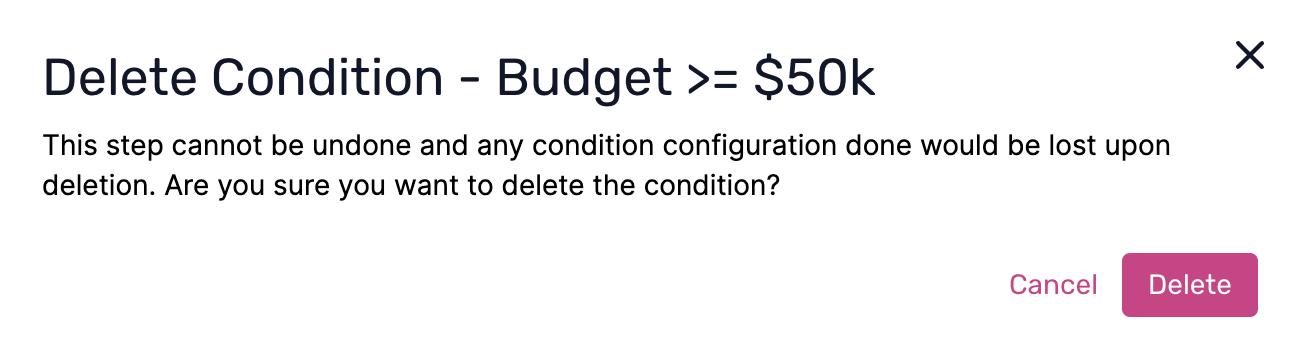
Note: This delete action deleted all the conditions parameters defined within that condition.If only specific rules are to be deleted within the condition and not the entire configuration, then follow these steps:
Deleting individual rules within conditions
Step 1. Within an active workflow, click on the condition. The options to edit or delete will appear. Click on Edit.

Step 2. In the Edit Condition(s) pop-up, click the bin icon at the top right corner to delete the selected rule or condition.

To learn more about workflows and how to configure them, click here.