How to edit and save an active workflow
Last updated: June 26, 2026
Overview
Creating a workflow consists of steps such as
Adding Phase - to logically group tasks within a workflow
Adding Task - to represent actions that contribute to the overall workflow goal
Adding Conditions - to accurately route the workflow automatically, based on conditional flows
To create a new workflow before editing them, click here and follow the steps mentioned.
Editing a workflow
Step 1. Start from the active Workflow Studio and click the ‘+’ icon on the left side, near the existing phase, to add a new phase.
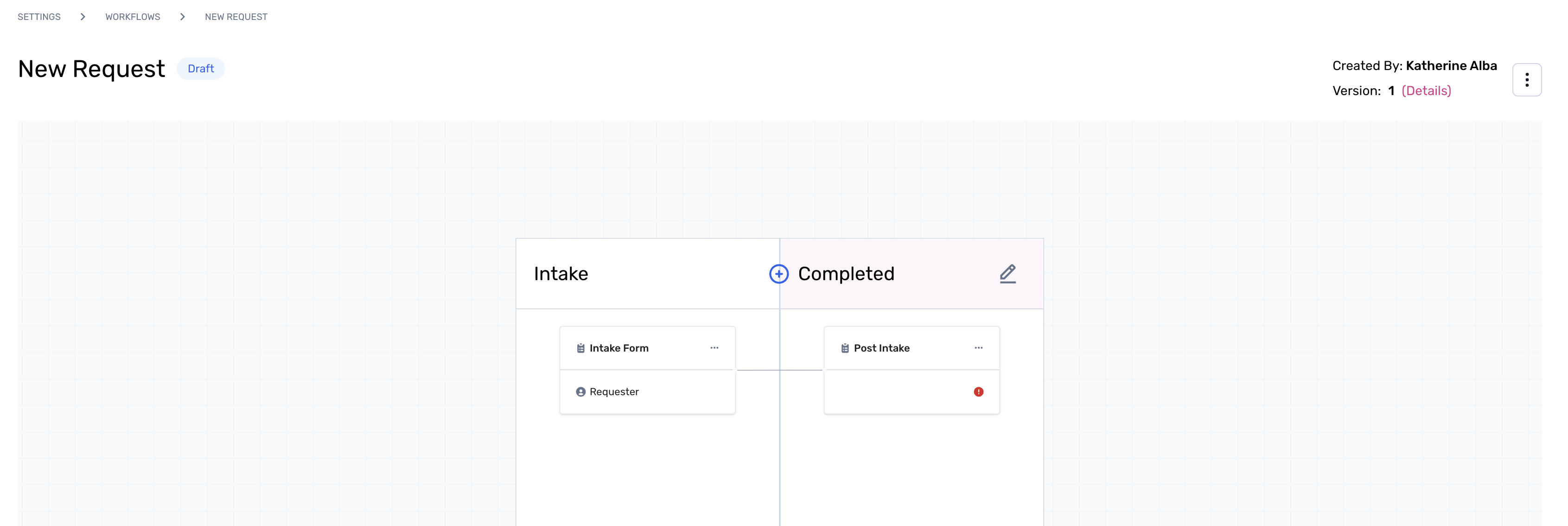
To learn more about a workflow phase, click here.
Add the phase name and click on 'Create Phase' to proceed. To know more about adding a phase, click here.
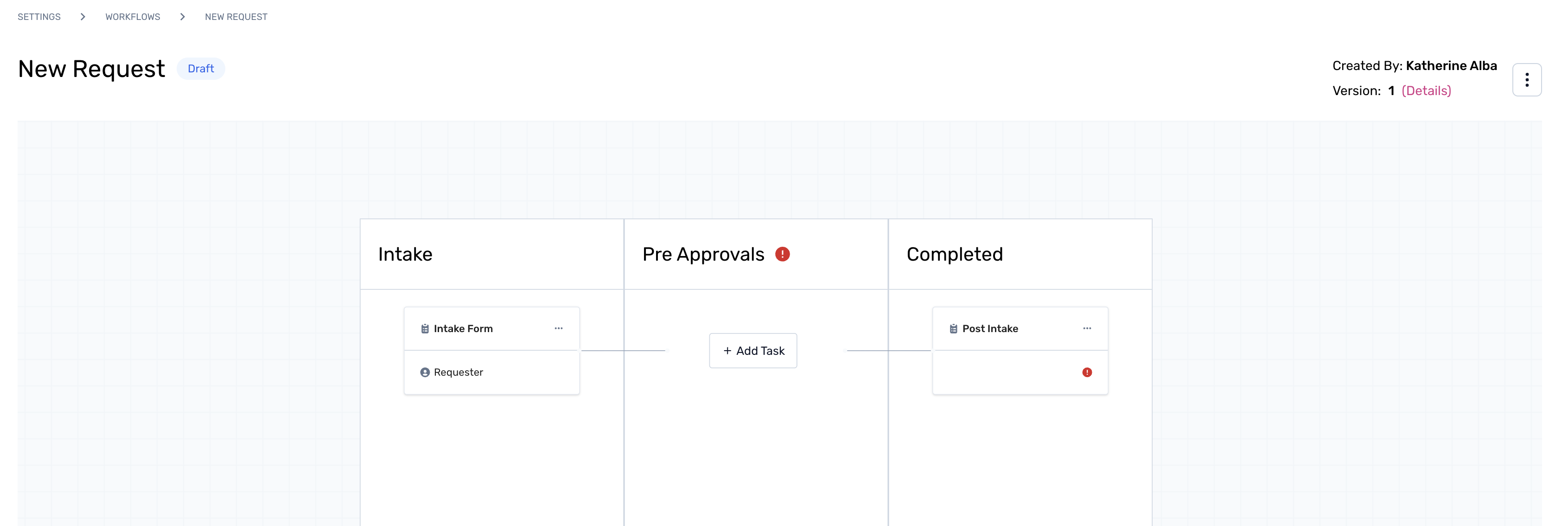
Note: Admins will be unable to publish a workflow, unless it is in the draft state.Step 2. Once the phase is added, click ‘+ Add Task’ to create a new task(s) within the workflow phase.
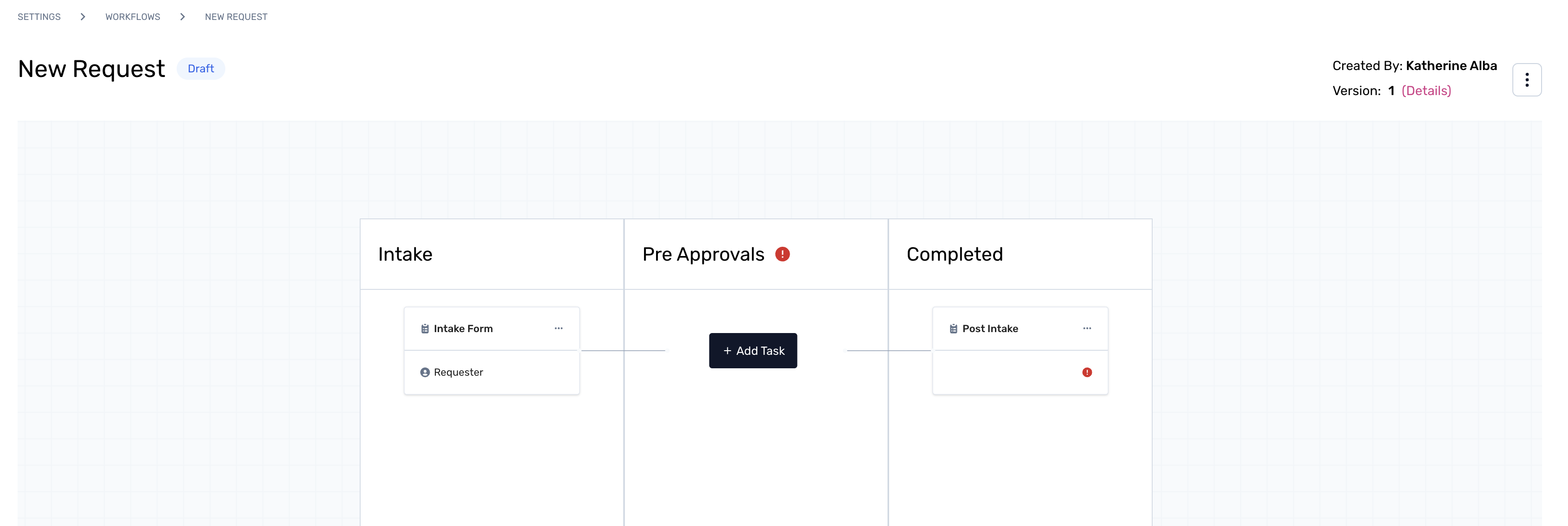
To learn more about a task, click here.