Validating and confirming a CSV contract import
Last updated: July 28, 2026
Overview
Once your columns are mapped, Spendflo validates every row before anything is imported. This article covers the Review Imported Records screen and confirming the import. If you haven't uploaded a file and mapped your columns yet, start with Importing contracts via CSV: upload & AI-assisted mapping.
Step 3. Review your imported records
Spendflo checks every row against three things:
Field type — e.g. a date column must contain a valid date, a number column must contain a number, and an option/enum column must contain one of the allowed values.
Required fields — a row fails if a required field is left empty.
Business rules — e.g. a contract's start date must be before its end date, and contract value must be a positive number greater than zero.
Spendflo also checks whether each row already exists or looks like a duplicate, matching on vendor name and contract name.
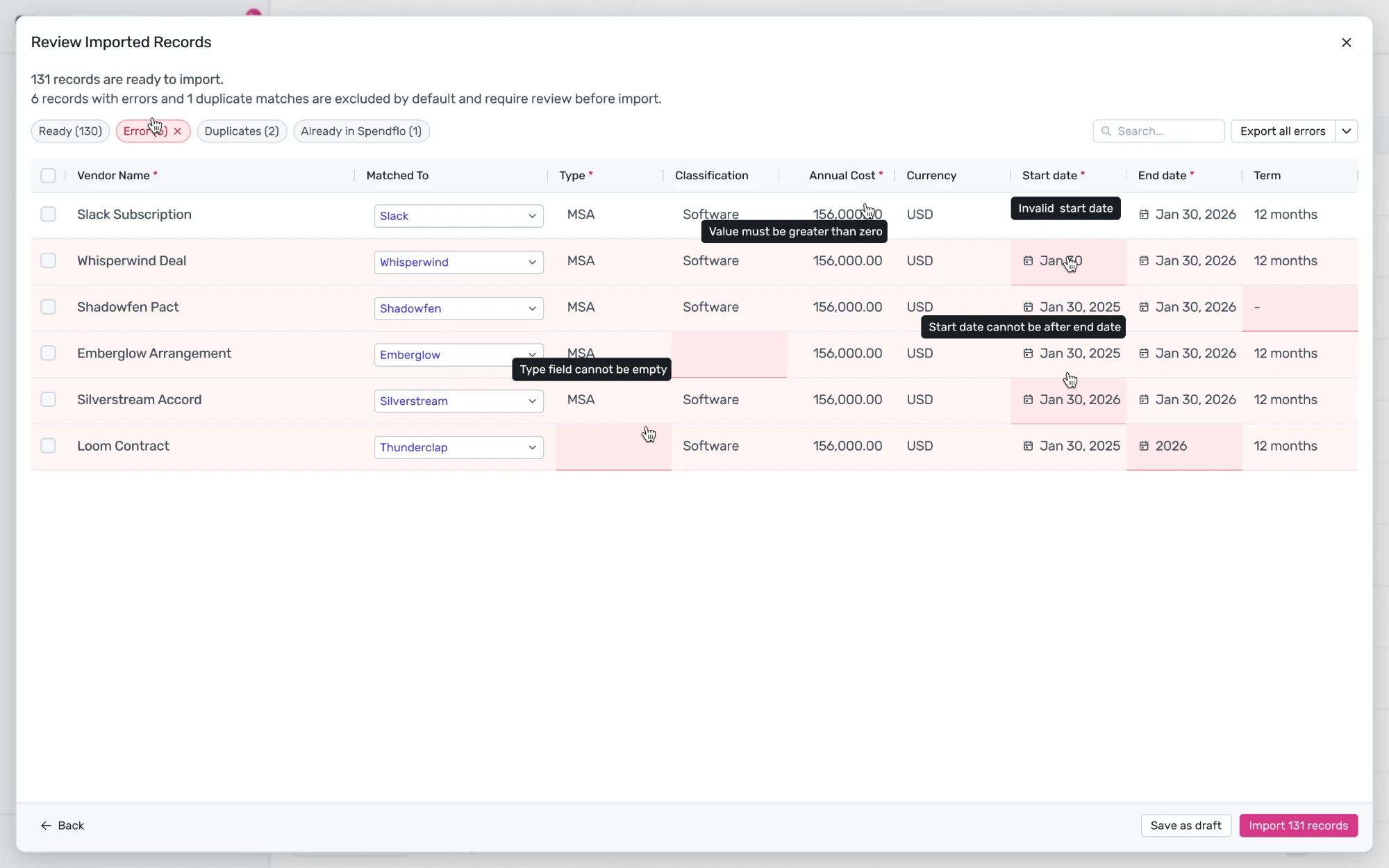
The summary line at the top tells you where things stand, e.g. “131 records are ready to import. 6 records with errors and 1 duplicate matches are excluded by default and require review before import.” Use the tabs to filter the table:
Ready — valid rows, included in the import by default.
Errors — rows highlighted in pink, with the problem called out inline (e.g. “Invalid start date”, “Value must be greater than zero”, “Start date cannot be after end date”, “Type field cannot be empty”). These rows can't be checked — they're always skipped.
Duplicates — rows that look like they match an existing contract. Excluded by default; use the Matched To column to confirm or correct which existing vendor a row matches.
Already in Spendflo — rows that match a contract already in the system.
Use the row checkboxes to include or exclude specific rows — the count on the Import [N] records button updates as you do. Use Export all errors to download the error rows as a CSV so you can fix them offline.
Note: If every row in your file fails validation, the import is blocked. Correct the errors and re-upload the file to try again. You can also click Save as draft at any point to come back later.
Step 4. Confirm the import
Click Import [N] records to open the confirmation dialog. It shows:
How many valid records are ready to import
How many invalid rows will be skipped
If duplicates were detected, a warning with an Include duplicates anyway checkbox (unchecked by default)
Click Confirm to queue the import. You'll be taken back to the Contracts list, and a toast message will confirm that your file is processing and you'll be notified when it's done.
What happens after you confirm
The import runs in the background, so you don't need to keep the page open. Only one contract import can run per organization at a time — if you try to start another while one is in progress, the CSV upload option will be disabled with a message asking you to wait.
You'll get an in-app notification when the job finishes. To check on it in the meantime, see Tracking your contract import status (Import History).