How to build and edit a custom form
Last updated: June 26, 2026
Overview
Admins can create custom forms with various fields within the Form tab. Follow these steps to learn how to build, edit, and customize a form with the Spendflo platform.
Building and editing forms
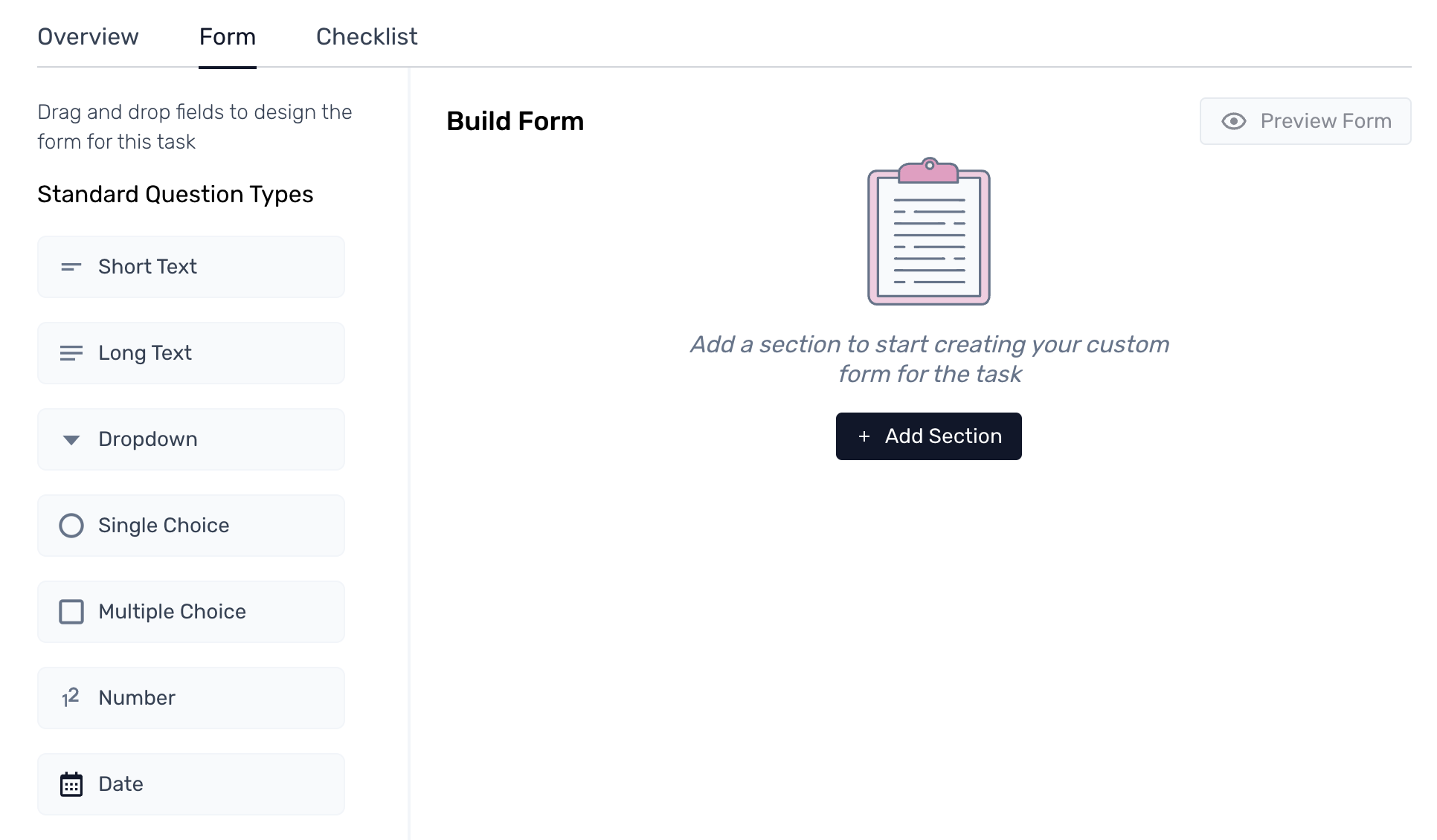
Step 1. After editing the task overview section from the Task Configuration screen, admins can configure forms as the next step. Start by clicking the '+ Add section’ button and assigning it a name.
Step 2. Once the section is renamed, drag the required fields from the left pane and drop them within the newly created section.
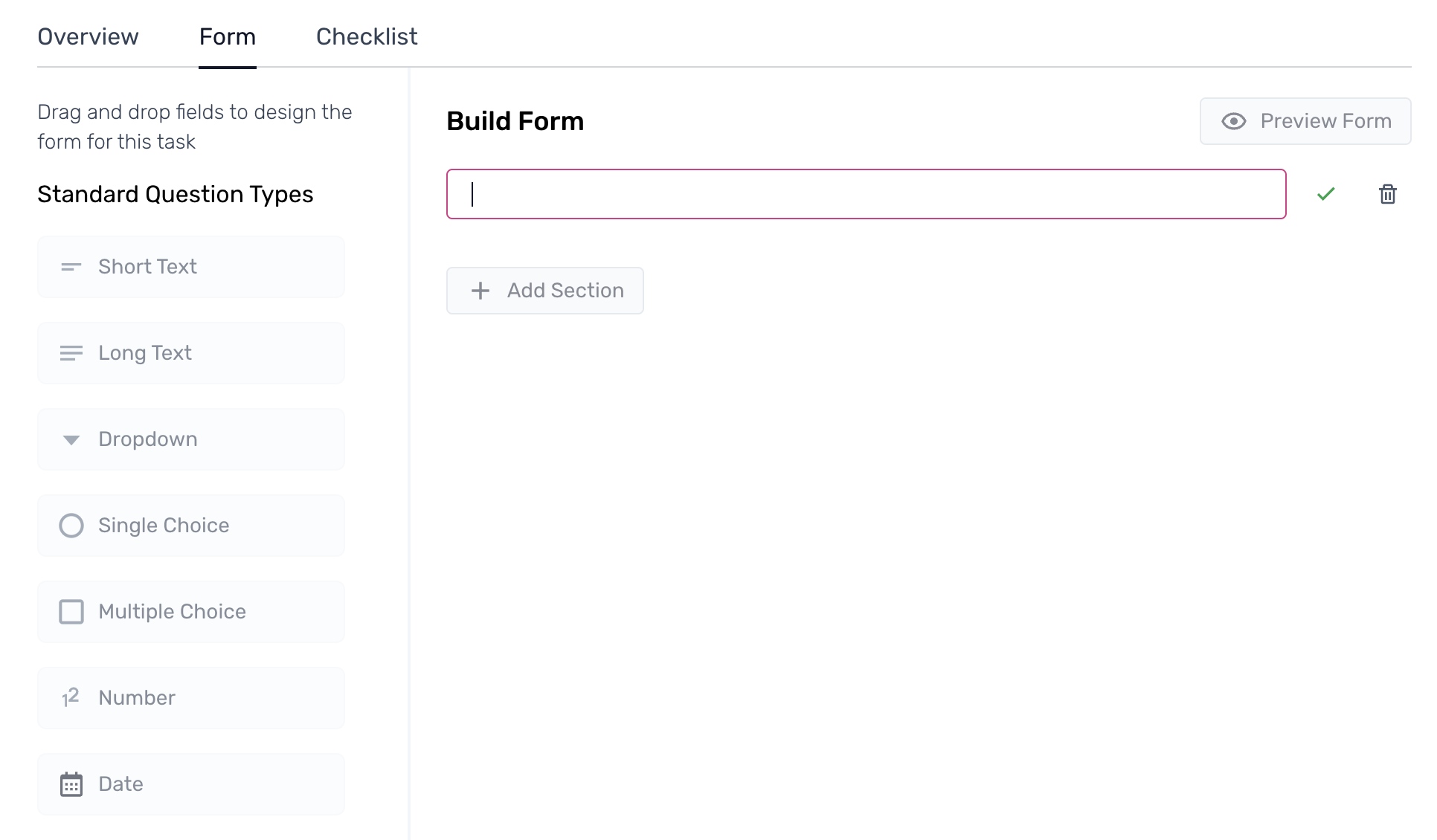
Note: While building the form with each field added and edited, ensure to save all the edits using the green check mark (✓) right beside the field editor.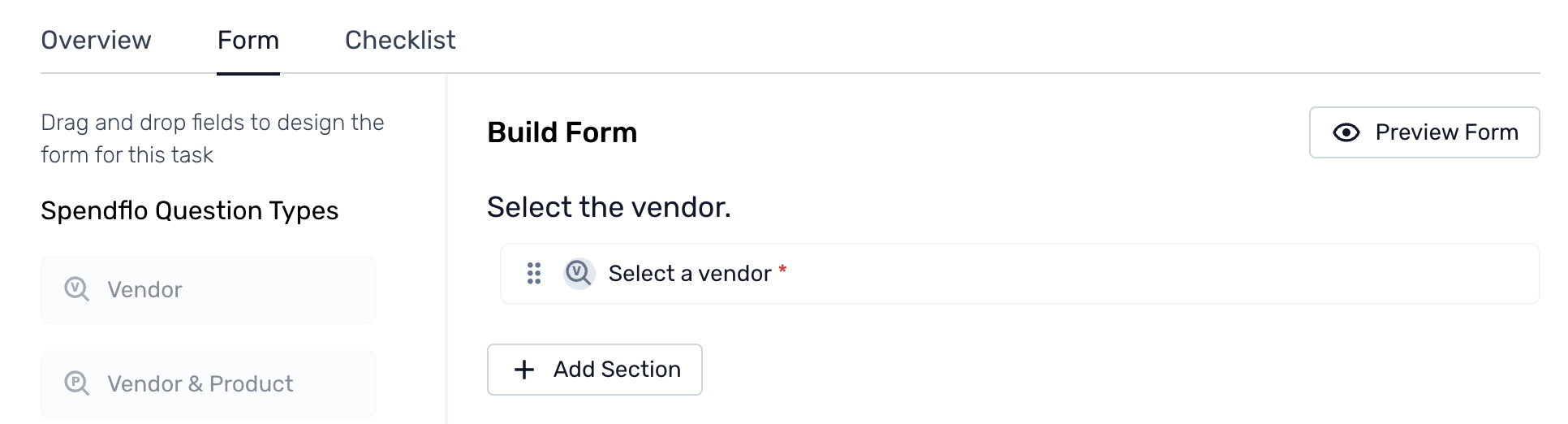
Step 3. Once the form is built and configured, admins can click Save and Continue to proceed.
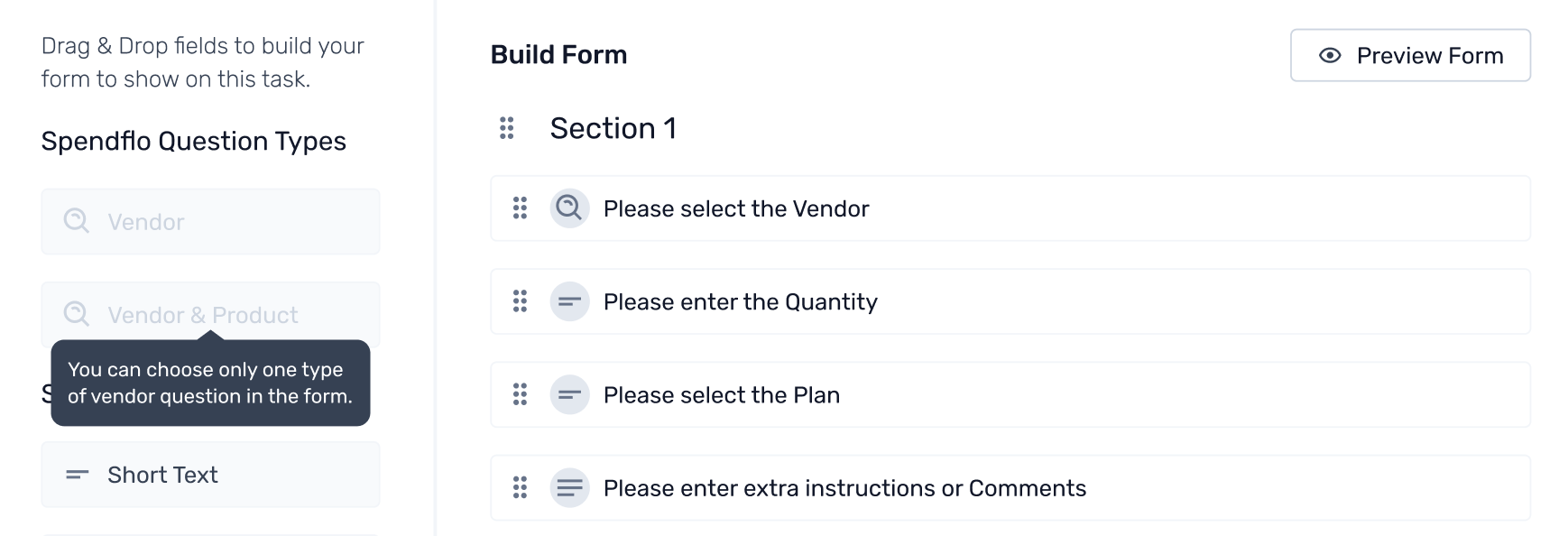
Note: Once the form is built, users can choose the 'Preview Form' option to preview the finished result.Click here to learn how to complete the following task configuring steps.