Where do I view all workflows?
Last updated: June 26, 2026
Where do I view all workflows?
Overview
Administrators can access a listing page within Spendflo that displays all workflows. The page provides a table view of workflow details such as workflow name, workflow type, owner details, created date, status, tags, and quick actions.
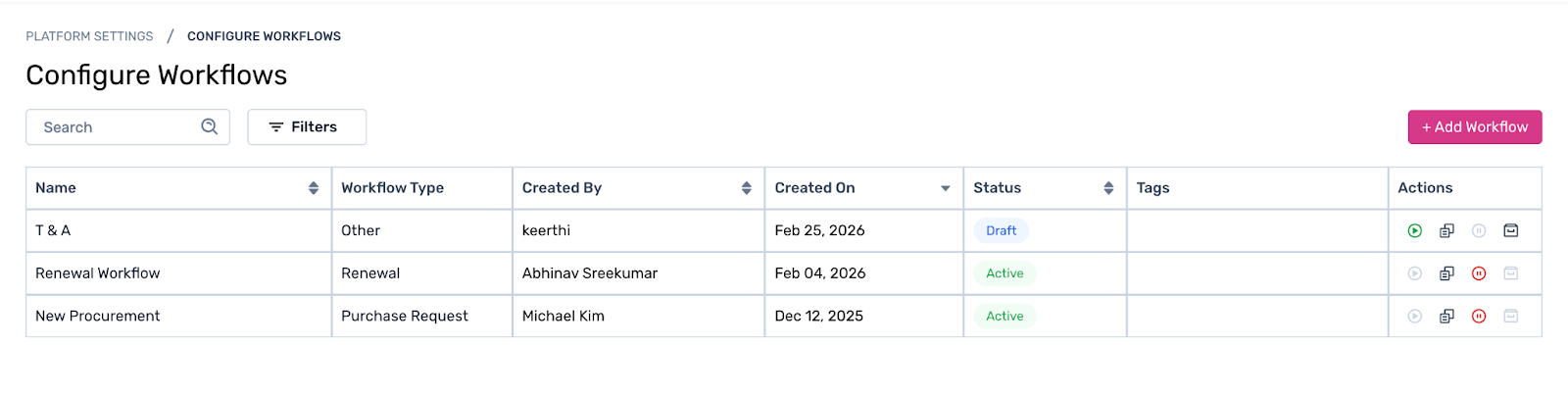
Columns on the Workflows Page
Column | Description |
|---|---|
Name | Displays the workflow title created by the admin. |
Workflow Type | Indicates the type of workflow — such as Purchase Request, Renewal, or Other. This helps you quickly identify the purpose of each workflow at a glance. |
Created By | Shows the name of the person who created the workflow. |
Created On | Indicates the date the workflow was created. |
Status | Reflects the workflow’s current state – either Active or Draft. |
Tags | Lists any keywords or labels assigned to the workflow for easier filtering and organisation. |
Actions | Provides quick action options to manage the workflow directly from the listing page. |
Filtering and Sorting
You can use the Search bar to look up a specific workflow by name, or use the Filters option to reorder and narrow down workflows by status, type, or other criteria – making it easier to find what you need when the list gets long.
Adding a New Workflow
To create a new workflow, click the + Add Workflow button at the top right of the page. This will open the workflow creation flow where you can configure the steps, assign owners, and set the workflow type.