How to manage workflow tasks and timeline
Last updated: June 26, 2026
Overview
Within the Request Details page, the requesters and task owners can view all the timeline-based activities on the workflow with which the request was created. This is represented on the left pane of the screen, visually showcasing the start to finish of each task, along with the details of the task status, deadline and due dates, task assignees, and more.
The timeline and tasks tab helps teams coordinate their efforts in viewing and monitoring the overall progress of the workflow tasks, enhancing the efficiency and communication required with each assigned responsibility. Within Spendflo’s workflow timeline, real-time changes occur automatically with all task changes.

Managing workflow tasks and timeline
Step 1. Within the Spendflo platform, click 'Buying' on the navigation bar and click ‘Requests.’

Step 2. On the Request Listing page, click on any request to view the details.

Step 3. Within the request details page, navigate to the left pane to view and manage all the workflow tasks and timelines.
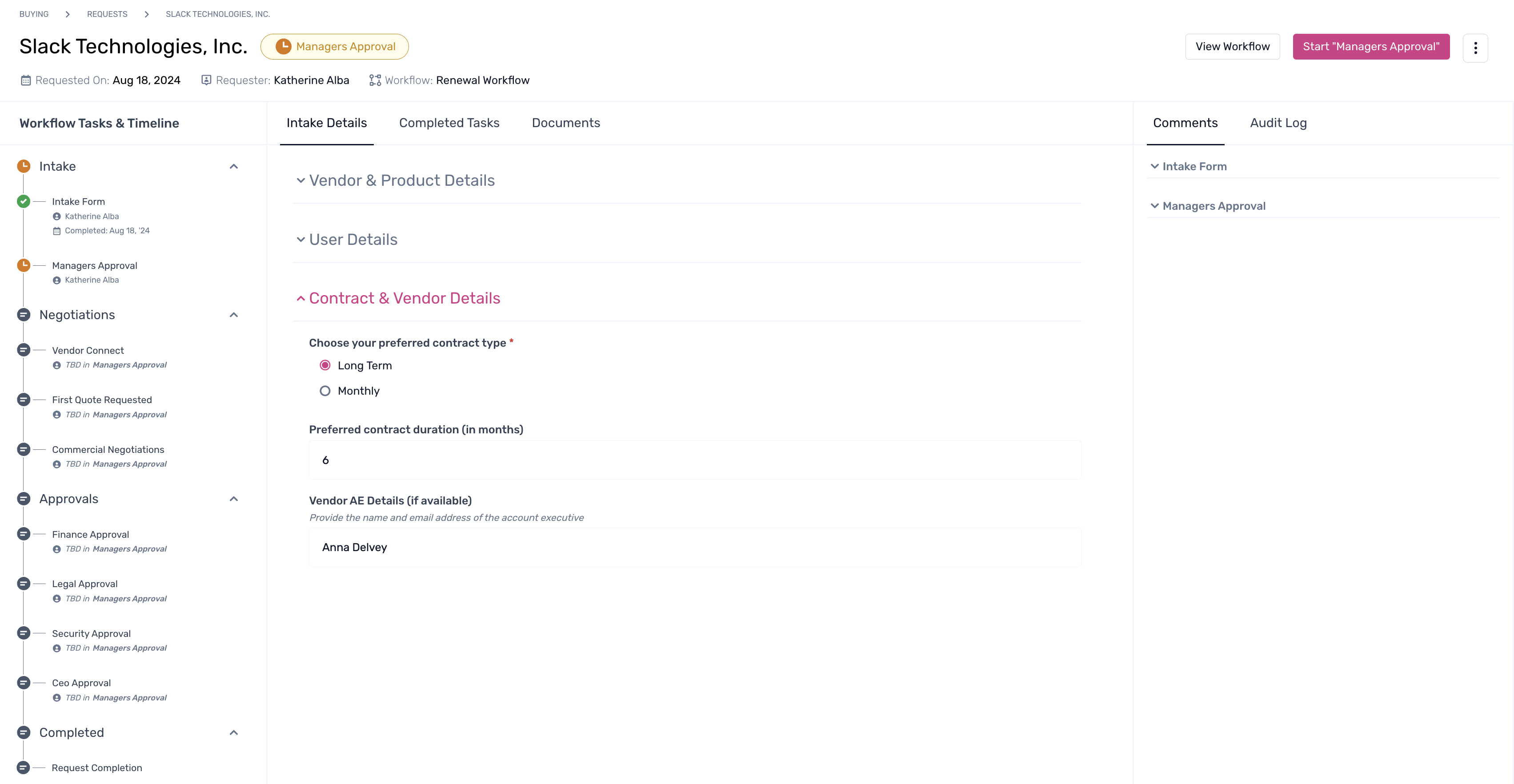
Step 4. Requesters and Task owners can act on the timeline by changing assignee and task due dates. Click on the drop-down with any task or phase under the timeline and click on the edit icon.

Click here to learn more on comments and how to manage them.