Connecting Accounts for Contract Import
Last updated: August 10, 2026
Overview
Accounts & Inbox is where you connect the data sources Spendflo pulls documents from — it's not limited to contracts. Every file that comes in through a connected account or inbox is classified by content into Contract, Order Form, Invoice, or Other, and routed accordingly. It's under Settings → Accounts & Inbox, split into two tabs: Configure Accounts and Configure Inbox.
Configure Accounts
Connect a Google Drive or Gmail account, then point Spendflo at specific folders to watch.
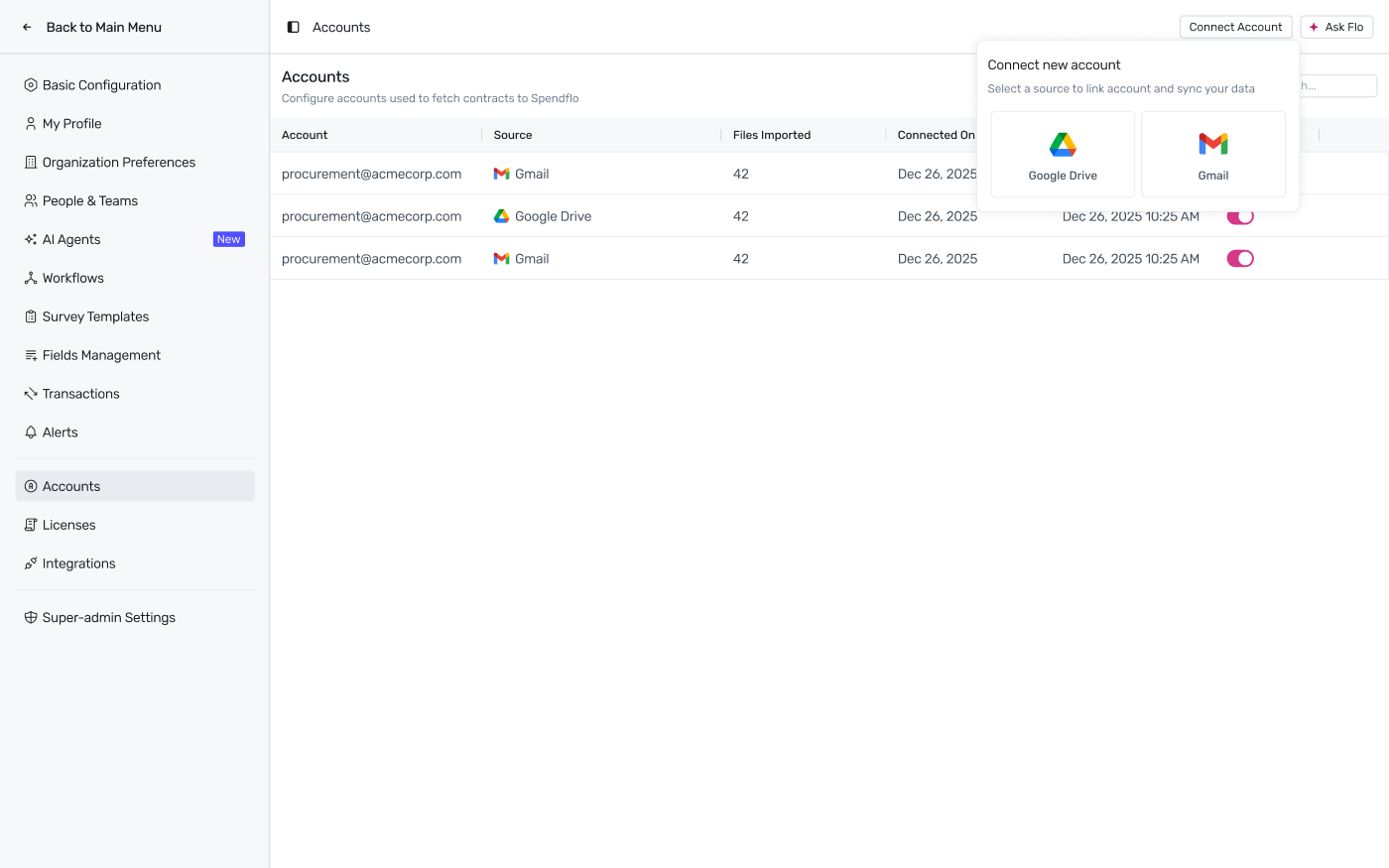
Click Connect Account and choose Google Drive or Gmail.
Once an account is connected, add the specific folders you want Spendflo to watch:
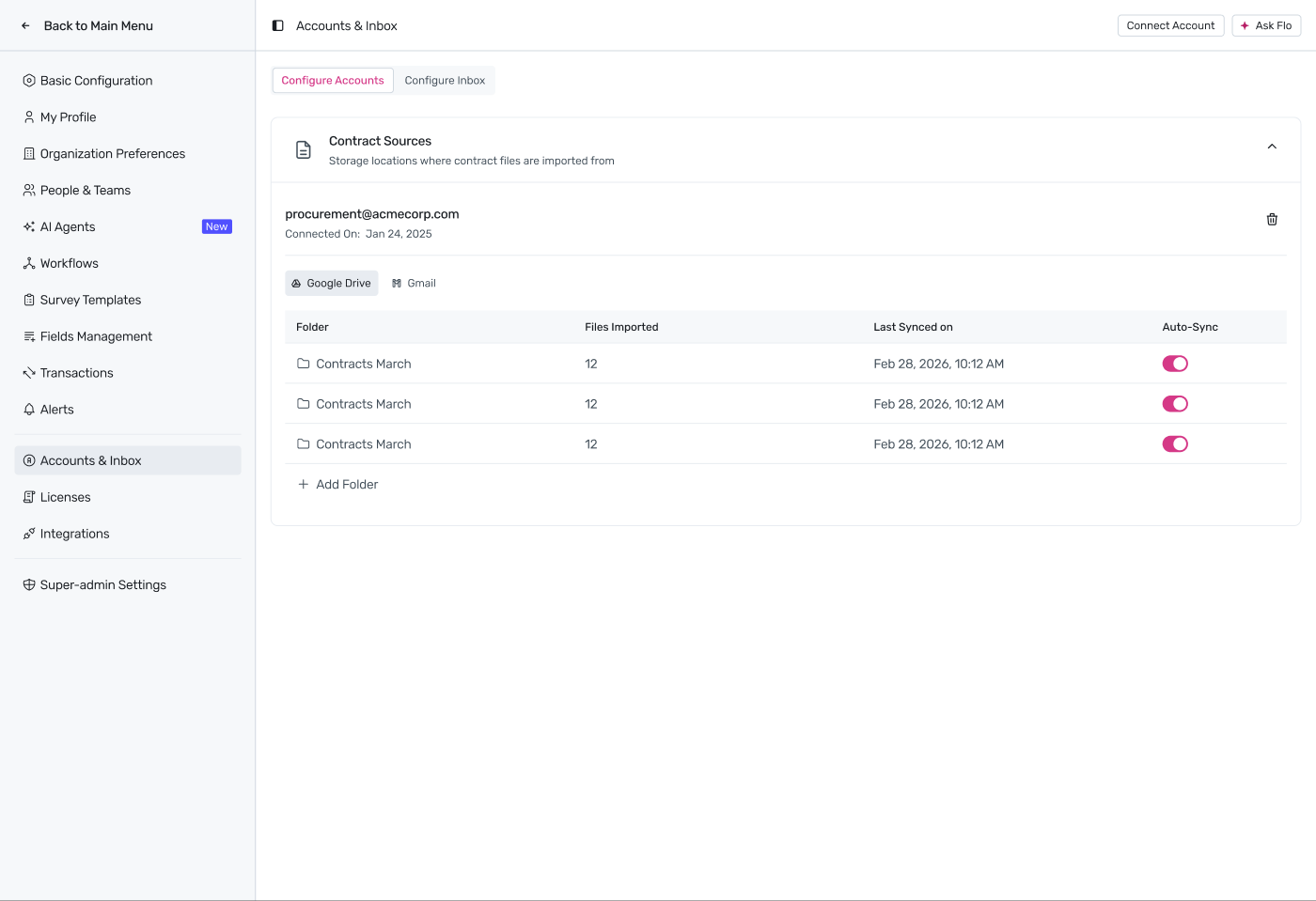
Configure Accounts — one connected account can watch multiple folders.
Each connected account shows when it was connected, and which folders it's syncing from (grouped by source — Google Drive or Gmail).
Files Imported and Last Synced on show per-folder activity.
Auto-Sync toggles whether Spendflo keeps checking that folder automatically.
Click + Add Folder to watch additional folders from the same account.
Note: the folder panel is labeled “Contract Sources” in the product, but it isn't limited to contracts — see Classification below.
Configure Inbox
The second tab, Configure Inbox, manages inbox-based ingestion — for example, the dedicated invoice inbox each subsidiary or business unit has (see Managing Invoices: Extract and Map). Details on this tab will be added once we have a screenshot of it.
Classification
Every file pulled in from a connected account or inbox is automatically classified by content into one of four types:
Contract
Order Form
Invoice
Other
Spendflo routes each file based on that classification — for example, invoices flow into the invoice review queue described in Managing Invoices: Extract and Map, while contracts and order forms feed into agreement management.