Configuring Alerts
Last updated: August 10, 2026
Overview
Alerts controls which channel — Email, Slack, or both — each notification event is sent through. It's under Settings → Alerts, and it's where you decide whether things like task assignments or procurement request updates should reach people by email, in Slack, or not at all.
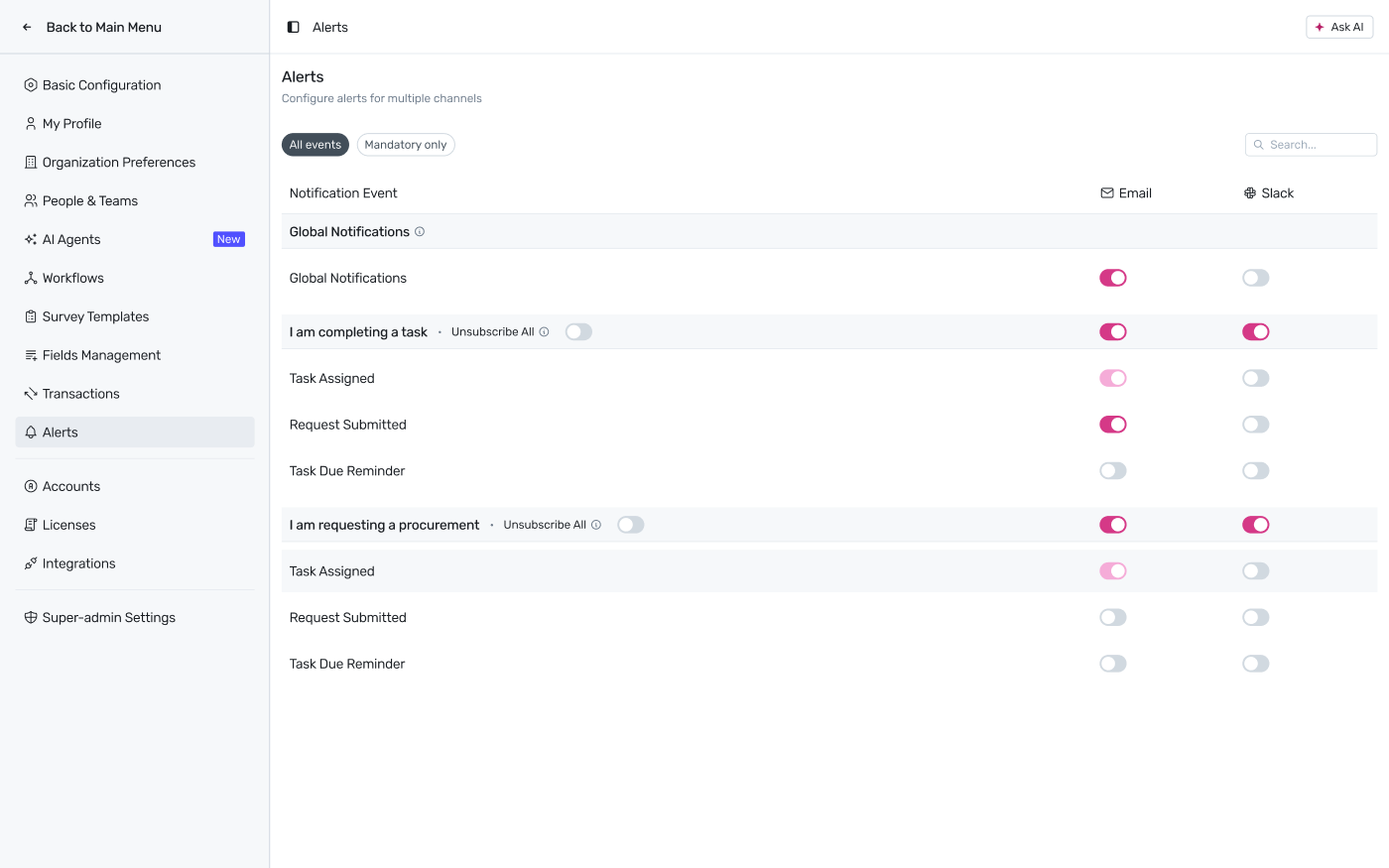
Settings → Alerts — one row per notification event, one toggle per channel.
How the list is organized
Notification events are grouped by the situation that triggers them — for example, I am completing a task or I am requesting a procurement — and each group expands into the individual events within it, such as Task Assigned, Request Submitted, or Task Due Reminder. A separate Global Notifications group covers alerts that aren't tied to a specific task or request.
Use All events / Mandatory only at the top to filter the list down to just the events that can't be turned off.
Use the search box to jump directly to a specific event by name.
Each group has an Unsubscribe All toggle that turns every event in that group off at once, without having to switch each row individually.
Setting channels per event
Each row has one toggle for Email and one for Slack — turn either on or off independently, so an event can go out over both channels, just one, or neither.
Notes
Some events are marked mandatory and can't be disabled — switch to the Mandatory only filter to see exactly which ones.
This page controls delivery channels only. For what each individual notification looks like once received, see Platform Notifications.