Finding and Managing Agents in Agent Studio
Last updated: September 22, 2026
Overview
Agent Studio is where every custom agent in your org lives — create new ones, see which are active, and manage existing agents from a single list. It's under Flo AI → Agent Studio.
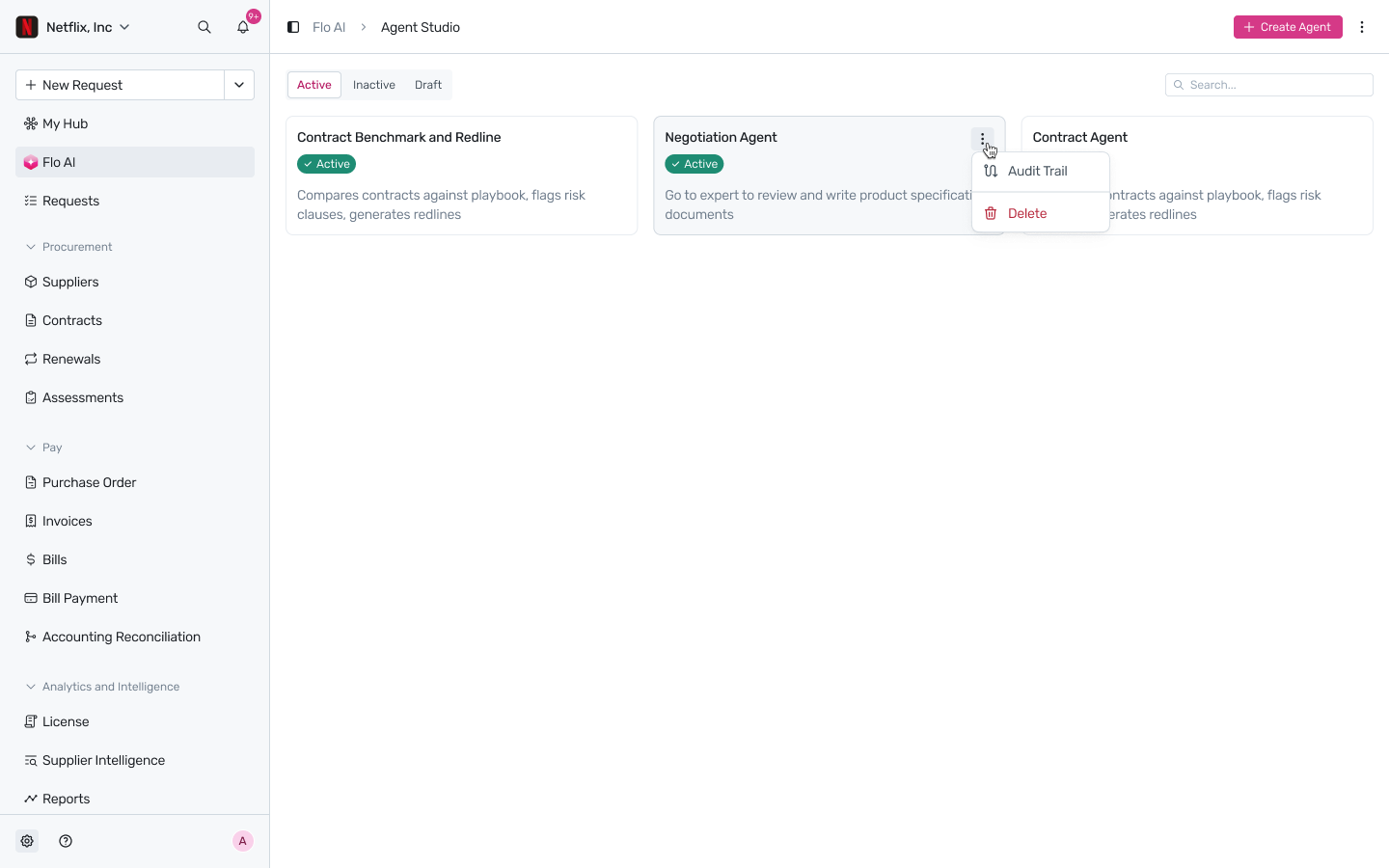
Flo AI → Agent Studio
Finding an agent
Agents are grouped into three tabs:
Active — published agents currently usable in workflows and Copilot.
Inactive — agents that have been deactivated and won't run until reactivated.
Draft — agents with unpublished changes that aren't live anywhere yet.
Use Search in the top-right to jump straight to an agent by name instead of switching tabs.
What each card shows
Every agent is a card with its name, a status badge (Active/Inactive), and a short description of what it does — for example, "Compares contracts against playbook, flags risk clauses, generates redlines." Hover over a card to reveal its … menu, which opens Audit Trail (see every past run of that agent) or Delete (permanently remove it).
Creating an agent
Click + Create Agent in the top right to start a new one from scratch. A new agent begins life as an unpublished draft, so it won't affect any live workflow until you explicitly publish it — see Versioning, publishing, and deleting custom agents for how drafts and published versions work.