Managing Users
Last updated: September 10, 2026
Overview
This article covers the full admin lifecycle for a Spendflo user — inviting, editing, filtering, pausing, locking, and archiving (single or bulk) — from Settings → Users and Roles. For how roles and permissions work, see Roles in Spendflo: Who Can Do What. For email and identity management, see User Identity & Email Management.
Admin Only — every action in this article requires Administrator (or Super Administrator) access.
The Users table
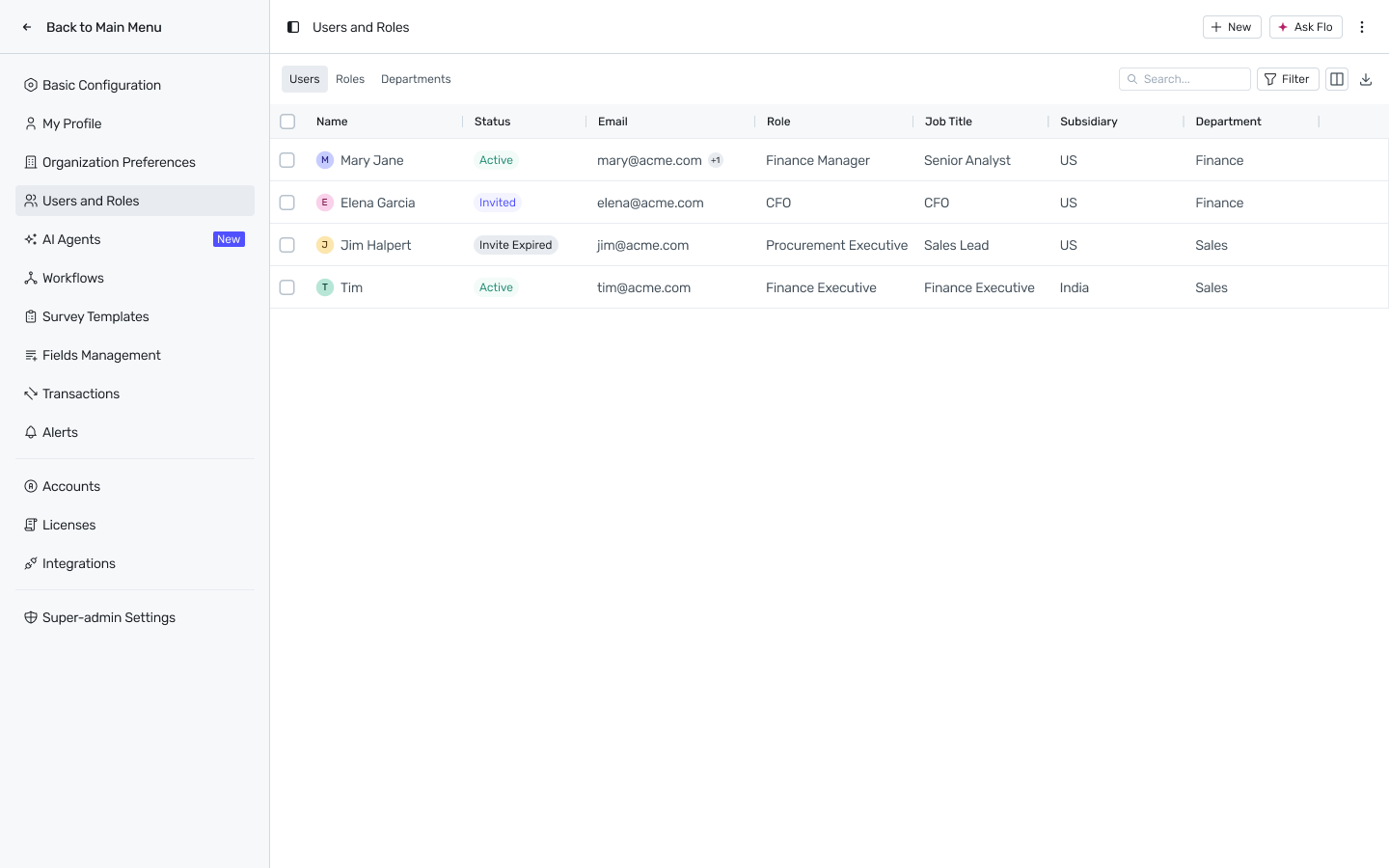
Settings → Users and Roles opens on the Users tab, with Roles and Departments as adjacent tabs. Columns: Name, Status, Email, Role, Job Title, Subsidiary, Department.
Status is one of: Active, Invited, Invite Expired, Paused, Locked, Archived.
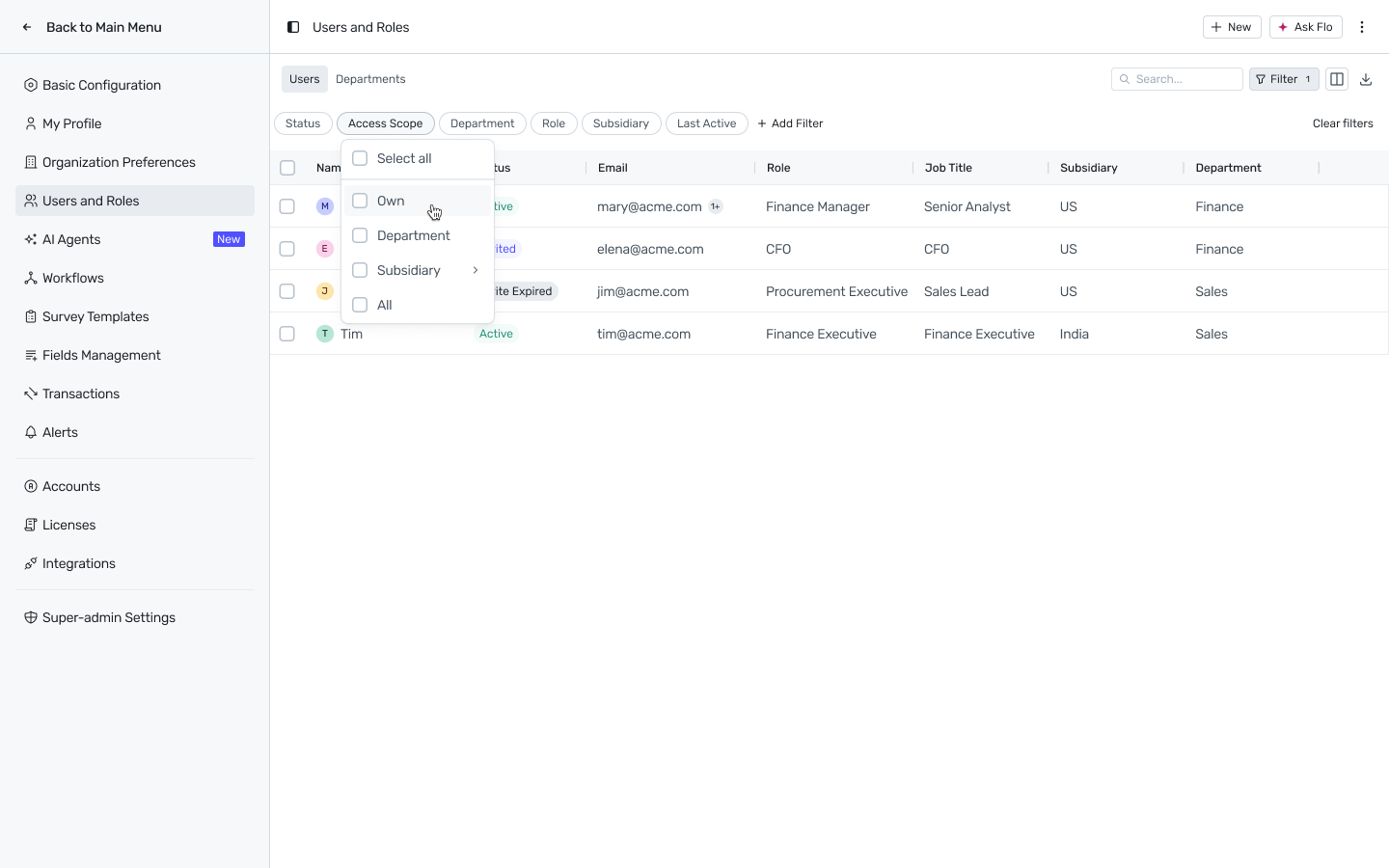
Filtering: click Filter to add filter chips for Status, Access Scope, Department, Role, Subsidiary, or Last Active (use + Add Filter for more). The Access Scope filter offers four checkable options — Own, Department, Subsidiary, All — as a convenience for narrowing the table; this is separate from how scope is actually configured on a user (see Roles in Spendflo: Who Can Do What).
Inviting a user
New users are invited one at a time from + New → User, with Role, Subsidiary, Department, and employment Type mandatory (Subsidiary only appears if your organization has subsidiaries configured via a GL or Coupa integration — otherwise it's not shown). See Inviting Spendflo users for the full step-by-step and the New User form.
Note: there's no bulk-invite-via-CSV option. The Bulk Upload option under + New is for bulk email updates on existing users (replacing a user's email address against their Spendflo ID — each user has one email address), not for creating new accounts — see Email Updates for that flow.
Viewing and editing a user
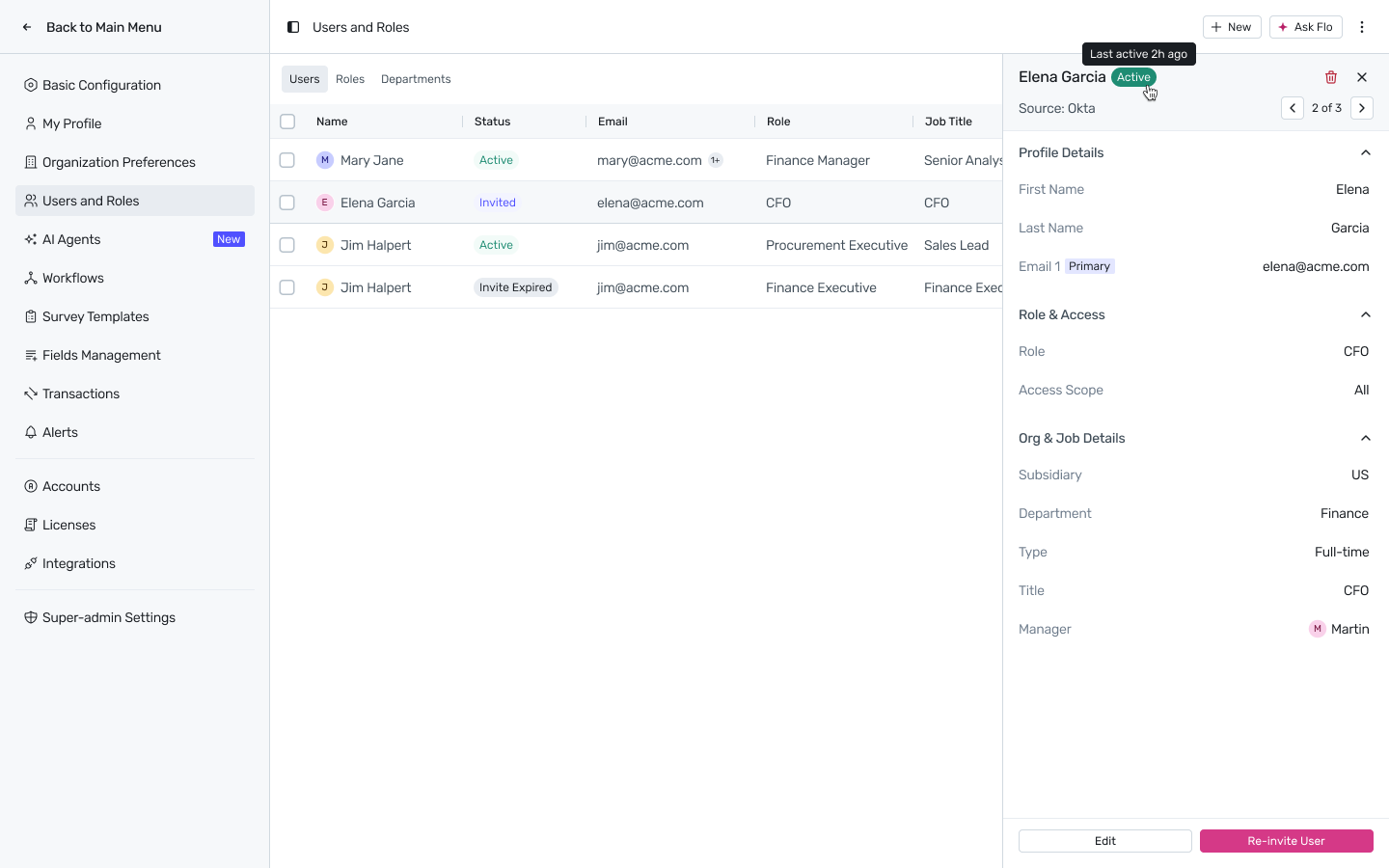
Click a user's row to open their detail panel:
Header shows name, current status, and (if provisioned externally) a Source line, e.g. Source: Okta.
Use the < N of M > pager to move through users without closing the panel.
Actions available: Edit, Re-invite User (for Invited or Invite Expired users — generates a new invite link and resets the expiry timer; only one active link exists at a time), and the row's … menu for Pause / Lock / Archive.
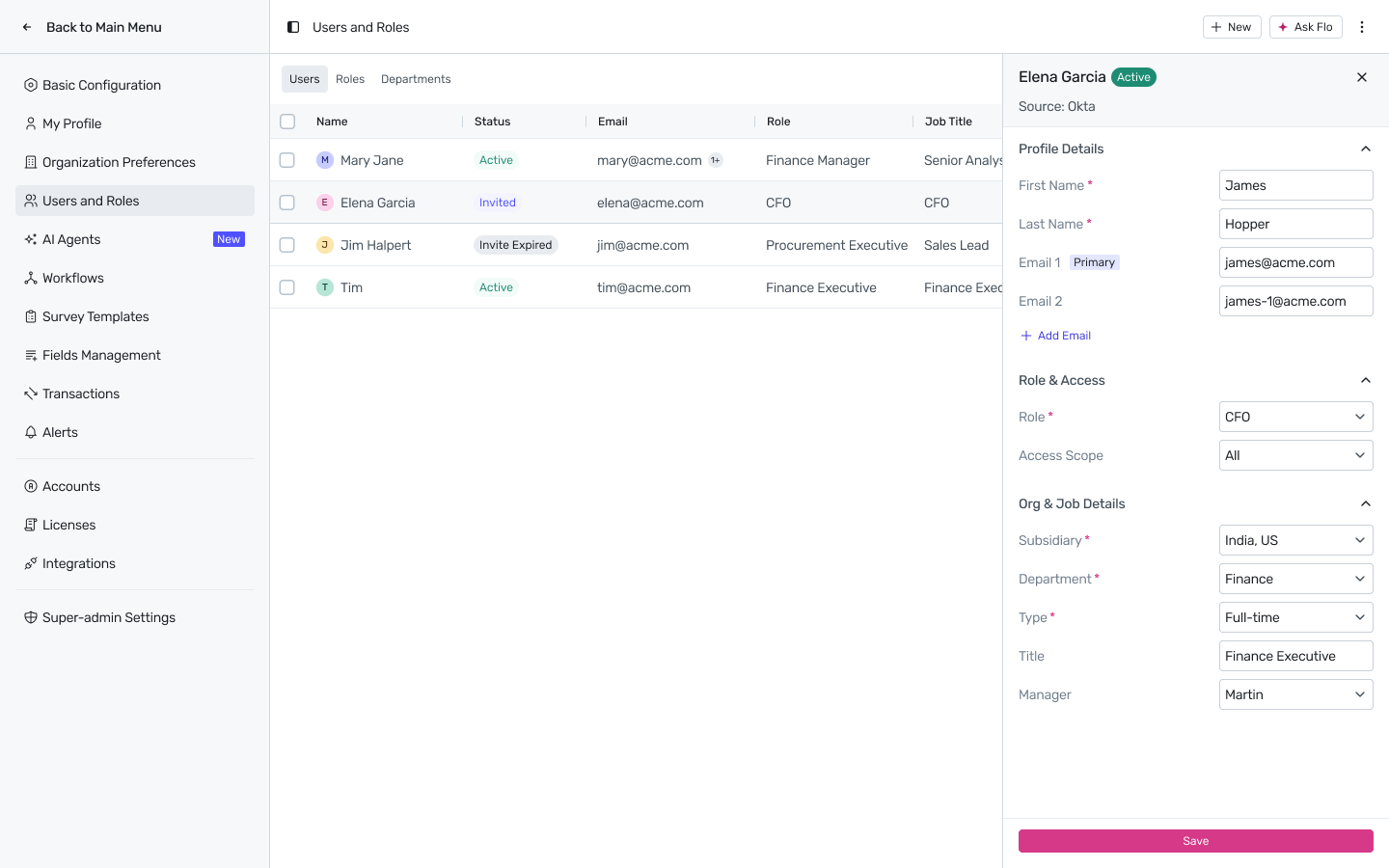
Editing: click Edit to make Profile Details, Role & Access, and Org & Job Details editable in place. Changes apply immediately on Save.
Pausing a user
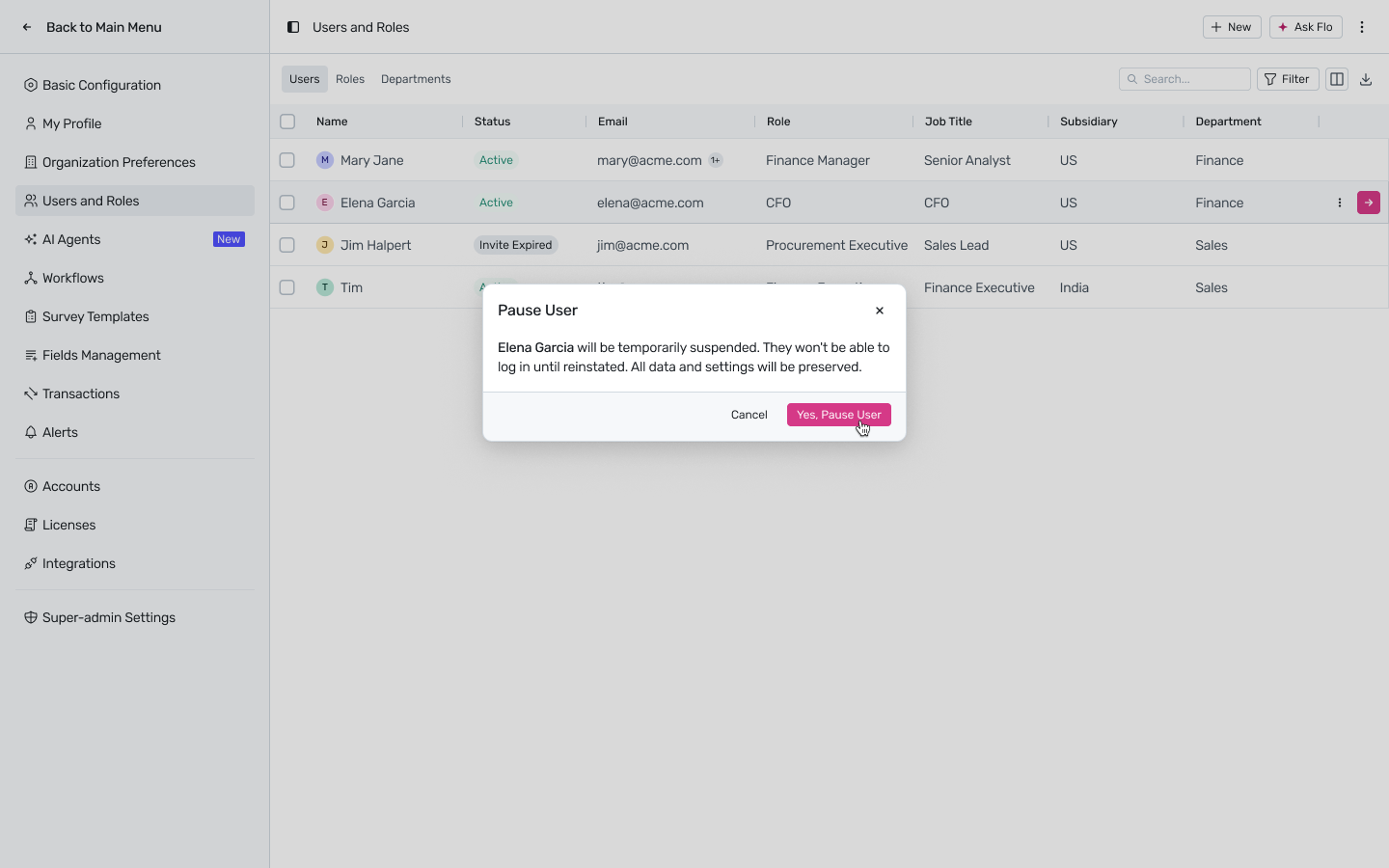
Use for extended leave or a temporary hold. From the row's … menu, choose Pause. Confirmation dialog:
Pause User
[Name] will be temporarily suspended. They won't be able to log in until reinstated. All data and settings will be preserved.
Confirm with Yes, Pause User. The user's status becomes Paused; role, scope, and data settings are preserved. Reinstate at any time from the same menu.
Locking a user
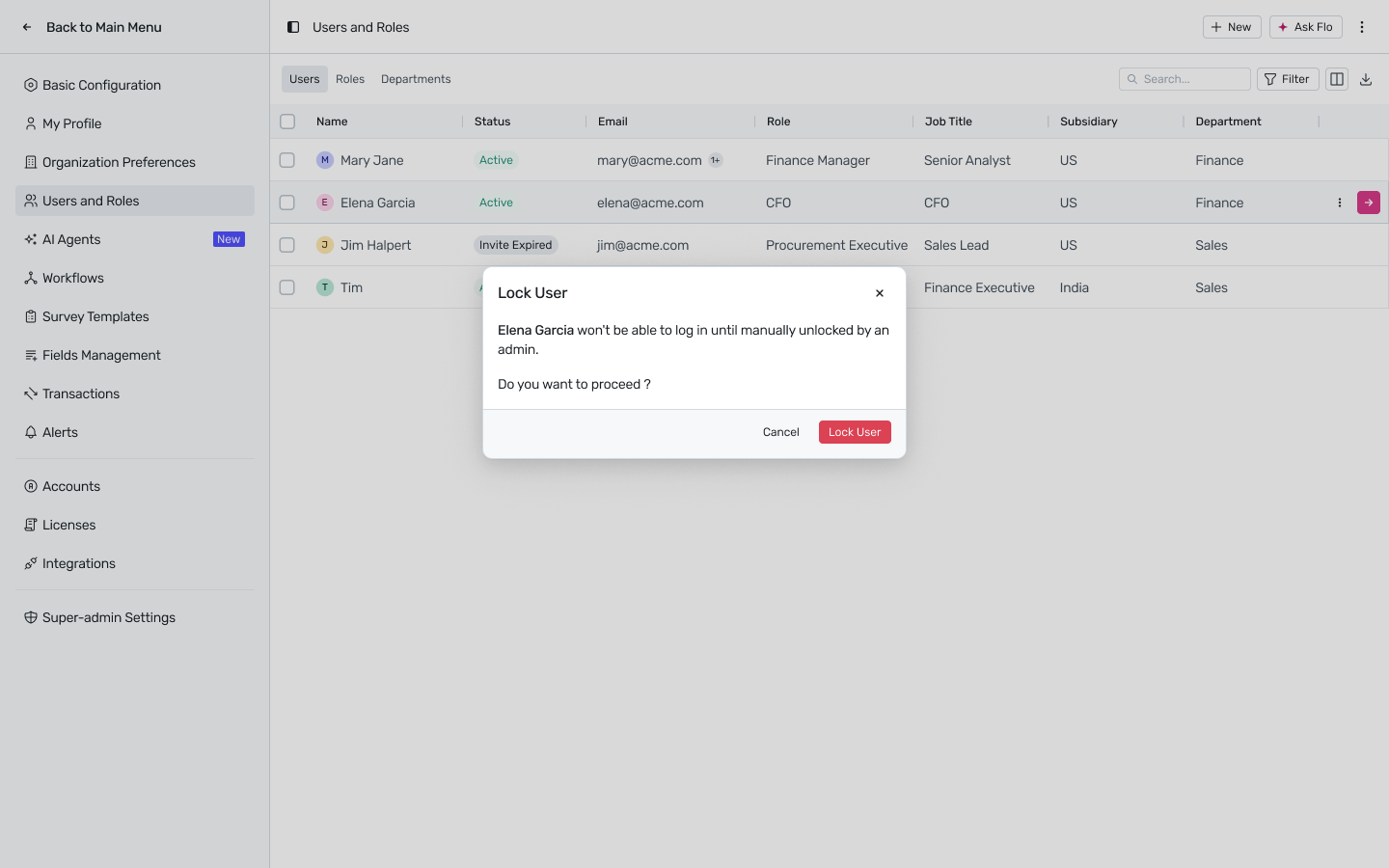
Used for security-triggered situations rather than routine leave. From the row's … menu, choose Lock. Confirmation dialog:
Lock User
[Name] won't be able to log in until manually unlocked by an admin.
Do you want to proceed?
Confirm with Lock User. The user's status becomes Locked until an admin manually unlocks them — there's no auto-expiry.
Archiving a user (single)
Archiving is Spendflo's term for removing a user while retaining their historical data. Before a user can be archived, anything they own must be transferred to a new owner.
From the row's … menu (or the user's detail panel), choose Archive.
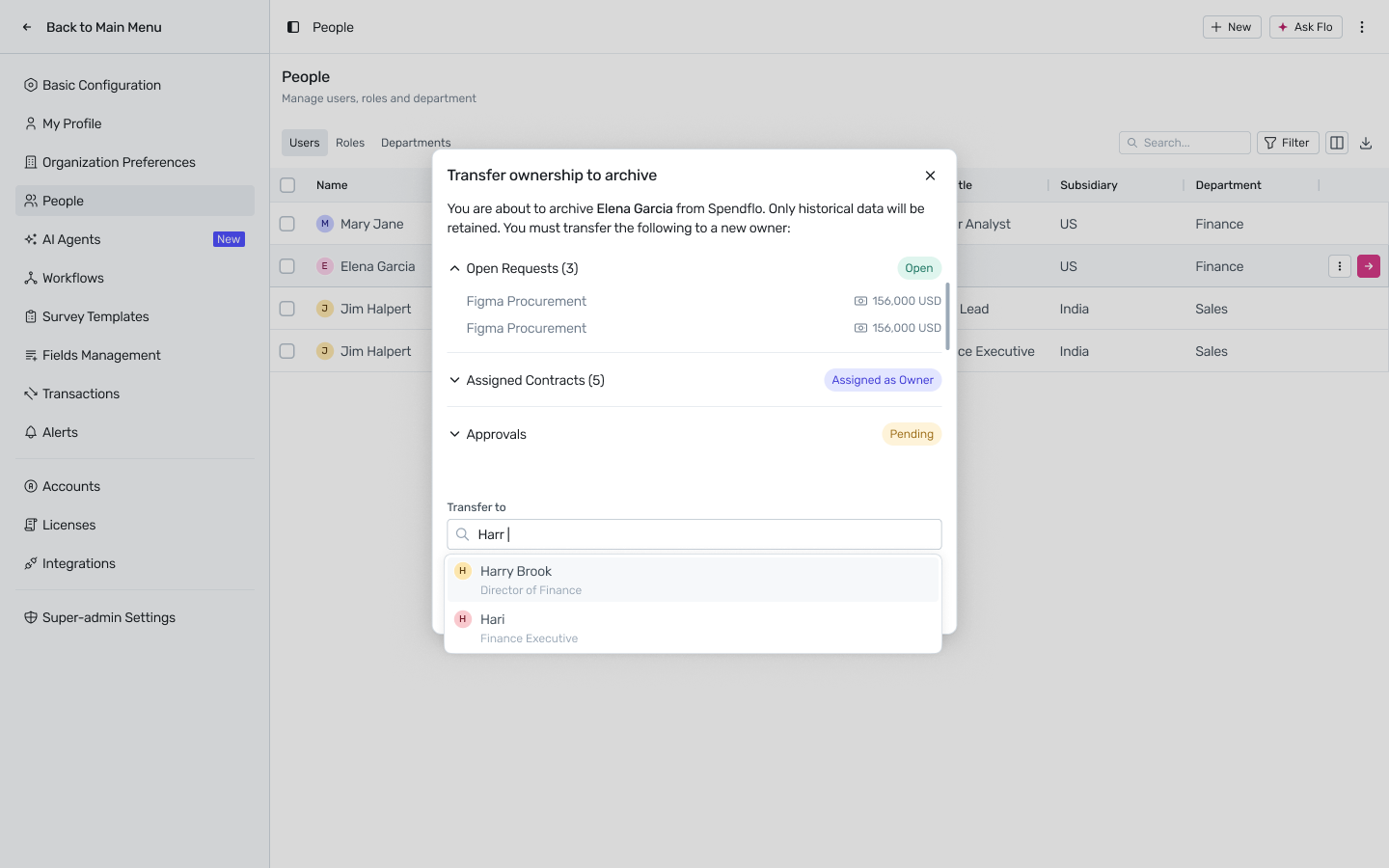
The Transfer ownership to archive modal lists what needs reassignment, grouped into collapsible sections — typically Open Requests, Assigned Contracts, and Approvals — each with a status badge (Open / Assigned as Owner / Pending).
Search for a Transfer to user. Spendflo restricts the eligible list to users who match the departing user's role and whose subsidiary/department access covers the departing user's assignments — if no eligible user exists, ownership falls back to a Platform Admin.
Confirm. The modal copy reads: “You are about to archive [Name] from Spendflo. Only historical data will be retained. You must transfer the following to a new owner.”
Archiving does not delete the user's records — requests, comments, approvals, and audit log entries are retained and the user's name is attributed wherever it appears.
Archiving users in bulk
For team-wide offboarding, select multiple users' checkboxes — the toolbar switches to N selected · Archive.
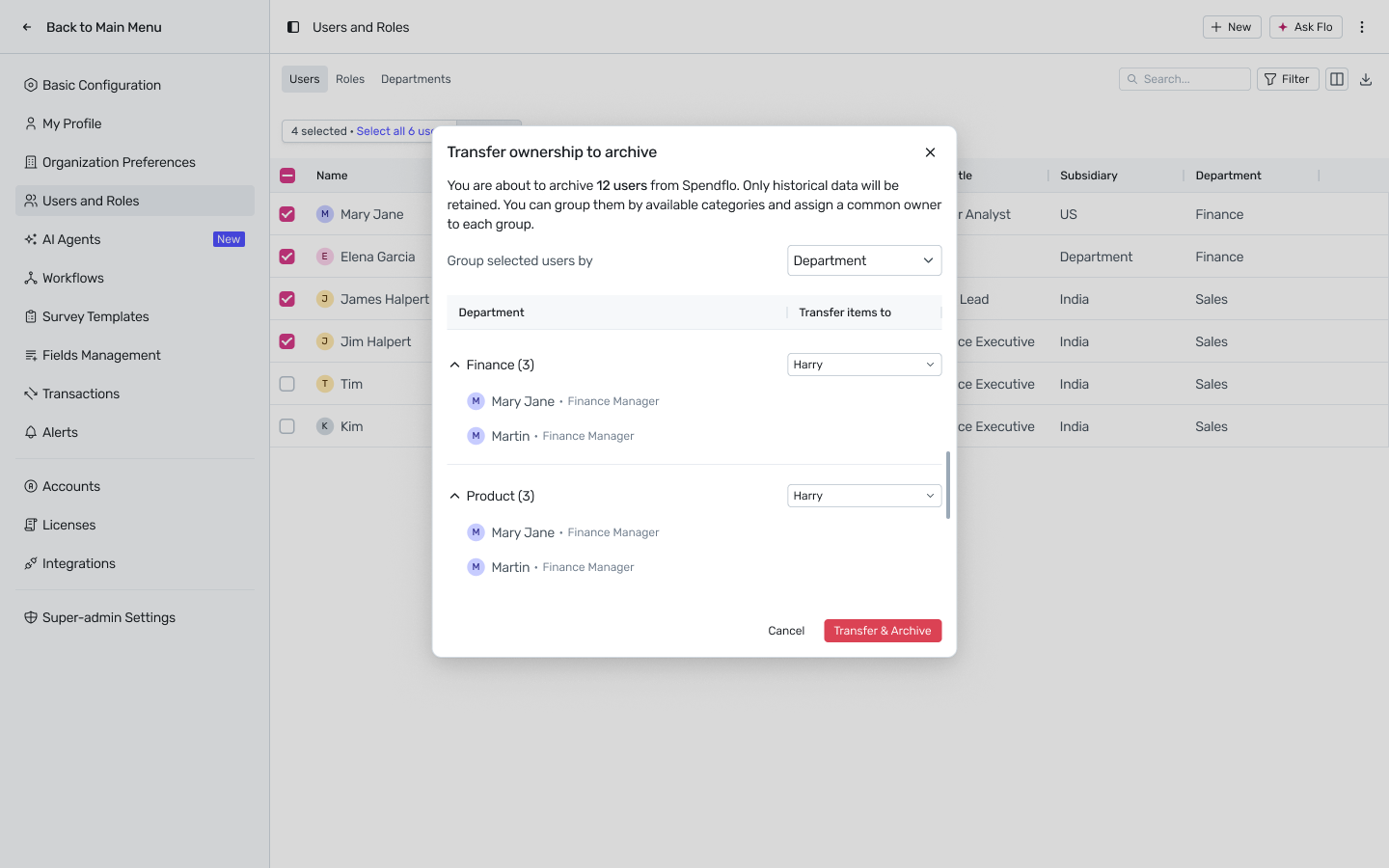
Click Archive. The Transfer ownership to archive modal opens: “You are about to archive N users from Spendflo. Only historical data will be retained. You can group them by available categories and assign a common owner to each group.”
Set Group selected users by — e.g. Department — to bucket the selected users.
For each group, choose a Transfer items to owner from the dropdown.
Click Transfer & Archive to confirm.
Spendflo blocks the entire bulk archive before the confirmation step if it would remove the last remaining Platform Admin from the org — remove Platform Admins from the selection first if you hit this.
HRMS / IdP–triggered offboarding
When a user is terminated in a connected HRMS or IdP, Spendflo does not archive them immediately. Instead it transitions them to Paused and queues the archive for admin review, so ownership transfer is handled deliberately rather than automatically. Owned items stay assigned to the paused user, visible for reassignment, until an admin completes the single or bulk archive flow above and confirms.
Re-hiring a previously archived user
Inviting a new user with an email address linked to an archived record reactivates the existing record rather than creating a new one — Spendflo detects the match automatically (email uniqueness is enforced across active and inactive addresses) and prompts you to reactivate. See User Identity & Email Management for the full email-matching behavior. Access after re-hire is governed entirely by the role and scope assigned at re-invitation, not by what the user had before.
FAQs
Q: What's the difference between Pause and Lock?
Pause is an operational hold — use it for leave or a temporary suspension. Lock is a security action — use it when you need to block login immediately for a security reason. Both preserve the user's data; both require manual reinstatement/unlock.
Q: I can't find a user in the table.
They may be in a state other than Active. Use the Status filter and include Invited, Paused, Locked, and Archived to surface them.
Q: An invited user says they can't log in.
Check whether their status is Invite Expired. If so, re-invite them from their row or detail panel — this generates a new link and resets the expiry timer.
Q: What happens to a Platform Admin's items if they're archived?
Same as any user — ownership transfer is required first. If no eligible user is found, items fall back to another Platform Admin. Spendflo won't let you archive the last remaining Platform Admin.