Archiving Users: Single and Bulk
Last updated: September 10, 2026
Overview
Spendflo doesn't hard-delete a user — removing someone is called Archiving. It revokes their platform access while retaining their historical data (requests, comments, approvals, audit log entries), attributed to their name wherever it appears. This article covers archiving one user, archiving many at once, HRMS/IdP-triggered offboarding, and what happens if someone is re-hired. For inviting, editing, pausing, and locking, see Managing Users.
Admin Only.
Archiving a single user
Before a user can be archived, anything they own must be transferred to a new owner.
From the row's … menu (or the user's detail panel), choose Archive.
The Transfer ownership to archive modal lists what needs reassignment, grouped into collapsible sections — typically Open Requests, Assigned Contracts, and Approvals — each with a status badge (Open / Assigned as Owner / Pending).
Search for a Transfer to user. Spendflo restricts the eligible list to users who match the departing user's role and whose subsidiary/department access covers the departing user's assignments — if no eligible user exists, ownership falls back to a Platform Admin.
Confirm. The modal copy reads: “You are about to archive [Name] from Spendflo. Only historical data will be retained. You must transfer the following to a new owner.”
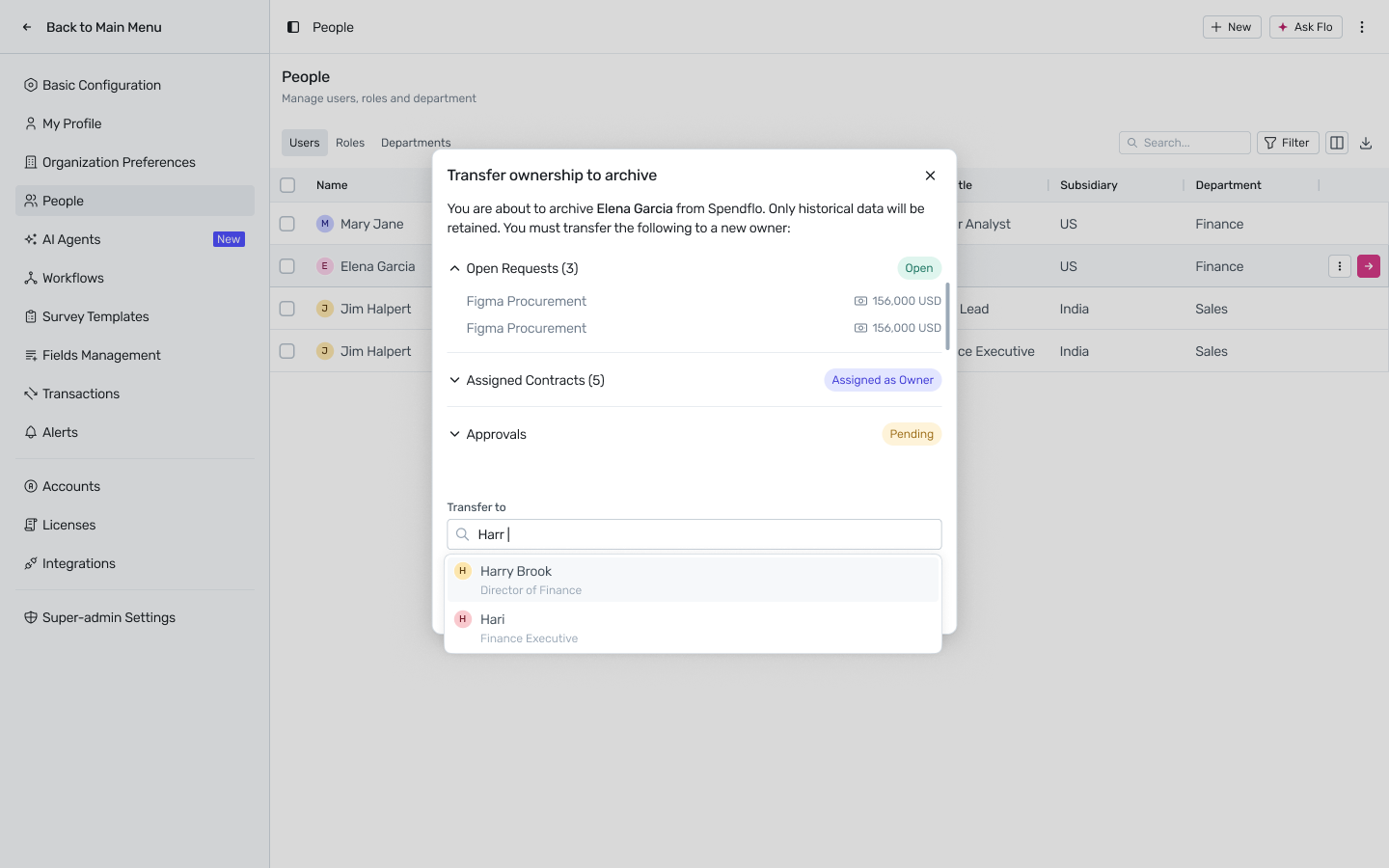
Archiving does not delete the user's records — requests, comments, approvals, and audit log entries are retained and the user's name is attributed wherever it appears (e.g. “[Name] (Deactivated)”).
Archiving users in bulk
For team-wide offboarding, select multiple users' checkboxes — the toolbar switches to N selected · Archive.
Click Archive. The Transfer ownership to archive modal opens: “You are about to archive N users from Spendflo. Only historical data will be retained. You can group them by available categories and assign a common owner to each group.”
Set Group selected users by — e.g. Department — to bucket the selected users.
For each group, choose a Transfer items to owner from the dropdown.
Click Transfer & Archive to confirm.
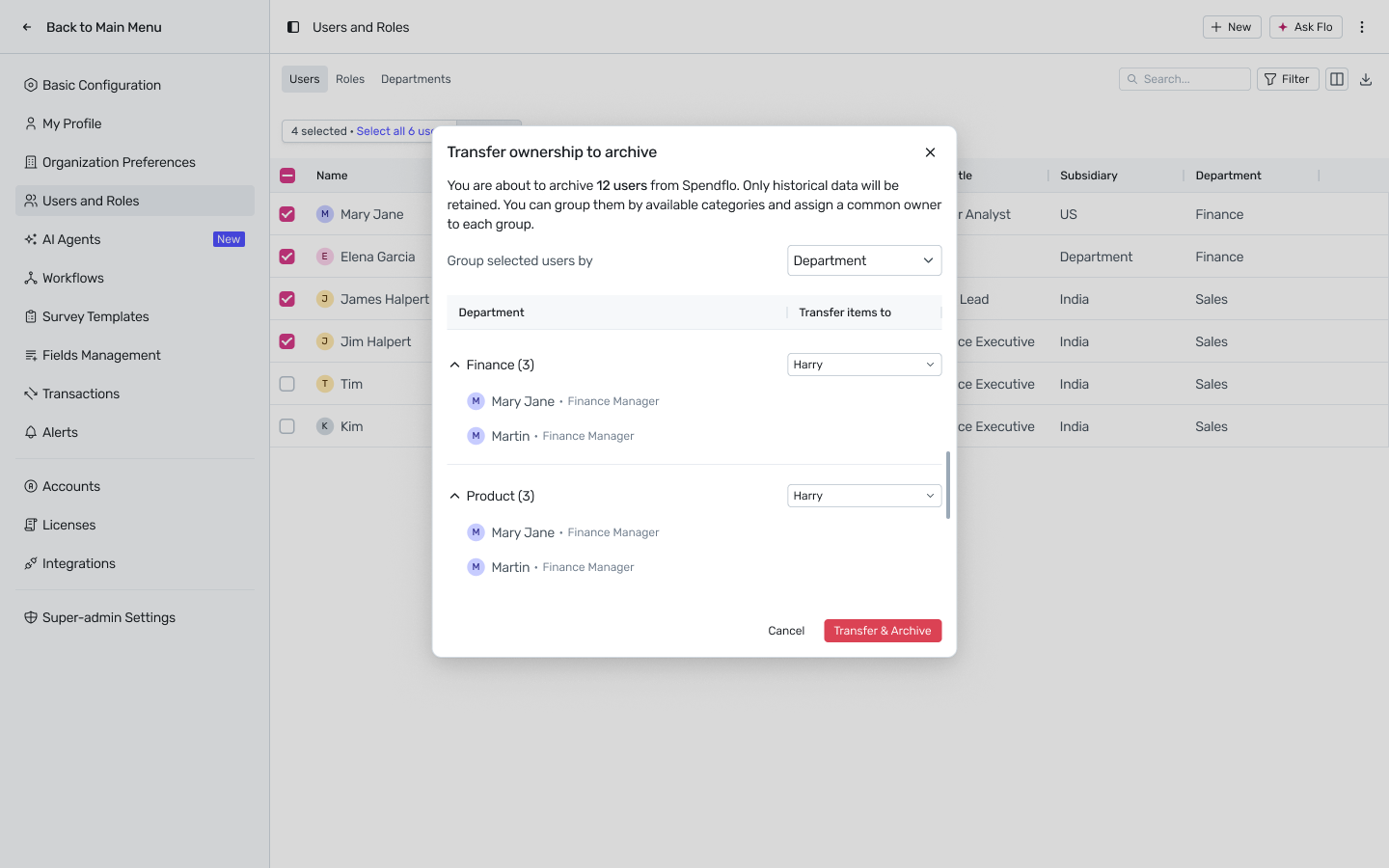
Spendflo blocks the entire bulk archive before the confirmation step if it would remove the last remaining Platform Admin from the org — remove Platform Admins from the selection first if you hit this.
HRMS / IdP–triggered offboarding
When a user is terminated in a connected HRMS or IdP, Spendflo does not archive them immediately. Instead it transitions them to Paused and queues the archive for admin review, so ownership transfer is handled deliberately rather than automatically. Owned items stay assigned to the paused user, visible for reassignment, until an admin completes the single or bulk archive flow above and confirms.
Re-hiring a previously archived user
Inviting a new user with an email address linked to an archived record reactivates the existing record rather than creating a new one — Spendflo detects the match automatically (email uniqueness is enforced across active and inactive addresses) and prompts you to reactivate. See Email Updates for the full email-matching behavior. Access after re-hire is governed entirely by the role and scope assigned at re-invitation, not by what the user had before.
FAQs
Q: What happens to a Platform Admin's items if they're archived?
Same as any user — ownership transfer is required first. If no eligible user is found, items fall back to another Platform Admin. Spendflo won't let you archive the last remaining Platform Admin.
Q: Is archiving reversible?
An archived user's data is retained, and re-hiring reactivates their existing record rather than starting fresh — but access itself is governed by whatever role and scope is assigned at re-invitation, not restored automatically.
Q: Can I archive a user with open owned items and skip the transfer?
No. Archiving is blocked until all owned items are reassigned or the Platform Admin fallback is confirmed.
Q: I selected a mix of users, and one group has no eligible transfer target. What happens?
That group's items fall back to a Platform Admin automatically; you'll see this before confirming.