Departments in SpendFlo
Last updated: September 10, 2026
Overview
Departments group people by organizational unit. They drive reporting, budget visibility, and — when a role's Data Access Scope includes Department & Subsidiary — what data a user can see. This is Spendflo's current model for organizing users by team; if you previously used Spendflo's Teams feature, Departments is its successor.
Admin Only.
Creating a department
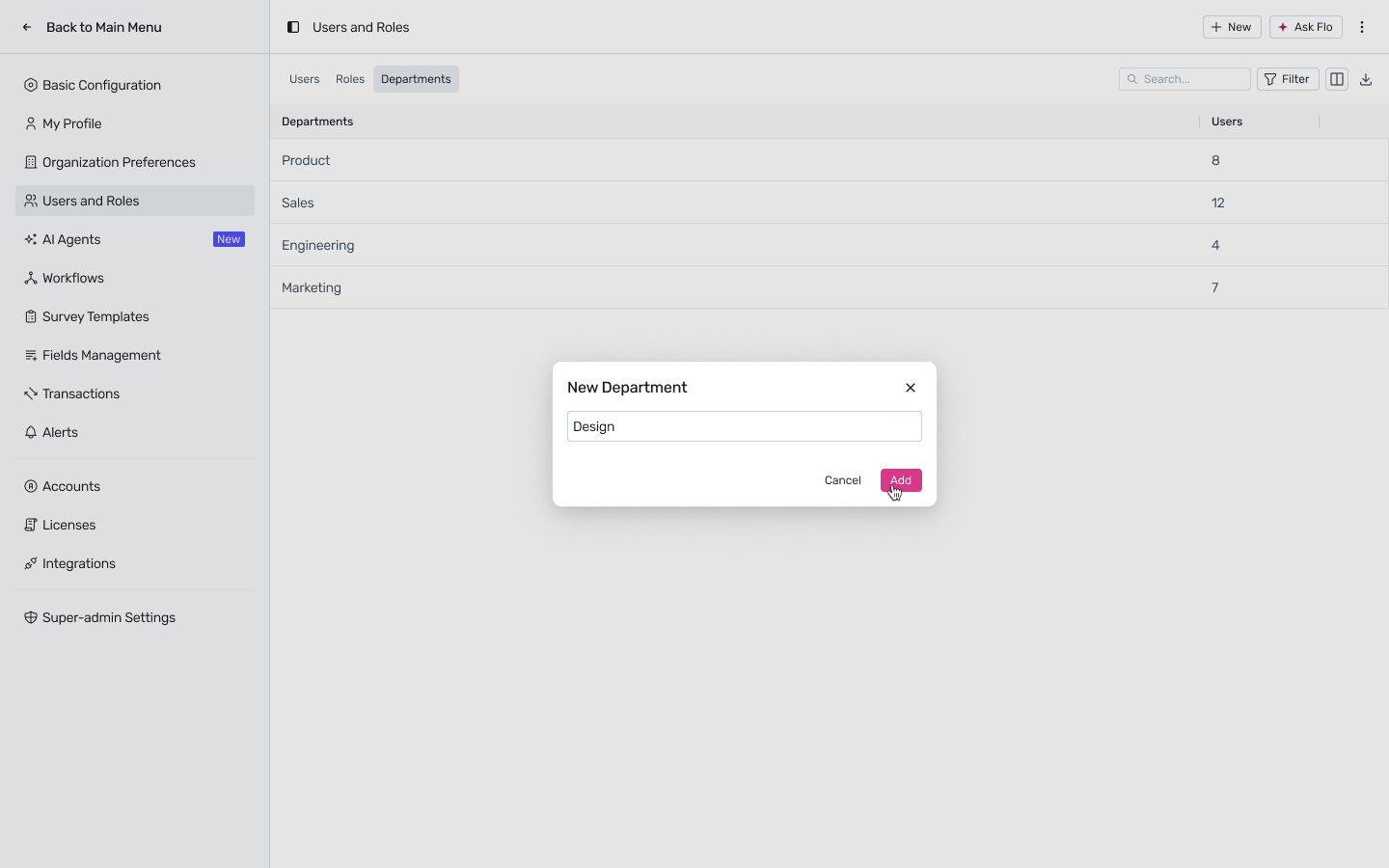
Go to Settings → Users and Roles → Departments tab.
Click + New, then choose Department from the dropdown.
Enter a name (e.g. “Design”) and click Add.
The department appears immediately in the Departments list with a user count.

Assigning users to a department
Set a user's Department from their profile — either at invite time (Org & Job Details → Department, mandatory) or later via Edit. Each user belongs to exactly one department at a time.
Click any department in the list to open a side panel showing every user currently assigned to it, along with their status.

How Departments affect data visibility
A role's Data Access Scope can be set to Department & Subsidiary, which restricts what a user with that scope can see to records matching both their assigned department and their selected subsidiaries. See Roles in Spendflo: Who Can Do What for the full scope model.
If you have an HRMS integration active, ask your admin whether departments are kept in sync automatically from your HRMS — this depends on your integration configuration.