Roles and Scope in Spendflo: Who Can Do What
Last updated: September 10, 2026
Overview
Roles and permissions control who can see what and who can act on it in Spendflo. The model is built around two connected ideas:
Roles — define who a user is (Administrator, CFO, Finance Manager, Procurement Executive, etc.). Every user has exactly one role. Roles are mutually exclusive.
Data Access Scope — defines which records a user's role-given access applies to (Own, Department & Subsidiary, or All).
Roles answer “what kind of user is this, and which modules can they touch?” Scope answers “and which records, specifically?” The two combine to form effective access.
Who is this for?
End users — to understand what your role means and why you can or can’t see certain modules.
Admins — to configure roles, build custom roles, assign data scopes, and manage the full user lifecycle (invite → active → paused / locked / archived).
Security / Compliance — to audit who has access to what and design least-privilege configurations.
Sections marked Admin Only describe configuration surfaces that only Administrators (and Super Administrators) can access.
Key Concepts & Terminology
Role — a named bundle of module-level permissions and a default data access scope. Every user has exactly one role.
Pre-defined Role — a role shipped by Spendflo, shown with a Read-only badge. Cannot be edited or deleted. Thirteen pre-defined roles cover the common archetypes (full list below).
Custom Role — a role your admin creates to match a function the pre-defined roles don’t cover, shown with a Custom badge. Customizable name, description, per-module access level, and default data scope.
Module — a functional area of the platform (Requests, Vendors, Renewals, Invoices, Reports, Settings, etc.). Roles are configured one access level per module.
Access Level — the access a role has to a given module. Three levels: No Access, View (read-only), Manage (read + write, including approve/reject/complete actions and, on some modules, delete).
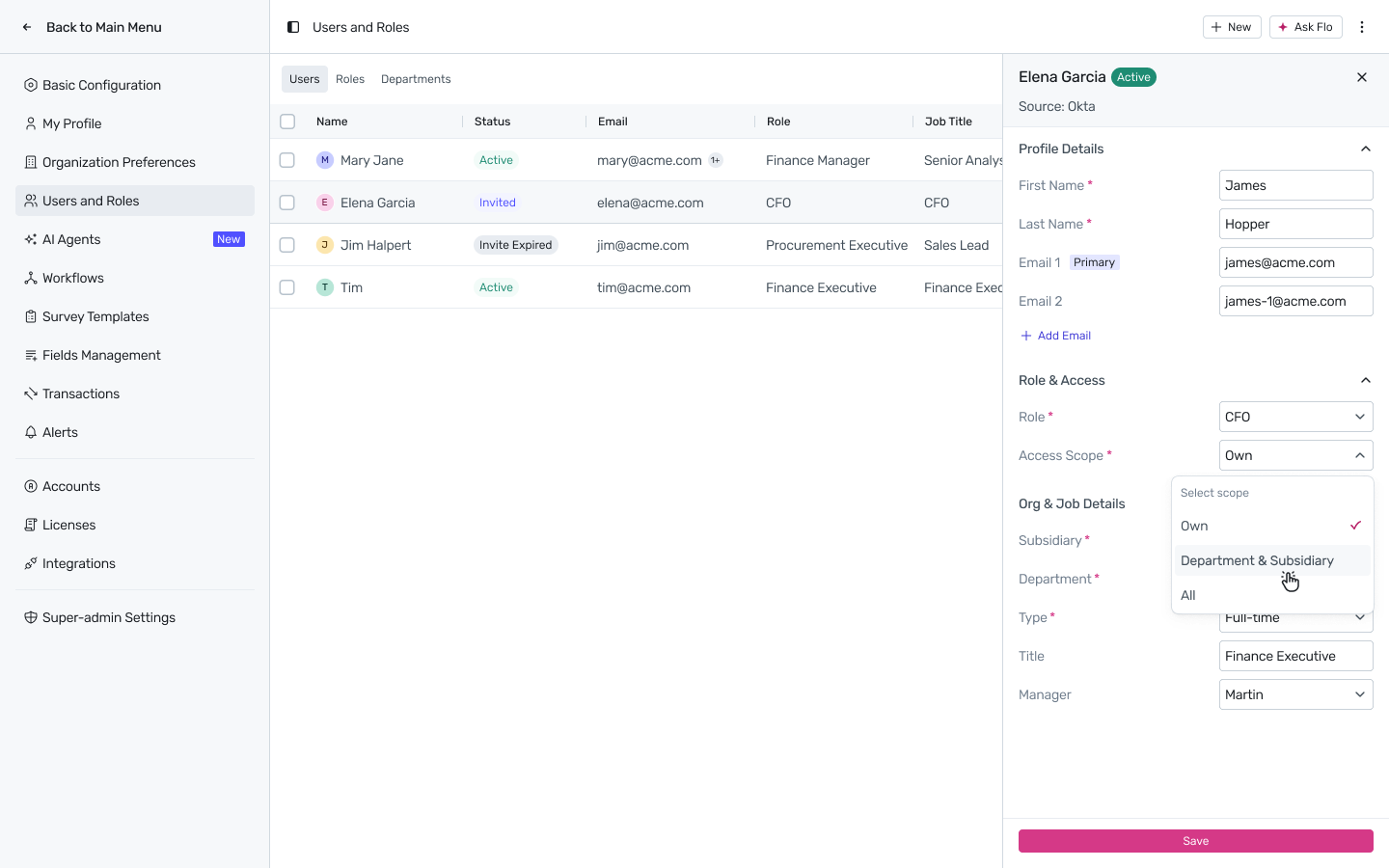
Data Access Scope — the slice of records a role’s module access applies to. Three levels:
Own — only records the user created or is explicitly assigned to.
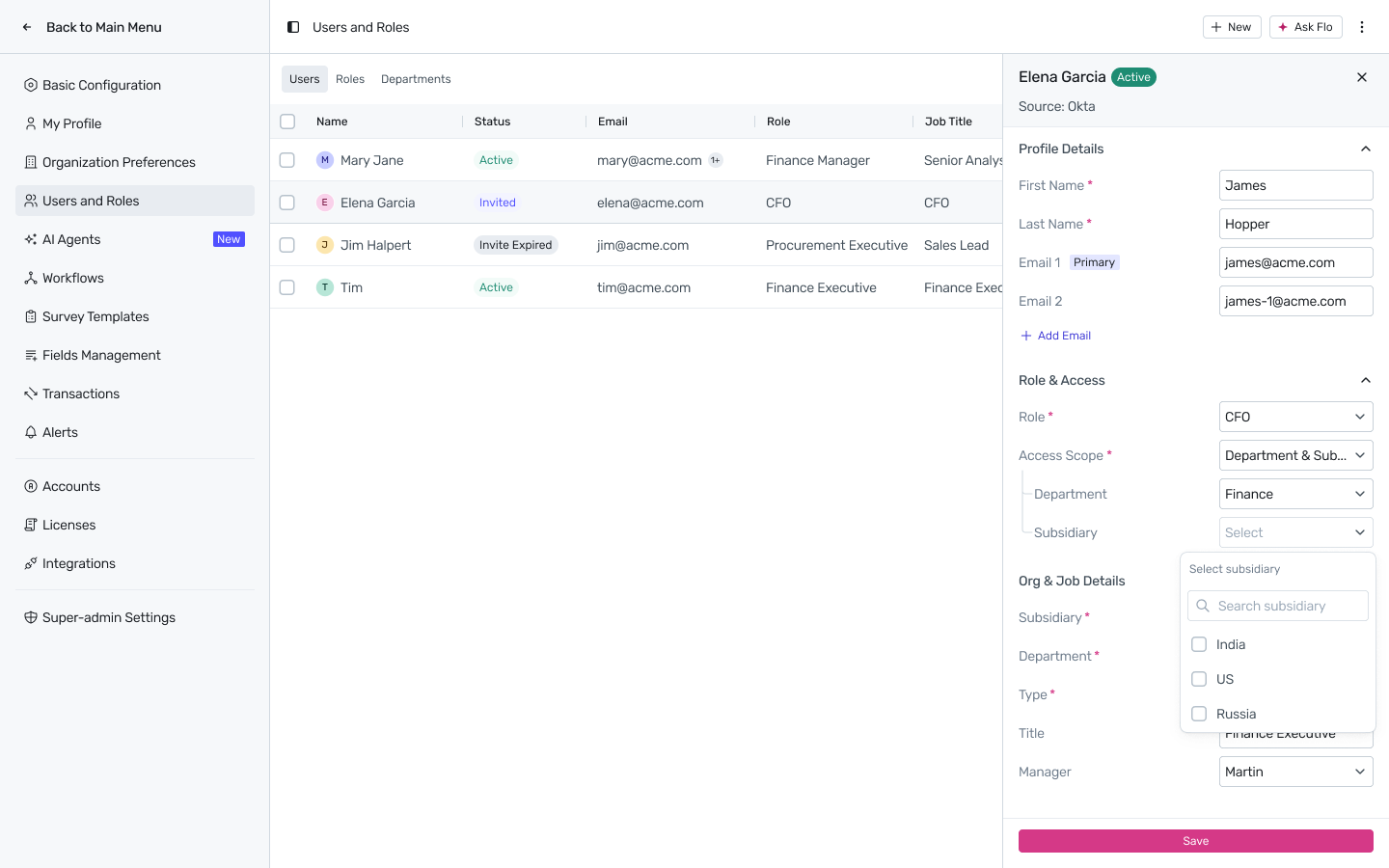
Department & Subsidiary — records scoped to the user’s assigned department and to one or more selected subsidiaries.
All — every record in the org, regardless of department or subsidiary.
Department — the organizational unit a user belongs to. Drives data scoping when a role’s scope includes Department.
Subsidiary — a legal entity within your organization. Drives data scoping when a role’s scope includes Subsidiary.
User Lifecycle States — Invited, Invite Expired, Active, Paused, Locked, Archived. See the User Lifecycle section below.
1. The 13 Pre-defined Roles
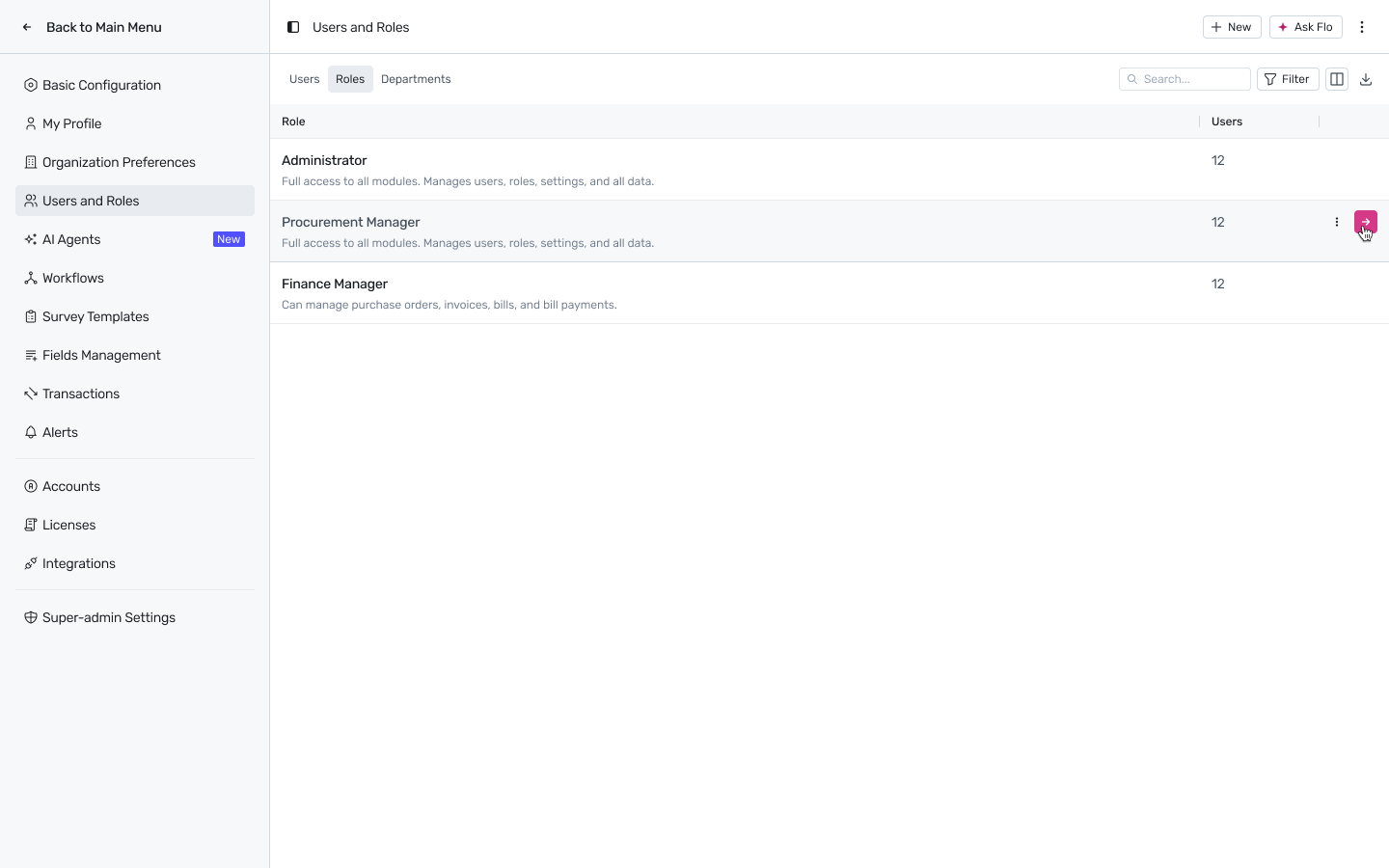
Spendflo ships with thirteen pre-defined roles covering the most common procurement, finance, IT, security, and admin archetypes. Pre-defined roles cannot be edited or deleted — they show a Read-only badge under Settings → Users and Roles → Roles.
Role | What it's built for |
|---|---|
Super Administrator | Platform-level admin. Exclusive access to Super Admin Settings. Cannot use operational modules. Reserved for Spendflo platform management. |
Administrator | The standard admin role. Full access to every module — users, roles, settings, requests, vendors, agreements, the full P2P flow, reports. |
CFO | Org-wide visibility. Read access to spend, contracts, renewals, requests, purchase orders, invoices, bills, bill payments. No user management or settings access. |
Finance Manager | Owner of payables. Manages purchase orders, invoices, bills, and bill payments. Views spend and agreements across the org. |
Finance Executive | Read-only on spend, requests, contracts, purchase orders, invoices, bills, and bill payments. |
Procurement Manager | Owner of procurement. Manages vendors' agreements, requests, renewals, assessments, workflows, and purchase orders. |
Procurement Executive | Initiates and tracks procurement work. Manages requests and purchase orders; views contracts and renewals. |
Spend Owner | Owns specific vendor or spend categories. Manages renewals and approves related requests within their scope. |
Legal | View-only on contracts. Views vendors and assessments. No write access outside comments. |
IT Administrator | IT-side admin. Manages integrations, applications, agreements, workflows, custom agents, and user provisioning. |
IT Manager | Manages IT-owned applications and views related spend, requests, and agreements. |
InfoSec | Read-only on vendor security assessments and compliance data. |
Department Owner | Owns their department’s spend, applications, and requests. Scoped automatically to their department. |
Universal access: regardless of role, every user can access Notifications, Flo AI, the Home page, and the Help Center. Super Admin–only: only Super Administrator and Administrator can access Super Admin Settings.
2. The Permission Matrix
Each role is configured with one access level — No Access, View, or Manage — per module. The table below shows the default configuration for each pre-defined role. Custom roles can be set to any combination.
Legend: – No Access · V View · M Manage
Module | Super Admin | Admin | CFO | Fin Mgr | Fin Exec | Pro Mgr | Pro Exec | Spend Owner | Legal | IT Admin | IT Mgr | InfoSec | Dept Owner |
|---|---|---|---|---|---|---|---|---|---|---|---|---|---|
Requests | – | M | V | – | V | M | M | M | V | M | M | – | M |
Vendors | – | V | V | – | V | V | V | V | V | V | V | V | V |
Agreements | – | M | V | M | V | M | V | V | V | M | V | – | V |
Renewals | – | M | V | – | V | M | V | M | V | M | M | – | V |
Assessments | – | M | V | – | – | M | V | V | V | M | V | V | V |
Purchase Orders | – | M | V | M | V | M | M | V | V | V | V | – | V |
Invoices | – | M | V | M | V | V | V | V | – | – | – | – | – |
Bills | – | M | V | M | V | – | – | – | – | – | – | – | – |
Bill Payments | – | M | V | M | V | – | – | – | – | – | – | – | – |
Licenses | – | V | V | V | V | V | V | V | V | V | V | V | V |
Pricing Intelligence | – | V | V | – | V | V | V | V | – | V | V | – | V |
Reports | – | V | V | V | V | V | V | V | – | V | V | – | V |
Settings | – | M | – | – | – | V | – | – | – | V | V | – | – |
User Settings | – | M | – | – | – | – | – | – | – | M | – | – | – |
Super Admin Settings | M | M | – | – | – | – | – | – | – | – | – | – | – |
Workflows | – | M | V | V | V | M | V | V | V | M | V | – | V |
Custom Agents | – | M | V | V | – | V | – | – | – | M | V | – | – |
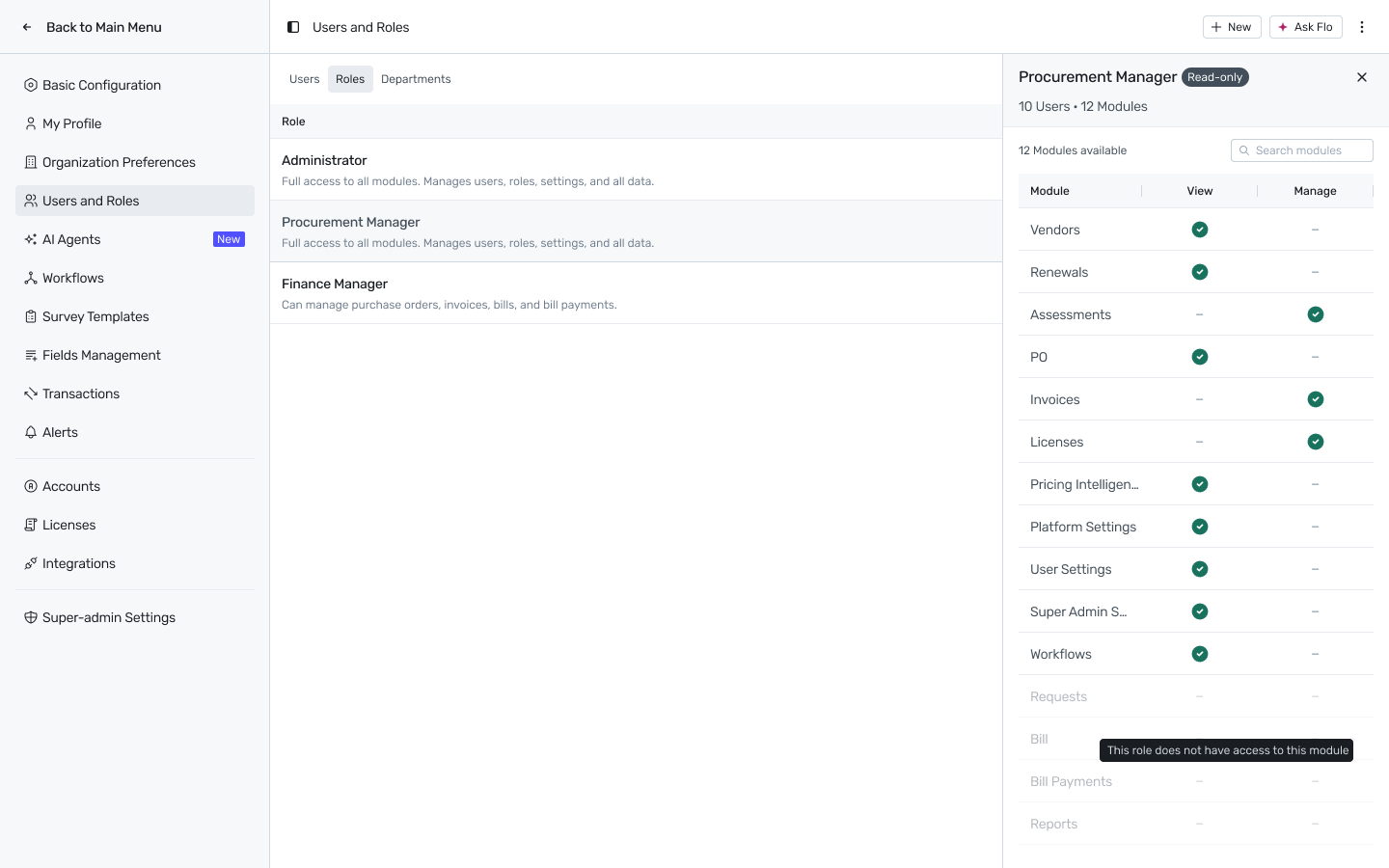
Universal permissions (Notifications, Flo AI, Home, Help Center) apply to every role regardless of the matrix above.
3. Data Access Scope
Access level answers what a user can do; scope answers which records they can do it on. The two combine to form effective access.
Scope | What the user sees |
|---|---|
Own | Only records they created or are explicitly assigned to (e.g. requests they raised, vendors they own) |
Department & Subsidiary | Records that match the user’s assigned department and one or more selected subsidiaries |
All | All records across the entire organization |
Setting scope on a user: on the user’s Role & Access panel, choosing Department & Subsidiary reveals two sub-fields — a Department picker and a Subsidiary multi-select — both of which narrow the records the user can see together, not independently.
Role / setup | Access Level | Scope | Net effect |
|---|---|---|---|
Procurement Executive | Manage Requests | Own | Can create and edit only their own requests |
Finance Manager | View Bills | Department & Subsidiary | Can see Bills tied to their department and selected subsidiaries; cannot edit |
Spend Owner | Manage Requests | Department & Subsidiary | Can approve and close requests within their department/subsidiary |
CFO | View spend modules | All | Read-only across the entire org |
Administrator | Manage everything | All | Full edit access across everything |
Note: the Users table’s Access Scope filter lists Own / Department / Subsidiary / All as four separate checkable options for querying — that’s a filter convenience, not a fourth way to configure scope. Scope is always set on a user or role as one of the three levels above.
4. Custom Roles (Admin Only)
What is it? A role you create to match a function the pre-defined roles don’t cover. Same access-level model as pre-defined roles — you pick No Access / View / Manage per module and a default data scope.
Where to find it: Settings → Users and Roles → Roles tab → + New → Role.
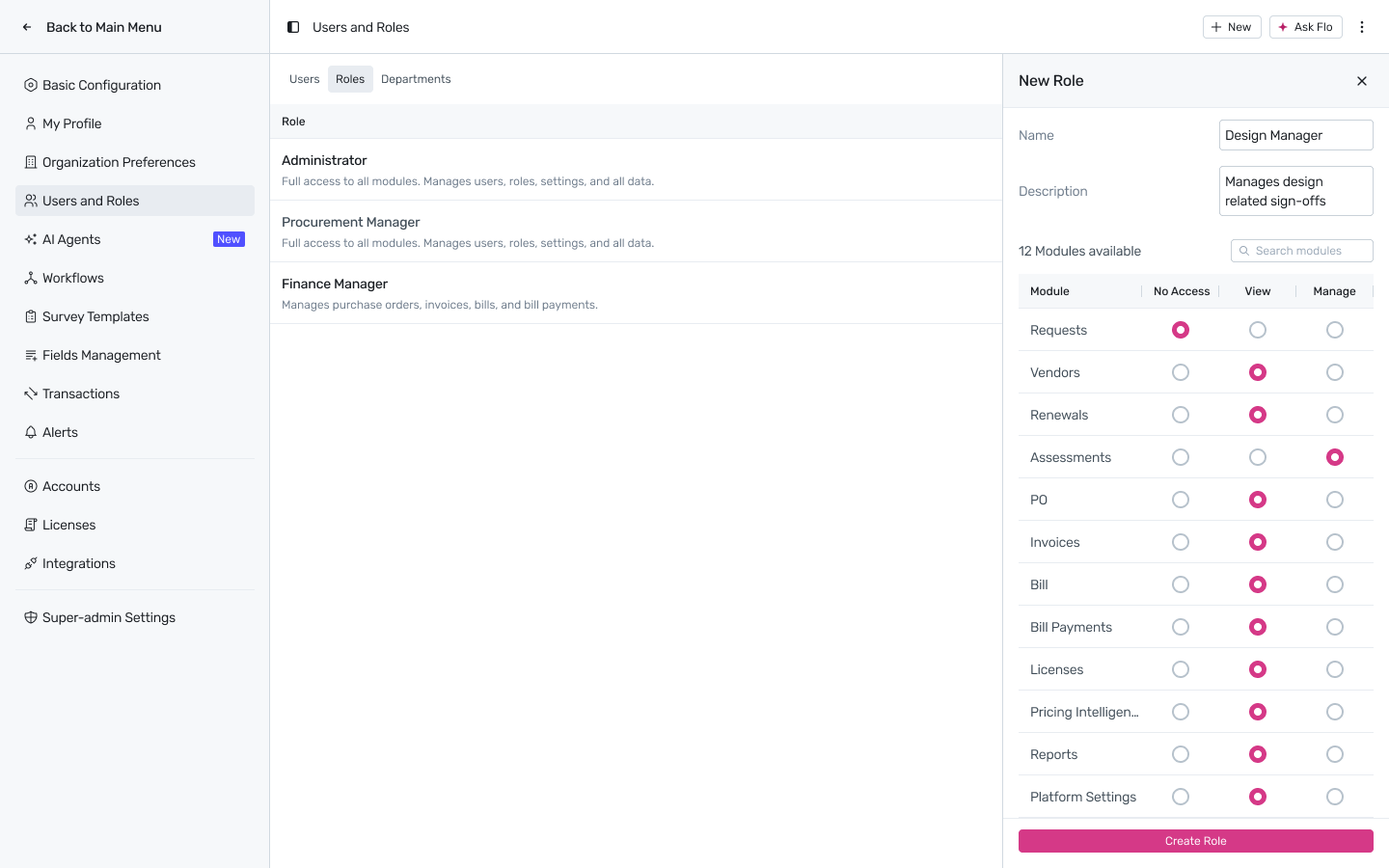
Creating a custom role:
Settings → Users and Roles → Roles → + New → Role.
Enter a Name and Description for the role.
For each of the available modules, set the access level: No Access, View, or Manage. Default is No Access.
Click Create Role. The role is immediately available for assignment and appears in the Roles list with a Custom badge.
While typing a role name into the Role field on a user’s profile, if no existing role matches you’ll see a + New Role shortcut to create one inline.
Viewing who has a role: click any role in the Roles list to open a side panel listing every user currently assigned to it, with their status.

Editing a custom role: open the role and change any field. Changes apply immediately to every user currently assigned to it.
Deleting a custom role: a custom role can only be deleted when no active users are assigned to it. If active users exist, deletion is blocked and you’re prompted to reassign them to another role first. Once all users are reassigned, the confirmation reads: “This role has no active users. Deleting it is permanent and cannot be undone. Do you want to proceed?”
5. Departments & Subsidiaries (Admin Only)
See Departments for the full department creation and management flow. In brief:
Departments | Subsidiaries | |
|---|---|---|
Where | Settings → Users and Roles → Departments tab | Organization Preferences |
Creation | Name only — add via + New → Department | Synced automatically from your connected GL (e.g. NetSuite, QuickBooks) where integrated; can be created manually otherwise |
User assignment | One department per user | One or more subsidiaries per user |
Access impact | Scopes Department & Subsidiary–level access to the user’s department | Scopes Department & Subsidiary–level access to the user’s selected subsidiaries |
6. The User Lifecycle (Admin Only)
See Managing Users for the full invite, edit, pause, lock, and archive flows. The lifecycle states are:
State | Description |
|---|---|
Invited | Invite sent, not yet accepted. No platform access. |
Invite Expired | Invite wasn’t accepted within the configured expiry window. Link is invalid. |
Active | Accepted the invite. Full access per role and scope. |
Paused | Login temporarily suspended by an admin. Profile, role, and data settings are fully preserved. |
Locked | Login blocked for security reasons. Requires manual unlock by an admin. |
Archived | Removed from the platform. Access revoked. Historical data retained and attributed to the user’s name. |
HRMS/IdP-triggered termination transitions a user to Paused, not directly to Archived — admins must complete ownership reassignment and confirm the archive manually. See Managing Users for the full HRMS/IdP offboarding flow.
When archiving a user or a group of users, Spendflo requires at least one Platform Admin (an Administrator or Super Administrator) to remain in the org at all times — a bulk archive that would remove every remaining Platform Admin is blocked before the confirmation step.
FAQs
Q: What’s the difference between an Access Level and a Data Access Scope?
Access Level (No Access / View / Manage) is set per module and controls what a role can do. Data Access Scope (Own / Department & Subsidiary / All) controls which records that access applies to. Both are set per role (or overridden per user) and combine to form effective access.
Q: Can a Finance Manager see all bills across the company?
Depends on their data scope. With All scope, yes. With Department & Subsidiary scope, they only see bills tied to their assigned department and subsidiaries.
Q: A user changed departments. Do I need to re-issue their permissions?
No. The role stays the same — just update the Department field on the user. If their scope includes Department & Subsidiary, their visible data shifts automatically.
Q: How do I figure out why a user can’t access something they should?
Two-step check: (1) does their Role grant the module the right access level? (2) is their Data Access Scope narrow enough to exclude the specific record?
Q: My organization’s structure doesn’t match the pre-defined roles.
Build a custom role. Keep the custom-role count manageable — admins should be able to explain every role they create.
Related Docs
Managing Users — invite, edit, pause, lock, archive, and filters
User Identity & Email Management — multi-email management and email domain migration
Departments — department and subsidiary setup
Your First Login: Account Setup and Navigation — the user-facing onboarding doc