Email Updates
Last updated: September 10, 2026
Overview
This article covers every way to update a user's email in Spendflo — managing individual addresses on a profile, updating many users at once via CSV, and migrating an entire organization from one email domain to another. For the rest of the identity model (re-hire detection), see User Identity & Email Management. For inviting, editing, and archiving users, see Managing Users.
Admin Only.
Updating a single user's email
Open a user's Edit panel, under Profile Details, to change their email address.
Each user has exactly one email address today. Support for multiple addresses per user — adding a second email, marking one as primary, and deactivating individual addresses — is planned for a future release; for now, updating a user's email replaces their existing address.
An email address must be unique across the entire system — whether it currently belongs to an active or an archived user.
Updating emails in bulk via CSV
For large-scale email changes affecting existing users — a rebrand, a batch of role changes, offboarding cleanup — upload a CSV to update email addresses in bulk. This replaces the existing email on each matched user — it is not a way to create new user accounts; every row must match an existing user by Spendflo ID.
CSV format: spendflo_id, email — the email address replaces the user's existing one.
Settings → Users and Roles → + New → Bulk Upload.
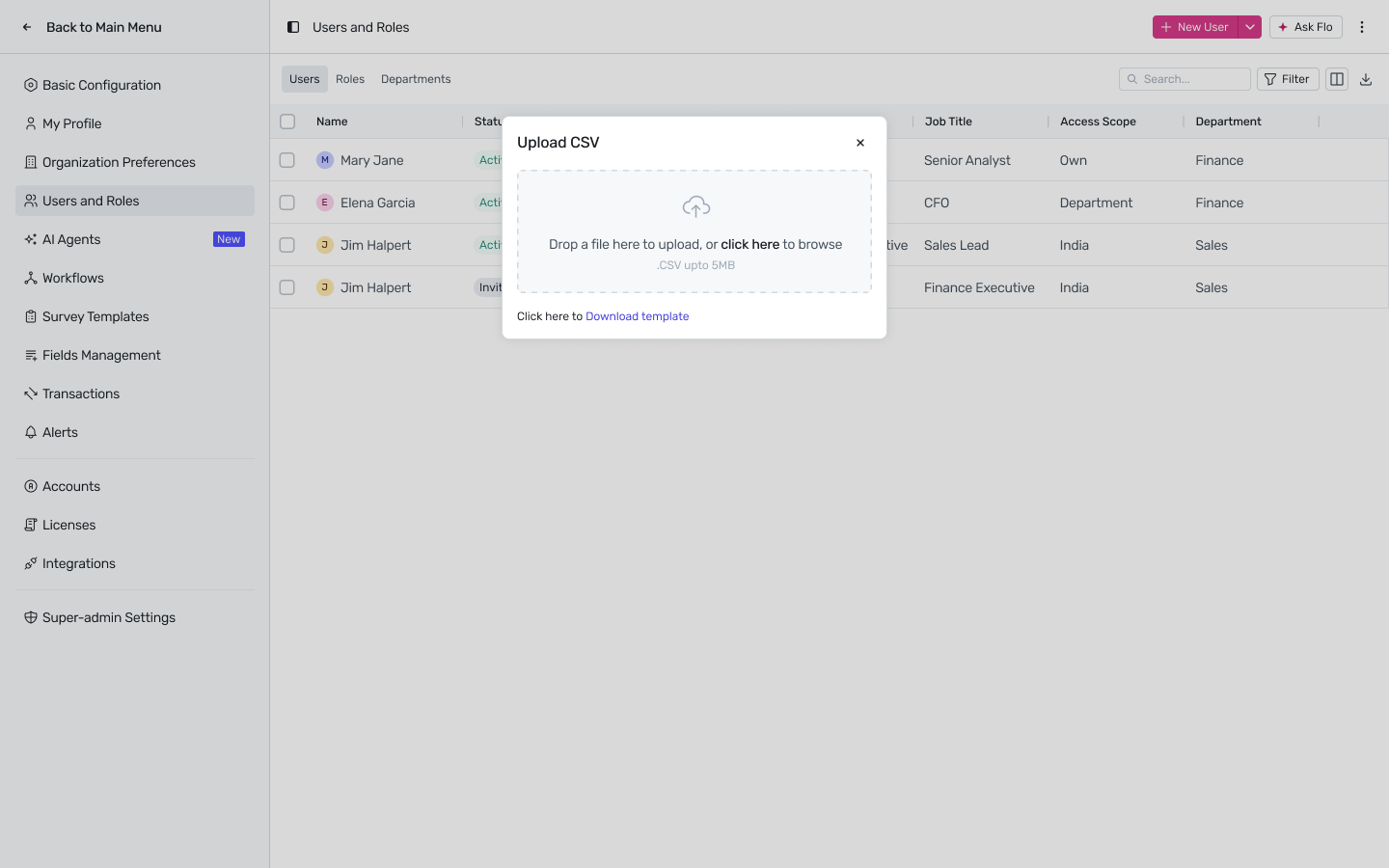
Drop or browse for a CSV (up to 5MB). Use Download template for the exact column format.
Spendflo validates every row and shows an Upload Summary — total rows found and how many passed, with a per-row Spendflo ID, Email, and Pass/Fail status.
Review, then click Import N rows to commit.
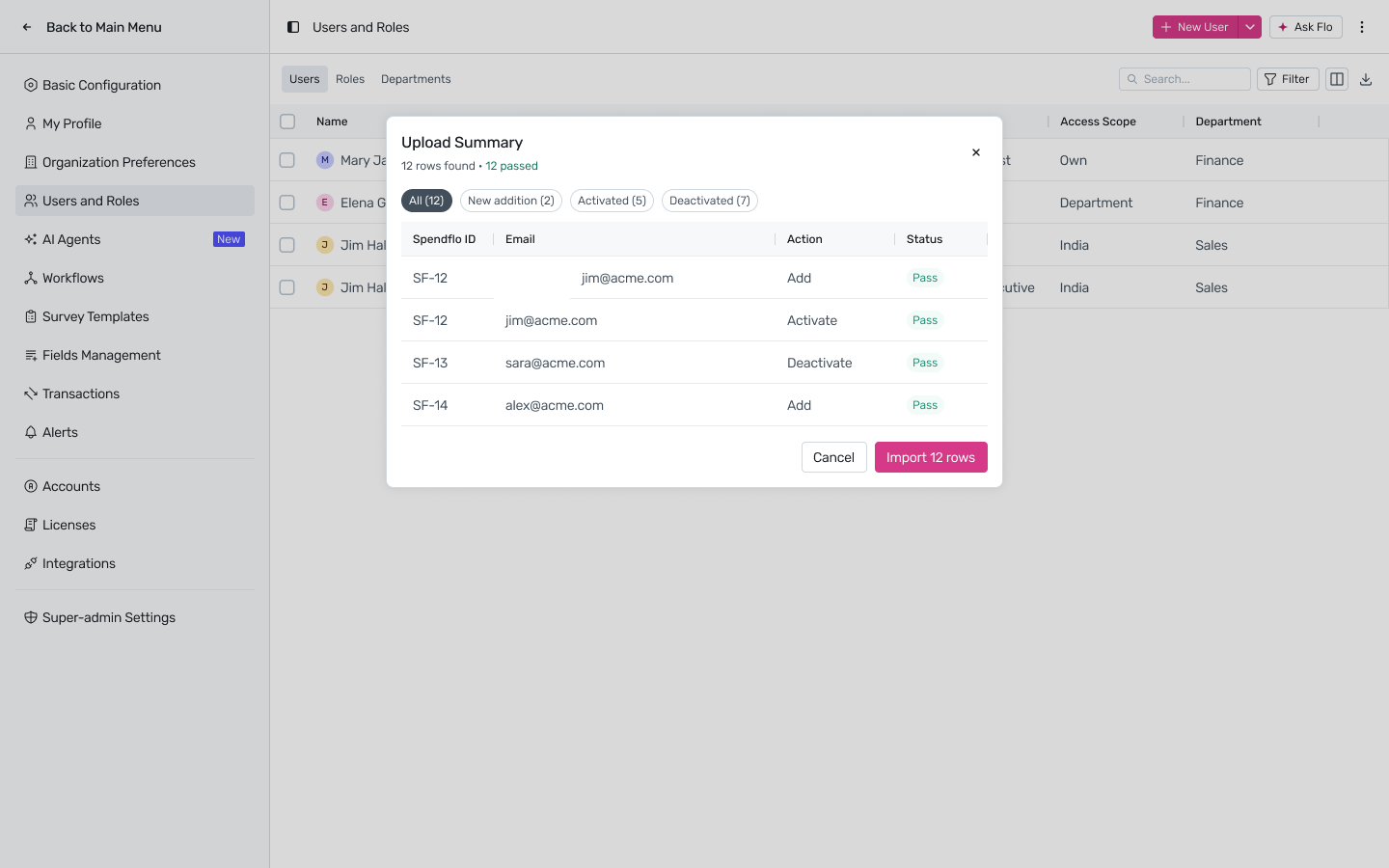
Row-level failure conditions: spendflo_id not found; the new email already exists elsewhere in the system. Failed rows don't block the rest of the file — fix and re-upload just the failures.
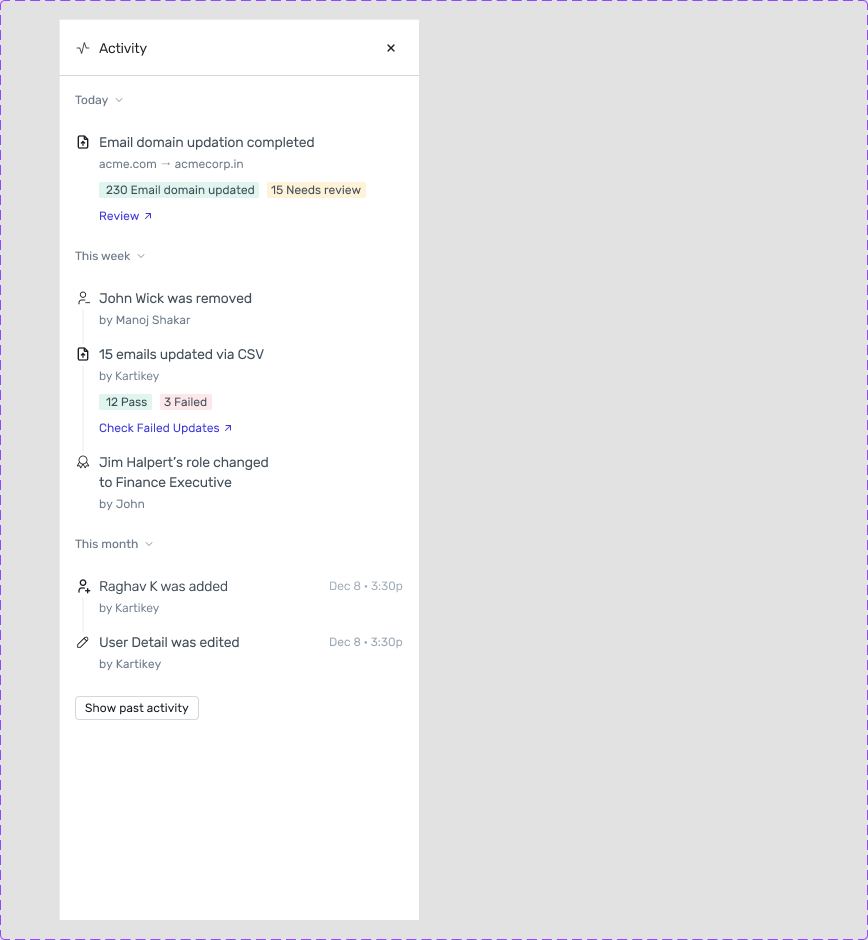
The Users page Activity panel logs each run, e.g. “15 emails updated via CSV — 12 Pass, 3 Failed” with a Check Failed Updates link.
Migrating an entire email domain
When a company rebrands or changes its email domain (e.g. after an acquisition), use Update Email Domain to move every matching user over in one action, rather than editing users one at a time.
From Settings → Users and Roles, open Update Email Domain.
Select the Current domain and enter the New domain. Spendflo shows how many users will be affected, e.g. “245 users will be transferred to the new domain.”
Click Start migration. Copy: “Email domains update automatically for matching users. Others appear in a reconciliation list for you to review and merge manually. The change can be reversed at any time.”
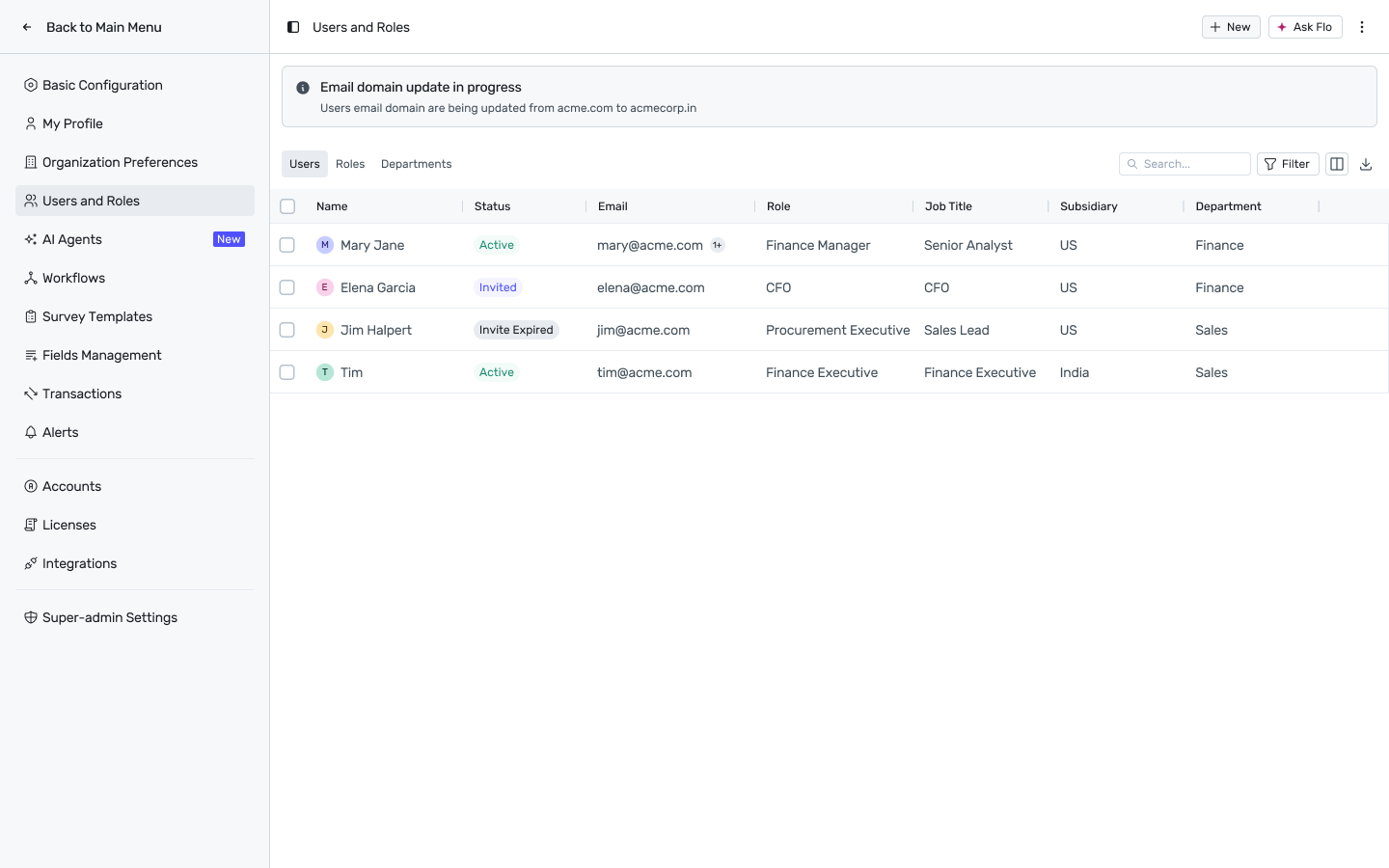
While running, a banner reads “Email domain update in progress”. When it finishes, you'll see one of two outcomes:
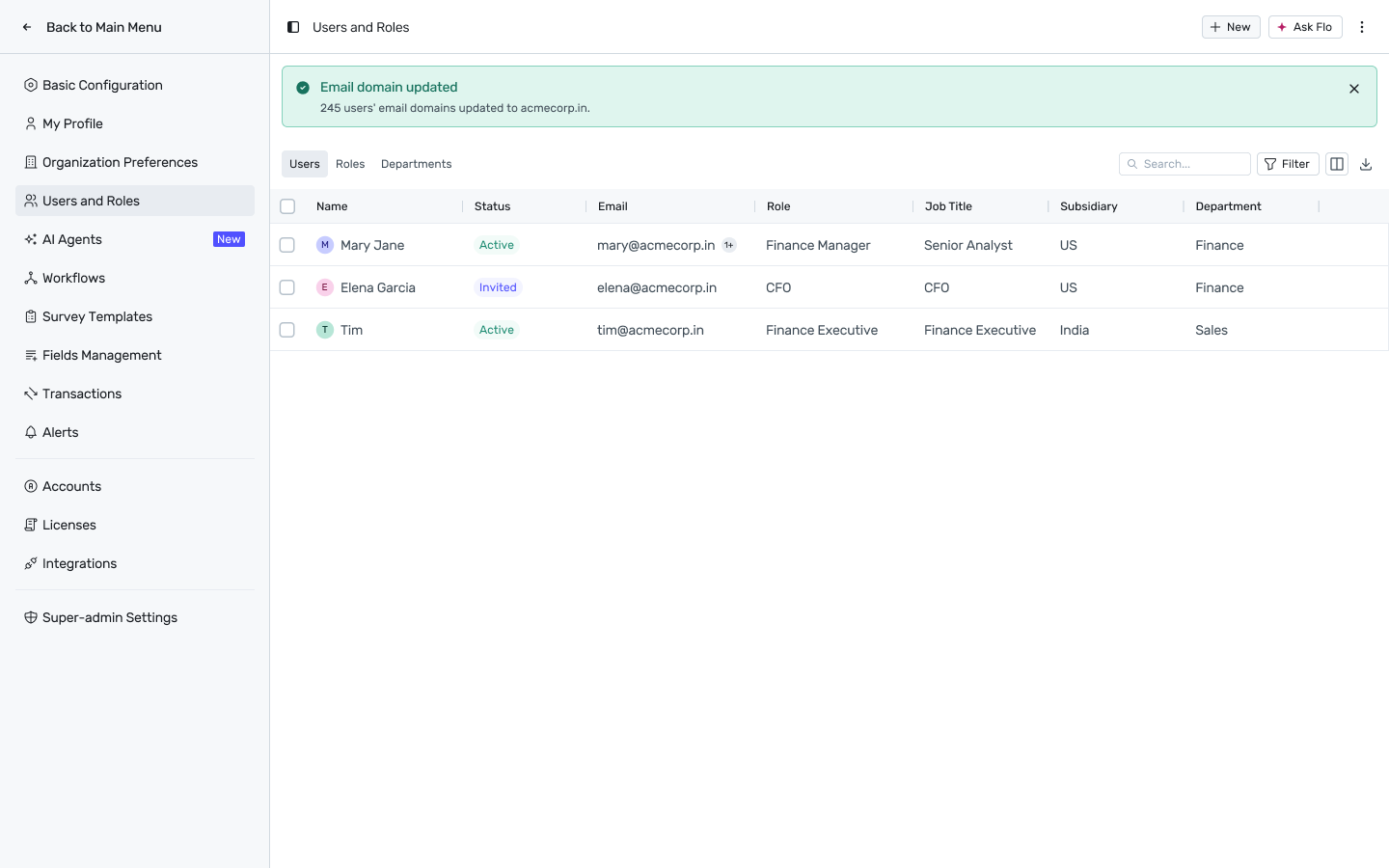
Full success — a green banner: “Email domain updated — N users' email domains updated to [new domain].”
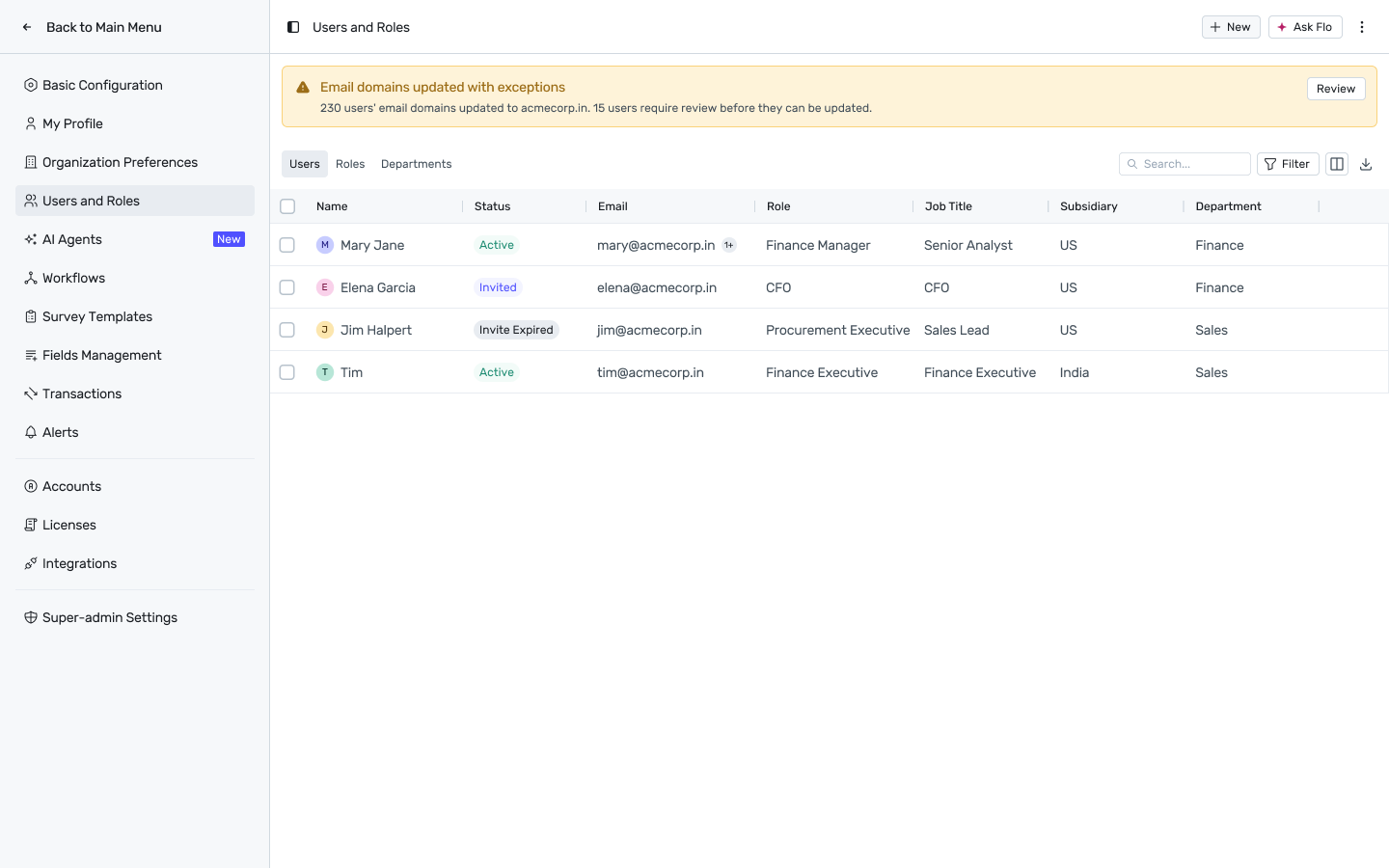
Partial success — an amber banner: “Email domains updated with exceptions — N users' email domains updated to [new domain]. M users require review before they can be updated.” with a Review button.
Reviewing unmatched users
Review opens Review email matches: a table of every user Spendflo couldn't match automatically, with columns User, Status, Current email, and Matched to. Filter between All and Potential matches.
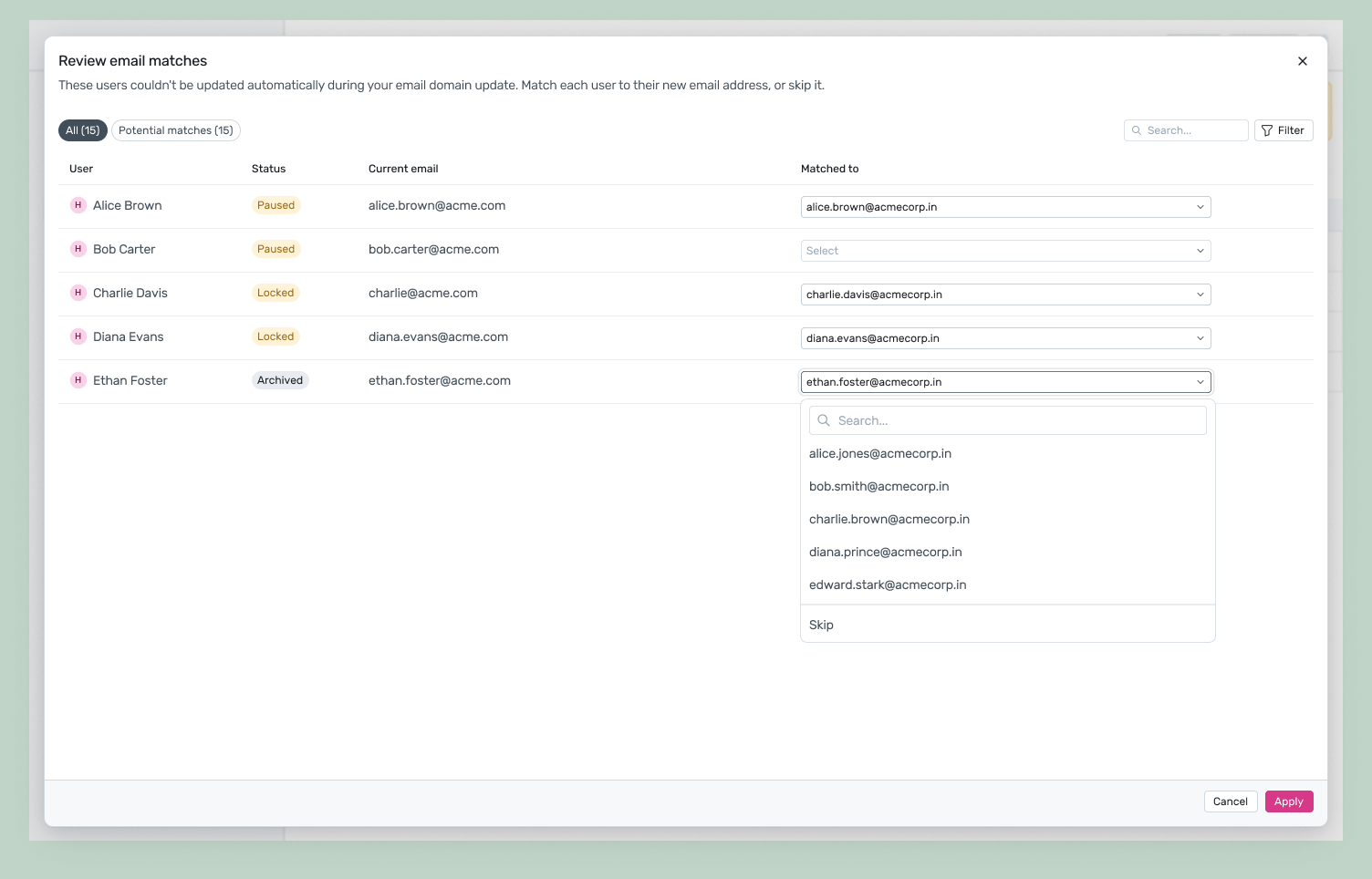
Where Spendflo has a likely guess, the Matched to dropdown is pre-filled — review and accept, or change it.
Where there's no guess, the field shows Select; open it to search candidate new-domain addresses, or choose Skip to leave that user unresolved for now.
Click Apply to commit your matches. Skipped users remain in the reconciliation list.
Optionally enable “Continue checking unmatched users in future HRMS/IdP syncs” — while active, Spendflo keeps re-checking skipped users against every subsequent sync and notifies you if a match turns up, instead of requiring you to re-run the migration manually.
Once every user on the old domain has been migrated or explicitly resolved, the new domain becomes the domain Spendflo expects going forward — it governs subsequent HRMS/IdP syncs and manual invites the same way the old domain did before the migration.
FAQs
Q: Can I undo an email domain migration?
Yes — the change can be reversed at any time per the migration dialog's copy.
Q: A CSV row failed — do I need to redo the whole file?
No. Failed rows are reported individually with a reason; fix just those rows and re-upload.
Q: Can I use the Bulk Upload CSV to invite new users?
No — bulk upload only updates emails on existing users (matched by Spendflo ID). New users are invited one at a time; see Managing Users.